Loading...
Searching...
No Matches
Image Directory Reference
Directory dependency graph for Image:
Files | |
| Image.h | |
| ImageAttribute.h | |
| ImageEncoder.h | |
| ImageException.h | |
| ImageExecutor.h | |
| ImageMask.h | |
| ImageShape.h | |
| ImageType.h | |
Detailed Description
Contains image operations.
Overview
Contains image operations. Supported formats are
- BMP - Raster graphics image file format developed by Microsoft. [18]
- PNG - PNG supports palette-based images (with palettes of 24-bit RGB or 32-bit RGBA colors), grayscale images (with or without an alpha channel for transparency), and full-color non-palette-based RGB or RGBA images. [14]
- WSQ - WSQ (Wavelet Scalar Quantization), also known as FBI Print Format, is a raster image file format used for storing images of prints. It uses lossy wavelet compression, and supports only grayscale images.
- IRAW - The format is IRAW (4 bytes), width (4 bytes, big endian unsigned int), height (4 bytes, big endian unsigned int), dpi (4 bytes, big endian unsigned int), type (4 bytes, big endian unsigned int), data.
- JPG - JPEG is a commonly used method of lossy compression for digital images, particularly for those images produced by digital photography. The degree of compression can be adjusted, allowing a selectable tradeoff between storage size and image quality. [12]
- TIFF - TIF is an image file format for storing raster graphics images, popular among graphic artists, the publishing industry, and photographers. [15]
- JPG2000 - JPEG 2000 (JP2) is an image compression standard and coding system. It was developed from 1997 to 2000 by a Joint Photographic Experts Group committee with the intention of superseding their original JPEG standard (created in 1992) [13]
- WEBP - It is intended as a replacement for JPEG, PNG, and GIF file formats. It supports both lossy and lossless compression as well as animation and alpha transparency. [16]
The rest library functionality uses Image class as abstraction of supported image formats. The library extension points are
- ImageShape - implement to draw any user shape via ImageShapeDrawer
- ImageMask - implement to mask image with your own mask
- ImageEncoder - implement to write/convert Image to user format
Reading image
Function Image::Decode is used to create Image object. It automatically detects image type. For supported types see ImageType. On error the function will throw exception, e.g. for not supported ImageType.
-
c++
-
java Image png = Image.Decode(BinaryFile.ReadAll("assets/color.png"));Image wsq = Image.Decode(BinaryFile.ReadAll("assets/color.wsq"));Image bmp = Image.Decode(BinaryFile.ReadAll("assets/color.bmp"));Image raw = Image.Decode(BinaryFile.ReadAll("assets/color.iraw"));Image jpg = Image.Decode(BinaryFile.ReadAll("assets/color.jpg"));Image jp2 = Image.Decode(BinaryFile.ReadAll("assets/color.jp2"));Image tiff = Image.Decode(BinaryFile.ReadAll("assets/color.tiff"));Image webp = Image.Decode(BinaryFile.ReadAll("assets/color.webp"));
-
csharp Image png = Image.Decode(BinaryFile.ReadAll("assets/color.png"));Image wsq = Image.Decode(BinaryFile.ReadAll("assets/color.wsq"));Image bmp = Image.Decode(BinaryFile.ReadAll("assets/color.bmp"));Image raw = Image.Decode(BinaryFile.ReadAll("assets/color.iraw"));Image jpg = Image.Decode(BinaryFile.ReadAll("assets/color.jpg"));Image jp2 = Image.Decode(BinaryFile.ReadAll("assets/color.jp2"));Image tiff = Image.Decode(BinaryFile.ReadAll("assets/color.tiff"));Image webp = Image.Decode(BinaryFile.ReadAll("assets/color.webp"));
Function Image::DecodeRawImage is used to create Image object from provided grayscale/BGR/BGRA data.
-
c++const RawImage grayscale = {3, 2, ImageDpi{ 500 }, RawImage::GRAYSCALE, { 0, 30, 40, 255, 15, 128 }};auto png = Image::DecodeRawImage(grayscale);
-
java RawImage grayscale = new RawImage(3, 2, new ImageDpi(500),RawImage.Type.GRAYSCALE,new Bytes(new byte[] { 0, 30, 40, -1, 15, -128 }));Image img = Image.DecodeRawImage(grayscale);
-
csharp RawImage grayscale =new RawImage(3, 2, new ImageDpi(500), RawImage.Type.GRAYSCALE,new Bytes(new byte[] { 0, 30, 40, 255, 15, 128 }));Image img = Image.DecodeRawImage(grayscale);
Writing/Converting image
Function Image::EncodeIn is used to convert image via ImageEncoder.
-
c++// Use encoder of original formatstd::ignore = png->EncodeIn(*png->OriginalEncoder());// convert to other format and save by BinaryFileBmpImageEncoder bmpEncoder;auto encoded = png->EncodeIn(bmpEncoder);BinaryFile::WriteAll("output/color_converted.bmp", encoded);// convert and save in ImageFileSaverImageFileSaver wsqFileSaver("output/color_converted.wsq");png->SaveIn(wsqFileSaver);// convert and save in file, with convenient functionpng->SaveAs("output/color_converted.iraw");png->SaveAs("output/color_converted.jpg");#ifndef __ANDROID__// Encoding to jp2 is not working on Android,// due to disabled support of filesystem in OpenCVpng->SaveAs("output/color_converted.jp2");#endifpng->SaveAs("output/color_converted.tiff");png->SaveAs("output/color_converted.webp");
-
java Image png = Image.Decode(BinaryFile.ReadAll("assets/color.png"));// Use encoder of original formatpng.EncodeIn(png.OriginalEncoder());// convert to other format and use BinaryFile to saveBmpImageEncoder bmpEncoder = new BmpImageEncoder();Bytes encoded = png.EncodeIn(bmpEncoder);BinaryFile.WriteAll("output/color_converted.bmp", encoded);// Use ImageFileSaver to convert and writeImageFileSaver wsqSaver = new ImageFileSaver("output/color_converted.wsq");png.SaveIn(wsqSaver);// convert and save in file, with convenient functionpng.SaveAs("output/color_converted.iraw");png.SaveAs("output/color_converted.jpg");if (!"The Android Project".equals(System.getProperty("java.specification.vendor"))) {// Encoding to jp2 is not working on Android,// due to disabled support of filesystem in OpenCVpng.SaveAs("output/color_converted.jp2");}png.SaveAs("output/color_converted.tiff");png.SaveAs("output/color_converted.webp");
-
csharp Image png = Image.Decode(BinaryFile.ReadAll("assets/color.png"));// Use encoder of original formatpng.EncodeIn(png.OriginalEncoder());// convert to other formats and use BinaryFile to writeBmpImageEncoder bmpEncoder = new BmpImageEncoder();Bytes encoded = png.EncodeIn(bmpEncoder);BinaryFile.WriteAll("output/color_converted.bmp", encoded);// Use ImageFileSaver to convert and writeImageFileSaver wsqSaver = new ImageFileSaver("output/color_converted.wsq");png.SaveIn(wsqSaver);// convert and save in file, with convenient functionpng.SaveAs("output/color_converted.iraw");png.SaveAs("output/color_converted.jpg");png.SaveAs("output/color_converted.jp2");png.SaveAs("output/color_converted.tiff");png.SaveAs("output/color_converted.webp");
Resize
Functions Image::Resize and Image::ResizeToMaxDimension are used to resize image.
-
c++auto resized = img->Resize(0.5F);auto resizedToMaxDimension = img->ResizeToMaxDimension(img->Width() / 2);resized->SaveAs("output/color_resized_half.png");resizedToMaxDimension->SaveAs("output/color_resized_half_dimension.png");
- java
-
csharp Image img = Image.Decode(BinaryFile.ReadAll("assets/color.png"));Image resized = img.Resize(0.5F);Image resizedToMaxDimension = img.ResizeToMaxDimension(img.Width() / 2);resized.SaveAs("output/color_resized_half.png");resizedToMaxDimension.SaveAs("output/color_resized_half_dimension.png");
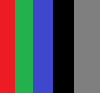
Resize input

Resize output
Change DPI
Function Image::ChangeDpiTo is used to change DPI of image. The original image is resized with factor targetDPI/originalDPI.
-
c++auto changed = img->ChangeDpiTo(ImageDpi(500));changed->SaveAs("output/color_dpi_500.png");
-
java Image img = Image.Decode(BinaryFile.ReadAll("assets/color.png"), 1000);Image changed = img.ChangeDpiTo(new ImageDpi(500));changed.SaveAs("output/color_dpi_500.png");
-
csharp Image img = Image.Decode(BinaryFile.ReadAll("assets/color.png"), 1000);Image changed = img.ChangeDpiTo(new ImageDpi(500));changed.SaveAs("output/color_dpi_500.png");
DPI change input

DPI change output
Draw shape
For each shape function Image::DrawShape creates new Image to keep current instance immutable. If more shapes need to be drawn in one image, then implement new class with base ImageShape e.g RectanglesShape. Then it is possible to draw into image via ImageShapeDrawer.
Draw input

Draw rectangle output
-
c++const Rectangle rectangle{ { 37, 20 }, { 79, -11 }, { 109, 29 }, { 67, 60 } };const RectangleShape shape(rectangle, Shapes::InnoBlue);auto drawnImage = img->DrawShape(shape);drawnImage->SaveAs("output/color_drawn.bmp");
-
java Image img = Image.Decode(BinaryFile.ReadAll("assets/color.png"));Rectangle rectangle = new Rectangle(new Point(37, 20), new Point(79, -11),new Point(109, 29), new Point(67, 60));RectangleShape shape = new RectangleShape(rectangle, Shapes.InnoBlue);Image drawnImage = img.DrawShape(shape);drawnImage.SaveAs("output/color_drawn.bmp");
-
csharp Image img = Image.Decode(BinaryFile.ReadAll("assets/color.png"));Rectangle rectangle = new Rectangle(new Point(37, 20), new Point(79, -11),new Point(109, 29), new Point(67, 60));RectangleShape shape = new RectangleShape(rectangle, Shapes.InnoBlue);Image drawnImage = img.DrawShape(shape);drawnImage.SaveAs("output/color_drawn.bmp");

Draw circle output
-
c++const CircleShape shape(Circle{ { 30, 45 }, 10 }, Shapes::InnoBlue);auto drawnImage = img->DrawShape(shape);drawnImage->SaveAs("output/color_drawn_circle.bmp");
- java
- csharp

Draw custom shape output
-
c++// Define custom shapeclass CustomShape : public ImageShape{public:void DrawIn(ImageShapeDrawer& drawer) const final{// Draw custom shapesdrawer.DrawLine({ { 0, 0 }, { 100, 100 } }, { { { 0, 255, 0 }, 50 }, 5 });drawer.DrawCircle({ { 0, 0 }, 30 }, { { { 255, 0, 0 }, 100 }, 5 });}};static void DrawCustomShapeInImage(){const CustomShape customShape{};auto drawnImage = img->DrawShape(customShape);drawnImage->SaveAs("output/color_custom_drawn.png");}
-
java // Define custom shapepublic class CustomShape extends ImageShape {@Overridepublic void DrawIn(ImageShapeDrawer drawer) {// Draw custom shapesImageShapeAttributes attr = new ImageShapeAttributes();attr.setRgba(new RGBA((short) 0, (short) 255, (short) 0, (short) 50));attr.setThickness((short) 5);attr.setRgba(new RGBA((short) 255, (short) 0, (short) 0, (short) 100));}};public void DrawCustomShapeInImage() {Image img = Image.Decode(BinaryFile.ReadAll("assets/color.png"));CustomShape shape = new CustomShape();Image drawnImage = img.DrawShape(shape);drawnImage.SaveAs("output/color_custom_drawn.png");}
-
csharp // Define custom shapepublic class CustomShape : ImageShape{public override void DrawIn(ImageShapeDrawer drawer){// Draw custom shapesImageShapeAttributes attr = new ImageShapeAttributes();attr.rgba = new RGBA(0, 255, 0, 50);attr.thickness = 5;attr.rgba = new RGBA(255, 0, 0, 100);}};public void DrawCustomShapeInImage(){Image img = Image.Decode(BinaryFile.ReadAll("assets/color.png"));CustomShape shape = new CustomShape();Image drawnImage = img.DrawShape(shape);drawnImage.SaveAs("output/color_custom_drawn.png");}
Mask shape
For each shape function Image::MaskImageBy creates new Image to keep current instance immutable. If more shapes need to be masked in one image, then use custom mask class extending ImageMask where you can add any combination of PolygonImageMask and CircleImageMask. The each mask shape has ImageMaskAttributes
- masked area
- blurring mask border after applying mask
- NO_BORDER_BLURRING - No border blurring is applied.
- ISO_19794_BORDER_BLURRING - Applies border blurring according to ISO/IEC 19794-6 standard.
-
c++const Circle circle{ { 60, 60 }, 20 };// Mask image by circle - insideauto insideMask = CircleImageMask(circle,ImageMaskConfiguration{ ImageMaskType::INSIDE, Colors::InnoBlue },auto maskedInside = img->MaskImageBy(insideMask);maskedInside->SaveAs("output/masked_circle_inside.png");// Mask image by circle - outsideauto outsideMask = CircleImageMask(circle,ImageMaskConfiguration{ ImageMaskType::OUTSIDE, Colors::InnoBlue },auto maskedOutside = img->MaskImageBy(outsideMask);maskedOutside->SaveAs("output/masked_circle_outside.png");
-
java Image img = Image.Decode(BinaryFile.ReadAll("assets/color.png"));Circle circle = new Circle(new Point(60, 60), 20);// Mask image by circle - insideCircleImageMask insideMask = new CircleImageMask(circle,new ImageMaskConfiguration(ImageMaskType.INSIDE, Colors.InnoBlue),ImageBlurType.NO_BORDER_BLURRING);Image maskedInside = img.MaskImageBy(insideMask);maskedInside.SaveAs("output/masked_circle_inside.png");// Mask image by circle - outsideCircleImageMask outsideMask = new CircleImageMask(circle,new ImageMaskConfiguration(ImageMaskType.OUTSIDE, Colors.InnoBlue),ImageBlurType.NO_BORDER_BLURRING);Image maskedOutside = img.MaskImageBy(outsideMask);maskedOutside.SaveAs("output/masked_circle_outside.png");
-
csharp Image img = Image.Decode(BinaryFile.ReadAll("assets/color.png"));var circle = new Circle(new Point(60, 60), 20);// Mask image by circle - insidevar insideMask = new CircleImageMask(circle, new ImageMaskConfiguration(ImageMaskType.INSIDE, Colors.InnoBlue),ImageBlurType.NO_BORDER_BLURRING);var maskedInside = img.MaskImageBy(insideMask);maskedInside.SaveAs("output/masked_circle_inside.png");// Mask image by circle - outsidevar outsideMask = new CircleImageMask(circle, new ImageMaskConfiguration(ImageMaskType.OUTSIDE, Colors.InnoBlue),ImageBlurType.NO_BORDER_BLURRING);var maskedOutside = img.MaskImageBy(outsideMask);maskedOutside.SaveAs("output/masked_circle_outside.png");

Circle masked inside

Circle masked outside
-
c++const Polygon polygon{ { { 50, 20 }, { 80, 80 }, { 20, 80 } } };// Mask image by polygon - insideauto insideMask = PolygonImageMask(polygon,ImageMaskConfiguration{ ImageMaskType::INSIDE, Colors::InnoBlue },auto maskedInside = img->MaskImageBy(insideMask);maskedInside->SaveAs("output/masked_polygon_inside.png");// Mask image by polygon - outsideauto outsideMask = PolygonImageMask(polygon,ImageMaskConfiguration{ ImageMaskType::OUTSIDE, Colors::InnoBlue },auto maskedOutside = img->MaskImageBy(outsideMask);maskedOutside->SaveAs("output/masked_polygon_outside.png");
-
java Image img = Image.Decode(BinaryFile.ReadAll("assets/color.png"));Polygon polygon = new Polygon(new Points(new ArrayList<>(Arrays.asList(new Point(50, 20), new Point(80, 80), new Point(20, 80)))));// Mask image by polygon - insidePolygonImageMask insideMask = new PolygonImageMask(polygon,new ImageMaskConfiguration(ImageMaskType.INSIDE, Colors.InnoBlue),ImageBlurType.ISO_19794_BORDER_BLURRING);Image maskedInside = img.MaskImageBy(insideMask);maskedInside.SaveAs("output/masked_polygon_inside.png");// Mask image by polygon - outsidePolygonImageMask outsideMask = new PolygonImageMask(polygon,new ImageMaskConfiguration(ImageMaskType.OUTSIDE, Colors.InnoBlue),ImageBlurType.ISO_19794_BORDER_BLURRING);Image maskedOutside = img.MaskImageBy(outsideMask);maskedOutside.SaveAs("output/masked_polygon_outside.png");
-
csharp var img = Image.Decode(BinaryFile.ReadAll("assets/color.png"));var polygon = new Polygon(new Points(new List<Point> { new Point(50, 20), new Point(80, 80), new Point(20, 80) }));// Mask image by polygon - insidevar insideMask = new PolygonImageMask(polygon, new ImageMaskConfiguration(ImageMaskType.INSIDE, Colors.InnoBlue),ImageBlurType.ISO_19794_BORDER_BLURRING);var maskedInside = img.MaskImageBy(insideMask);maskedInside.SaveAs("output/masked_polygon_inside.png");// Mask image by polygon - outsidevar outsideMask = new PolygonImageMask(polygon, new ImageMaskConfiguration(ImageMaskType.OUTSIDE, Colors.InnoBlue),ImageBlurType.ISO_19794_BORDER_BLURRING);var maskedOutside = img.MaskImageBy(outsideMask);maskedOutside.SaveAs("output/masked_polygon_outside.png");

Polygon masked and blurred inside
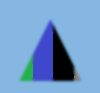
Polygon masked and blurred outside
-
c++// Define custom maskclass CustomMask : public ImageMask{public:void MaskWith(ImageMasker& masker) const override{// Create shapes for the custom maskconst Polygon polygon{ { { 50, 20 }, { 80, 80 }, { 20, 80 } } };const Circle circle{ { 60, 60 }, 20 };// Define custom mask behaviourmasker.MaskCircle(circle, ImageMaskConfiguration{ ImageMaskType::INSIDE, Colors::White });masker.MaskPolygon(polygon,ImageMaskConfiguration{ ImageMaskType::OUTSIDE, Colors::InnoBlue });masker.AddToBlur(polygon, ImageMaskType::OUTSIDE);}};static void MaskImageWithCombination(){const CustomMask mask;auto maskedImage = img->MaskImageBy(mask);maskedImage->SaveAs("output/masked_combination.png");}
-
java // Define custom maskpublic class CustomMask extends ImageMask {@Overridepublic void MaskWith(ImageMasker masker) {// Create shapes for the custom maskPolygon polygon = new Polygon(new Points(Arrays.asList(new Point(50, 20), new Point(80, 80), new Point(20, 80))));Circle circle = new Circle(new Point(60, 60), 20);// Define custom mask behaviourmasker.MaskCircle(circle,new ImageMaskConfiguration(ImageMaskType.INSIDE, Colors.White));masker.MaskPolygon(polygon,new ImageMaskConfiguration(ImageMaskType.OUTSIDE, Colors.InnoBlue));masker.AddToBlur(polygon, ImageMaskType.OUTSIDE);masker.ApplyBlur(ImageBlurType.ISO_19794_BORDER_BLURRING);}};public void MaskImageWithCombination() {Image img = Image.Decode(BinaryFile.ReadAll("assets/color.png"));CustomMask mask = new CustomMask();Image maskedImage = img.MaskImageBy(mask);maskedImage.SaveAs("output/masked_combination.png");}
-
csharp // Define custom maskpublic class CustomMask : ImageMask{public override void MaskWith(ImageMasker masker){// Create shapes for the custom maskvar polygon = new Polygon(new Points(new List<Point> { new Point(50, 20), new Point(80, 80),new Point(20, 80) }));var circle = new Circle(new Point(60, 60), 20);// Define custom mask behaviourmasker.MaskCircle(circle, new ImageMaskConfiguration(ImageMaskType.INSIDE, Colors.White));Colors.InnoBlue));masker.AddToBlur(polygon, ImageMaskType.OUTSIDE);masker.ApplyBlur(ImageBlurType.ISO_19794_BORDER_BLURRING);}}public void MaskImageWithCombination(){var img = Image.Decode(BinaryFile.ReadAll("assets/color.png"));var mask = new CustomMask();var maskedImage = img.MaskImageBy(mask);maskedImage.SaveAs("output/masked_combination.png");}

Masked combination
Crop aligned rectangle
Use function Image::CropAlignedRectangle to crop and align rectangle. It Crop rectangle and align given top left rectangle point to coordinates [0,0] in new image.
Crop aligned rectangle input

Crop aligned rectangle output
-
c++// The points MUST be ordered as top left, top right, bottom right, bottom left// the rectangle will be aligned to transform top left to coordinate [0,0] in new// imageconst Rectangle rectangle{ { 79, -11 }, { 109, 29 }, { 67, 60 }, { 37, 20 } };auto copiedImage = img->CropAlignedRectangle(rectangle);copiedImage->SaveAs("output/color_copied_align.bmp");
-
java Image img = Image.Decode(BinaryFile.ReadAll("assets/color.png"));// The points MUST be ordered as top left, top right, bottom right, bottom left// the rectangle will be aligned to transform top left to coordinate [0,0] in// new imageRectangle rectangle = new Rectangle(new Point(79, -11), new Point(109, 29),new Point(67, 60), new Point(37, 20));Image copiedImage = img.CropAlignedRectangle(rectangle);copiedImage.SaveAs("output/color_copied_align.bmp");
-
csharp Image img = Image.Decode(BinaryFile.ReadAll("assets/color.png"));// The points MUST be ordered as top left, top right, bottom right, bottom left// the rectangle will be aligned to transform top left to coordinate [0,0] in new// imageRectangle rectangle = new Rectangle(new Point(79, -11), new Point(109, 29),new Point(67, 60), new Point(37, 20));Image copiedImage = img.CropAlignedRectangle(rectangle);copiedImage.SaveAs("output/color_copied_align.bmp");
Crop rectangle
Use function Image::CropRectangle to crop rectangle. It Crops a rectangle from the image, using a white background for any extra space.
Crop rectangle input

Crop rectangle output
-
c++const Rectangle rectangle{ { 37, 20 }, { 79, -11 }, { 109, 29 }, { 67, 60 } };auto copiedImage = img->CropRectangle(rectangle, Colors::InnoBlue);copiedImage->SaveAs("output/color_copied.bmp");
-
java Image img = Image.Decode(BinaryFile.ReadAll("assets/color.png"));Rectangle rectangle = new Rectangle(new Point(37, 20), new Point(79, -11),new Point(109, 29), new Point(67, 60));Image copiedImage = img.CropRectangle(rectangle, Colors.InnoBlue);copiedImage.SaveAs("output/color_copied.bmp");
-
csharp Image img = Image.Decode(BinaryFile.ReadAll("assets/color.png"));Rectangle rectangle = new Rectangle(new Point(37, 20), new Point(79, -11),new Point(109, 29), new Point(67, 60));Image copiedImage = img.CropRectangle(rectangle, Colors.InnoBlue);copiedImage.SaveAs("output/color_copied.bmp");
Crop circle
For given circle function Image::CropCircle cut circle from image.
Crop circle input

Crop circle output
-
c++auto copiedImage = img->CropCircle(Circle{ { 30, 45 }, 10 });copiedImage->SaveAs("output/color_copied_circle.bmp");
- java
- csharp
Intersection
Library provides functions Image::RectangleIntersection and Image::CircleIntersection that calculates intersection type with Image.
- Partial - The Object and Image has intersection.
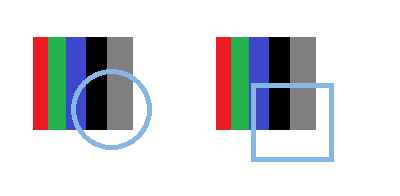
Partial intersection
- Inside - Object is fully in Image.

Inside intersection
- Outside - Image is fully in Object.

Outside intersection
- Same - Image has same dimensions and vertices coordinates as Object.

Same intersection
- No - Image and Object has no intersection.

No intersection