

Upgrade
How to update and upgrade Smartface
To update your Video Processing Platform to a newer version, please visit the releases to find out what version is the latest. In the case you have an older version that you would like to update to the latest, please apply changes as described in the UPGRADES section of the left menu, one step at a time, starting from your current version.
For the Docker version, it is also possible to download the latest setup from our github, however in that case you might want to address your project specific differences in the newly aquired setup. Once you have applied your differences (camera numbers, camera configuration, service scaling, environment variables etc.), please run the “run.sh” script in the project folder. The script will migrate your current data into the latest format and will apply all the migration steps.
It is recommended to keep the Video Processing Platform updated to the latest version. Please note that since the Video Processing Platform version 5.4.20 released on 7th of July 2023 a new license format is used. If you would like to migrate from an older version than that into a newer version, please visit out Customer Portal for a new license.
Updating Windows
This section is Windows specific
To effectively alter the running installation of the Video Processing Platform on Windows, you can use your favourite text editor to do changes in several files, including appsettings.json files Video Processing Platform services. You can also do changes to the system via PowerShell Commands.
Controlling the Services
To use below mentioned commands, please open the PowerShell window in the Administration mode.
Get Video Processing Platform services
You can get a list of existing Video Processing Platform services by the command below:Get-Service -Name "SF*"
Stop Video Processing Platform services
You can stop all Video Processing Platform services by the command below:Get-Service -Name "SF*" | Stop-Service
Remove all Video Processing Platform services
You can remove all Video Processing Platform services by the command below:
Get-Service -Name "SF*" | foreach {sc.exe delete $_.Name}
Disable auto-start on all Video Processing Platform services
You can disable auto-start of all Video Processing Platform services by the command below:Get-Service -Name "SF*" | foreach {sc.exe config $_.Name start= disabled}
Start all Video Processing Platform services
You can start all the Video Processing Platform services by the command below:Get-Service -Name "SF*" | foreach {sc.exe start $_.Name}
Updating appsettings.json files
To make changes to a service configuration, please locate your Video Processing Platform installation path, per default: C:\Program Files\Innovatrics\Video Processing Platform. Services have their own configuration files called *.appsettings.json. As the name suggest it stored configuration in the JSON format. You can do the changes using your favourite text editor. To apply a change, please restart the service.
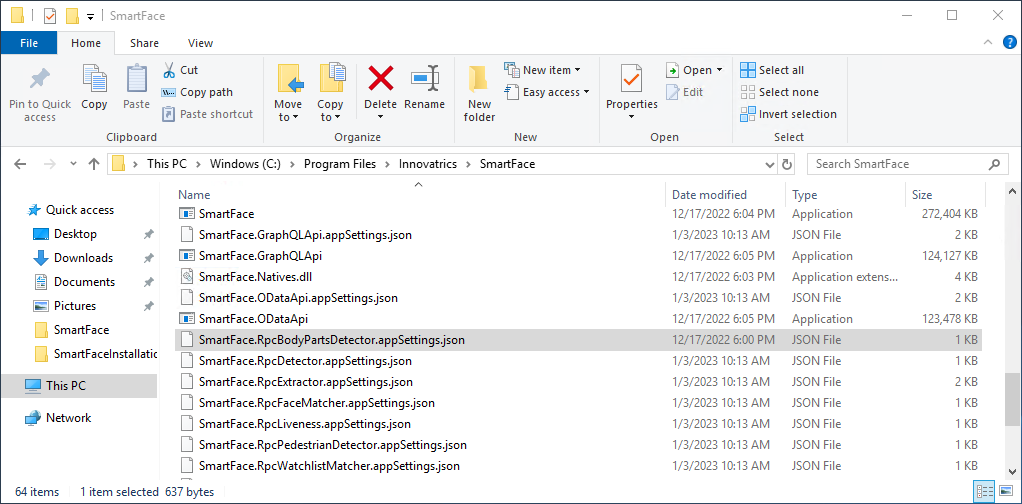
Services have their own appsettings.json files
Updating Docker
This section is Docker specific
To effectively alter the running installation of the Video Processing Platform on Linux using Docker, we can update several files and have options for several terminal commands. The changes can be done using your favourite text editor.
Controlling the services
To use the below mentioned commands, please use the Terminal or other Linux shell application.
To see all the docker containers running
This shows you all the containers from across docker and their status
sudo docker ps -a
To see only docker containers running from one specific docker-compose.yml file
Please enter the parent folder for the file, then run the command
sudo docker compose ps
To stop docker containers from one specific docker-compose.yml
Please enter the parent folder for the file, then run the command
sudo docker compose stop
To remove docker containers from one specific docker-compose.yml
Please enter the parent folder for the file, then run the command
sudo docker compose rm
To restart a specific container
This way you can restart one container at a time. This can help you to reload frozen service or apply changes to it’s configuration
sudo docker restart <name-of-the-container>
To start docker containers from one specific docker-compose.yml
Please enter the parent folder for the file, then run the command
sudo docker compose up -d
To stop and remove all docker containers
This will identify and stop and then remove all the containers that are running from across the docker
sudo docker stop $(docker ps -a -q)
sudo docker rm $(docker ps -a -q)
Updating Video Processing Platform
To make changes to Video Processing Platform, including the updates, you can update it’s services configuration and the Environment Variables. You can do the changes directly for each service configuration in the docker-compose.yml file, or you can do the changes in .env files. These are created specifically for several services to allows you to keep configuration separated from the architecture defined in the docker-compose.yml files.
It is possible you update several configuration files at once to propagate the expected changes. You can update the files using your favourite text editor. Each file can be updated separately and will apply changes only to services defined in or configured in the particular file. Even in a preset folder (Deployment Pattern) you will have more than one docker-compose.yml file. One is for the Video Processing Platform services, the other one is in the sf_dependencies subfolder to control and provide the Video Processing Platform PreRequisities.
Updating Environment Variables
Instead of doing changes directly to each service configuration in the used docker-compose.yml file, or you can do the changes in .env files referenced by a service. This allows you to keep configuration separated from the architecture defined in the docker-compose.yml files.
There are several .env files for the common services. The list of .env files changes in time as more services are used.
.env
This file is used for general Video Processing Platform configuration. This includes RabbitMQ connection values, MQTT connection vales, database configuration, s3 storage configuration, gstreamer configuration and the versions to be used across Video Processing Platform. For information about how to update Video Processing Platform please look here.
.env.sfac
This file is used for configuration of the Access Controller module. For more information about the module and it’s configuration, please look here.
.env.sfstation
This file is used for configuration of the Video Processing Platform Station. For more information about how to setup the Video Processing Platform Station please look here.
.env.fa
This file is used for configuration of the Fingera Module. For more information about how to setup the Fingera Adapter, please look here.
.env.rc
This file is used for configuration of the Access Control Connector module. For more information about how to setup the Access Control Connector, please look here.
Applying changes
Once the changes are done to apply them you need to use one of the commands below:
- if there are just minor changes please use
docker compose up -d - if you have removed some of the services it is recommended to use the command to remove the unused (orphan services)
docker compose up -d --remove-orphans - if the changes are complex enought that the simple up command does not propagate all the changes, you can use
docker compose up -d --force-recreatecommand to ensure that any modifications are applied and that the containers are rebuilt from scratch
To see what containers are up and running, please use the command docker ps -a.
To see what containers are up and running based on the docker-compose.yml in the same folder you are presently located at, please use the command docker compose ps. You will see results such as:
user@smartface-server:/srv/smartface/all-in-one$ docker-compose ps
                Name                              Command               State                      Ports
----------------------------------------------------------------------------------------------------------------------------
53b4d78e-323f-4a0f-aa6d-99c464448b6d   dotnet Video Processing Platform.Camera.dl ...   Up
SFAccessController                     dotnet Video Processing Platform.AccessCon ...   Up      0.0.0.0:5050->80/tcp,:::5050->80/tcp
SFApi                                  dotnet Video Processing Platform.Api.dll         Up      0.0.0.0:8098->80/tcp,:::8098->80/tcp
SFBase                                 dotnet Video Processing Platform.dll --ser ...   Up      0.0.0.0:2406->2406/tcp,:::2406->2406/tcp
SFCam1                                 dotnet Video Processing Platform.Camera.dl ...   Up      0.0.0.0:30001->30000/tcp,:::30001->30000/tcp
SFCam2                                 dotnet Video Processing Platform.Camera.dl ...   Up      0.0.0.0:30002->30000/tcp,:::30002->30000/tcp
SFCam3                                 dotnet Video Processing Platform.Camera.dl ...   Up      0.0.0.0:30003->30000/tcp,:::30003->30000/tcp
SFCam4                                 dotnet Video Processing Platform.Camera.dl ...   Up      0.0.0.0:30004->30000/tcp,:::30004->30000/tcp
SFCam5                                 dotnet Video Processing Platform.Camera.dl ...   Up      0.0.0.0:30005->30000/tcp,:::30005->30000/tcp
SFDetectCpu                            dotnet RpcDetector.dll           Up
SFEdgeStreamProcessor                  dotnet Video Processing Platform.EdgeStrea ...   Up
SFExtractCpu                           dotnet RpcExtractor.dll          Up
SFFaceMatcher                          dotnet RpcFaceMatcher.dll        Up
SFGraphQLApi                           dotnet Video Processing Platform.GraphQLAp ...   Up      0.0.0.0:8097->80/tcp,:::8097->80/tcp
SFGroup                                dotnet Video Processing Platform.Grouping. ...   Up
SFLiveness                             dotnet RpcLiveness.dll           Up
SFObjectDetectorCpu                    dotnet RpcObjectDetector.dll     Up
SFPedestrianDetectCpu                  dotnet RpcPedestrianDetect ...   Up
SFPedestrianExtractorCpu               dotnet RpcPedestrianExtrac ...   Up
SFStation                              docker-entrypoint.sh node  ...   Up      0.0.0.0:8000->8000/tcp,:::8000->8000/tcp
SFStreamDataDbWorker                   dotnet Video Processing Platform.StreamDat ...   Up
SFVideoDataAggregator                  dotnet VideoDataAggregator.dll   Up
SFVideoDataCollector                   dotnet VideoDataCollector.dll    Up
SFVideoReader                          dotnet VideoReader.dll           Up
SFWatchlistMatcher                     dotnet RpcWatchlistMatcher.dll   Up
The list of services running might not match your setup. Please note the state mentioned. Expected state is Up, otherwise something went wrong.