Face Auto Capture
Android, iOS and web component for face auto capture, suitable for online identity verification without having to manually trigger the capture action.
Face Auto Capture is provided by the following components of mobile libraries of IDV Toolkit. These are libraries with full functionality of face biometrics:
These are libraries with small footprint (~1 MB) with Auto Capture as the only functionality:
For web development, there is the Face Auto Capture web component:
Quality of Captured Image
Image quality is an important aspect in face recognition, comparison and liveness check. The components try to acquire an image of the highest possible quality. But being too demanding on image quality during the face capture can also impact user experience. Therefore, the component requires only sufficient quality inputs for the specific use case. For example, login should be quick and require only basic adjustments, as opposed to image capture for passport portrait where correct lighting and background uniformity are required. Quality can be controlled by various quality validators.
Tutorial for the User
Some user's effort in taking the picture is needed in order to achieve the best quality. The capture component provides feedback to the user, but there are user mistakes, which the capture component cannot detect. It is recommended to show a walkthrough with instructions or tips how to avoid these mistakes. Following tips are provided in a GitHub repository as vector animations.
 | Clean the camera's lens by wiping it |
 | Keep your phone vertical and at eye level when taking a photo of your face |
 | Turn so that you are facing the source of the light, not having the light source behind you |
Face capture process
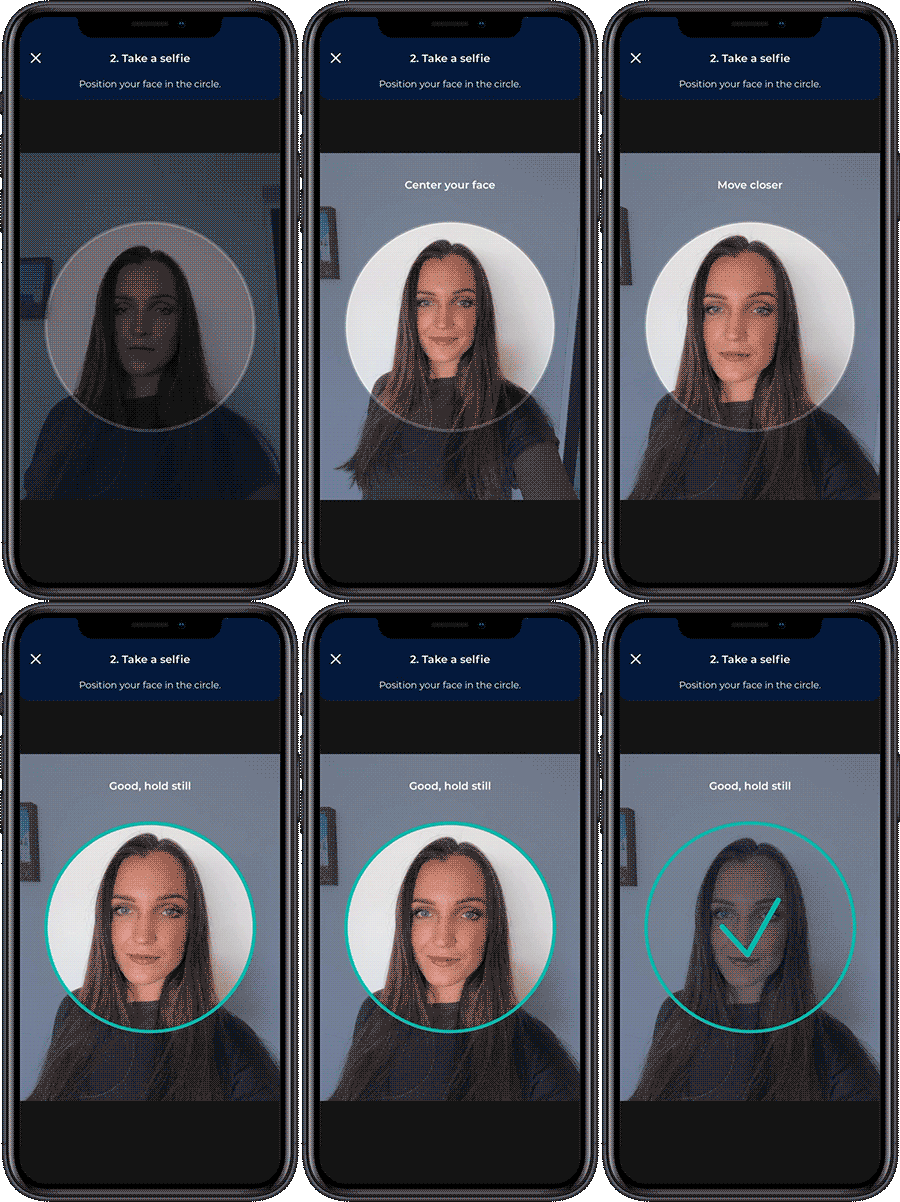
The face capture process is structured into steps that a user must fulfil to capture an image with sufficient quality. Each quality provider contains attributes that should be checked. The user is instructed to comply with the requirements, and a text message is displayed until the requirements are satisfied. When all requirements are satisfied, the process enters the "stay still" phase, during which candidate photos are collected and compared; and the photo with the highest quality that meets all criteria is selected.
UI recommendations
It is recommended to place the capture component in the center of the screen, covering maximum of the screen area. The video in the capture component has aspect ratio 3:4 for mobile libraries and 9:16 for web components. The "FIT" mode should be used as it is not recommended to crop the video, this would result in an image of lower resolution affecting the liveness check.