Integration
In this section, you will find instructions on how to integrate the SFE Stream Processor with the Video Processing Platform or any 3rd party solution.
In case of any issues, please refer to Troubleshooting
or contact sfembedded-integration@innovatrics.com.
Video Processing Platform integration
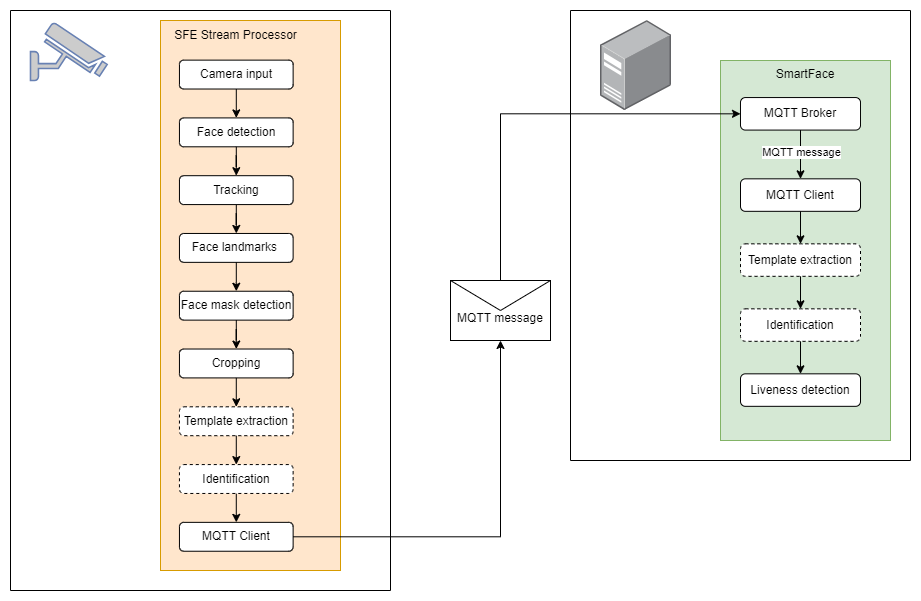
Install Video Processing Platform 5 on your PC/server
To install Video Processing Platform on your machine follow the instructions at Video Processing Platform installation
Install SFE Stream Processor on your edge device
To install SFE Stream Processor on your edge device follow the instructions at SFE Stream Processor installation
Configure Video Processing Platform and SFE Stream Processor
To receive the notifications from SFE Stream Processor in Video Processing Platform Station you have to create an Edge stream in Video Processing Platform Station and configure the SFE Stream Processor connection.
Create Edge stream in Video Processing Platform Station
To create and configure an Edge stream in Video Processing Platform Station follow the instructions at Create Edge stream
SFE Stream processor configuration
In each settings.yaml file that comes as input for sfe_stream_processor you need to:
- set
connection.broker_address- IP address of the PC/server where the Video Processing Platform is running - set
connection.client_id- ID of the MQTT client. It is unique for each camera stream. It has to be the same as the client ID used for the registration of a new edge stream in the Video Processing Platform Station - set
connection.topic- MQTT topic should be set toedge-stream - MQTT messages are then sent to
<connection.topic>/<connection.client_id>topic, for exampleedge-stream/camera-01
For more information about the SFE Stream Processor configuration, please see SFE Stream Processor configuration
3rd party solution integration
You can integrate SFE Stream Processor with your server solution or local application.
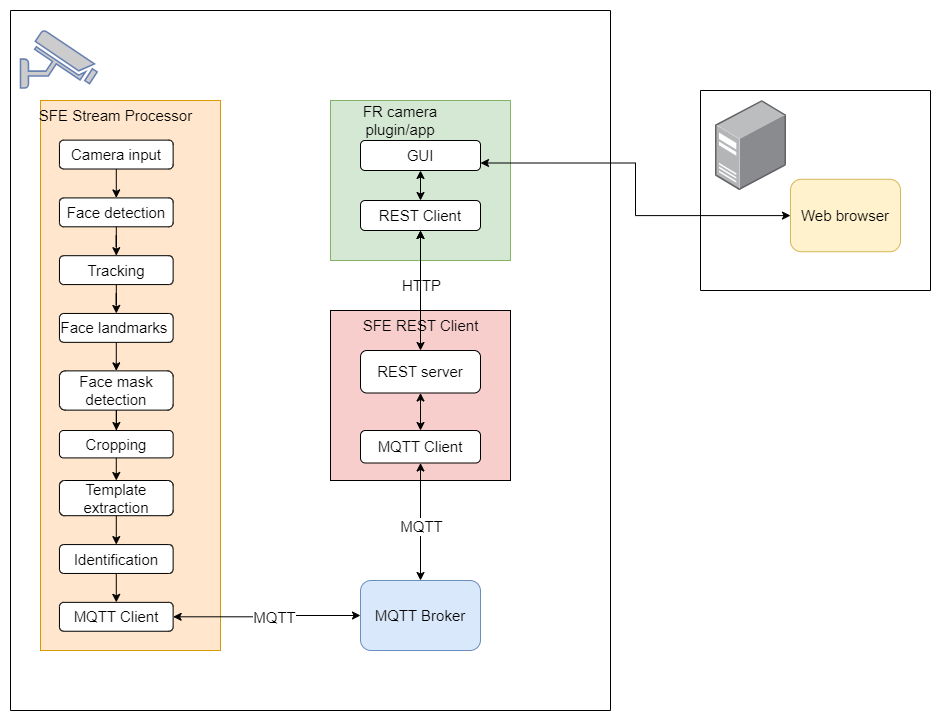
SFE Stream Processor
SFE Stream Processor processes the camera input, detects faces, detects landmarks, extracts a template, matches the extracted template against the database and sends an MQTT message to an MQTT broker.
The configuration of the SFE Stream Processor is loaded from settings.yaml file which comes as an input argument.
./sfe_stream_processor settings.yaml
Messaging
SFE Stream Processor Messaging
Watchlist member management
SFE Stream Processor Watchlist Management
SFE REST Client
SFE REST Client application is responsible for the translation of HTTP requests to MQTT messages and MQTT messages to HTTP responses.
It also converts the FrameData message from MQTT to a WebSocket protocol.
The MQTT connection information is read from settings.yaml file which comes as an input argument.
You also have to specify the IP address and port where the REST server listens to the requests.
Example:
./sfe_client_rest settings.yaml 10.11.80.38 4242
MQTT broker
If you are not using Video Processing Platform as a server application, you need to run an MQTT broker on your server to be able to receive MQTT messages from the edge device.
An MQTT broker must run on the camera, as an MQTT client runs in both the SFE Stream Processor and the SFE REST Client. One MQTT Client publishes MQTT messages to a specific MQTT topic to which the other MQTT Client is subscribed.
Troubleshooting
In case you are facing any issues with SFE Stream Processor please check the following guidelines.
Video Processing Platform integration
I see no notifications from the edge camera in the Video Processing Platform Station
- Check if the Edge stream is created and enabled in Video Processing Platform Configuration.
- The Edge stream Client ID in SF Configuration has to be the same as the MQTT Client ID (
client_id) set on the camera. - Check if the MQTT broker address (
broker_address) in camerasettings.yamlis set to the IP address of Video Processing Platform - Check if the MQTT
usernameandpasswordin camerasettings.yamlare set correctly. - Check if the same username/password is configured in RabbitMQ running on port
15672and the same IP address as Video Processing Platform. - Check the SFE Stream Processor logs for any newly connected MQTT client
- Check if the network between the camera and Video Processing Platform works
- Use
sfe_client_guito process the MQTT messages. You can even turn onallow_empty_messageandenablesending full frames insettings.yamlto analyze what information is coming from the camera.