Identification Demo
A mobile evaluation app that demonstrates face and touchless palm recognition from the Embedded Biometrics solution. It runs the same recognition three ways so you can compare deployment modes side by side: fully on-device, against your on-premise Biometric Identification Service (BIS), and against an Innovatrics-hosted cloud instance.
On-device recognition is powered by the SFE Toolkit; the server modes talk to the Biometric Identification Service REST API.
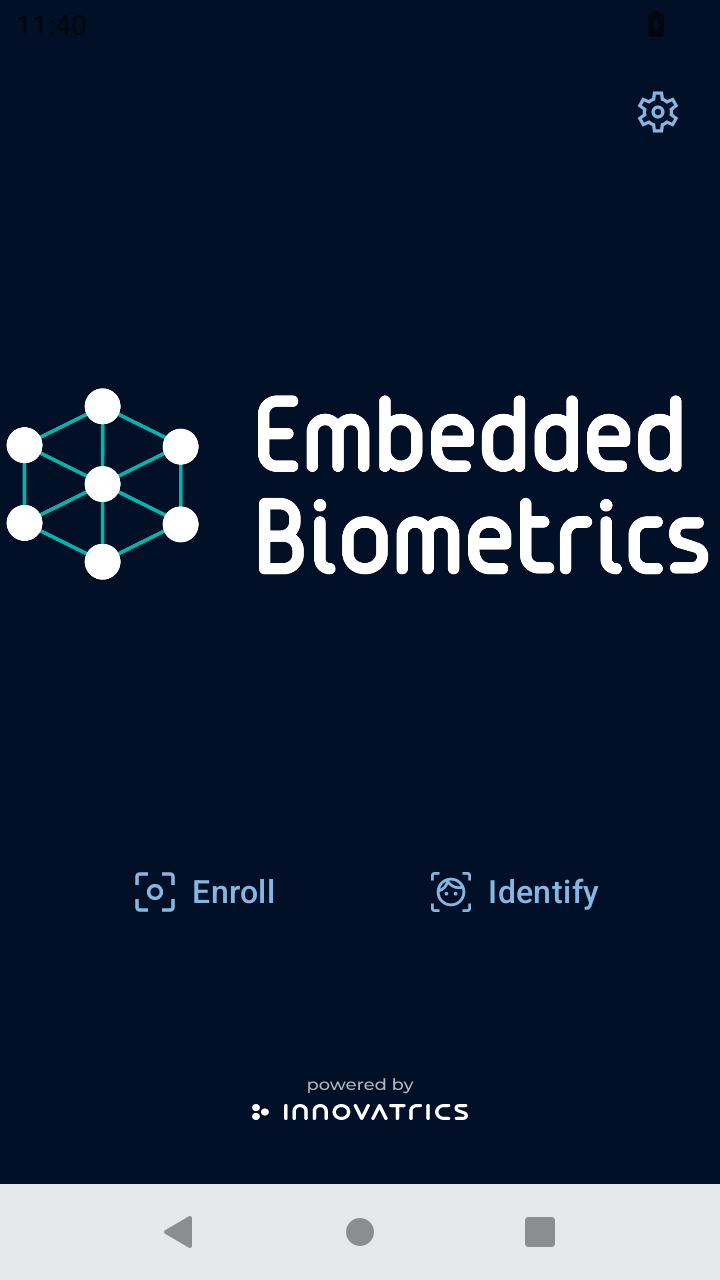
Home screen – Enroll / Identify, with the settings gear.
Getting access
The app is provided on request – contact your Innovatrics sales representative or sales@innovatrics.com to request it. To evaluate the on-premise mode, deploy the Biometric Identification Service yourself (see Deployment).
What it demonstrates
- Face and touchless palm biometric recognition.
- Enrollment with liveness (provided as passive liveness) and deduplication (a 1:N check before a new member is added).
- 1:N identification returning a liveness score, matching score, and the best-candidate name.
- Three deployment modes from one app: on-device, on-premise server, and cloud.
Platforms
- Android 8.0 (API 26) or higher.
- Network access for the cloud and on-premise modes; no network required for on-device mode.
Deployment modes
Configure the mode in Settings (⚙️) before a demonstration.
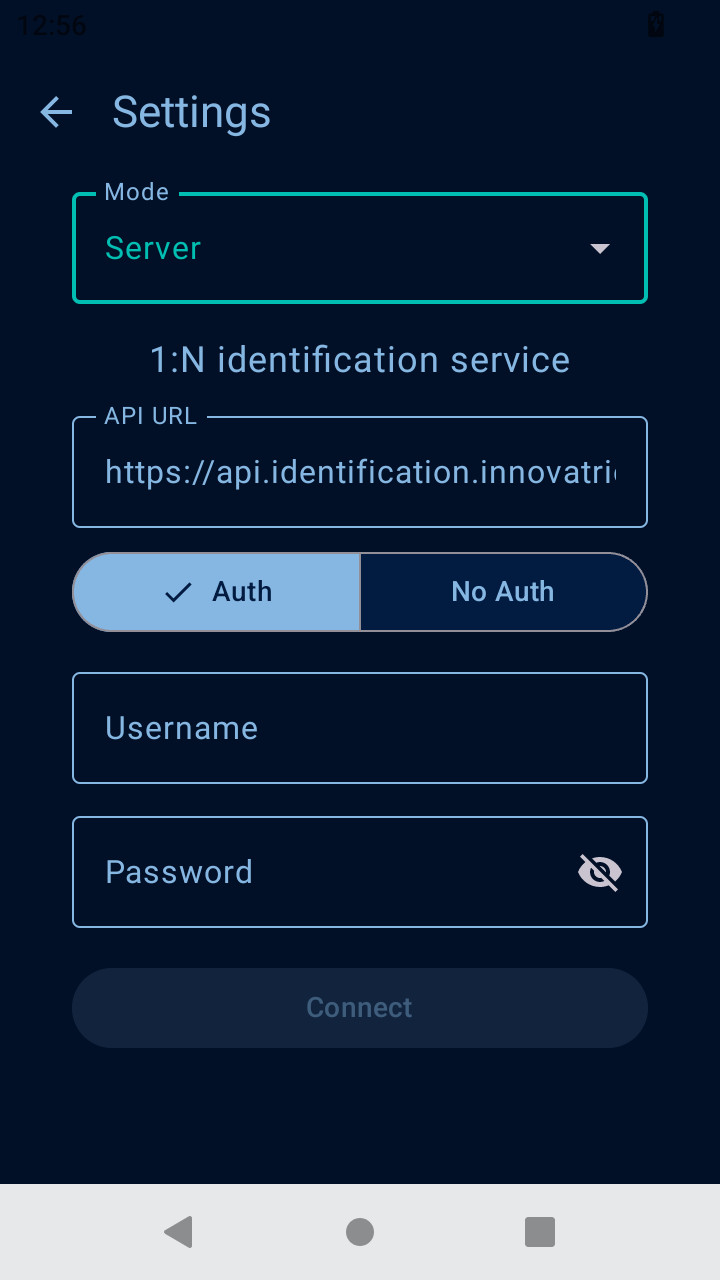
Settings – choose the deployment mode (on-device / on-premise / cloud); for server modes, set the API URL and credentials.
| Mode | What it evaluates | Setup |
|---|---|---|
| On-device | On-device identification via the SFE Toolkit – fully offline, biometrics never leave the device. | Select the Local mode and save. |
| On-premise | Server-side identification against your own Biometric Identification Service deployment. | Enter your Biometric Identification Service API URL as http://<IP>:8098, connect, pick a watchlist, save. |
| Cloud | Server-side identification against an Innovatrics-hosted demo instance. | Select Server + Auth, use the hosted URL, log in with the credentials provided by Innovatrics, pick a watchlist, save. |
Workflow
Enrollment
- Select Enroll on the Home screen.
- Capture face and/or palm – position the subject within the on-screen guides.
- Capture triggers automatically once quality thresholds (lighting, focus, distance, capture quality) are met.
- Liveness is checked – captures that fail the liveness check are rejected.
- A 1:N deduplication check runs; if the face is already registered, enrollment is blocked with an error (Try Again or Abort) instead of adding a duplicate.
- Enter a name and tap Confirm.
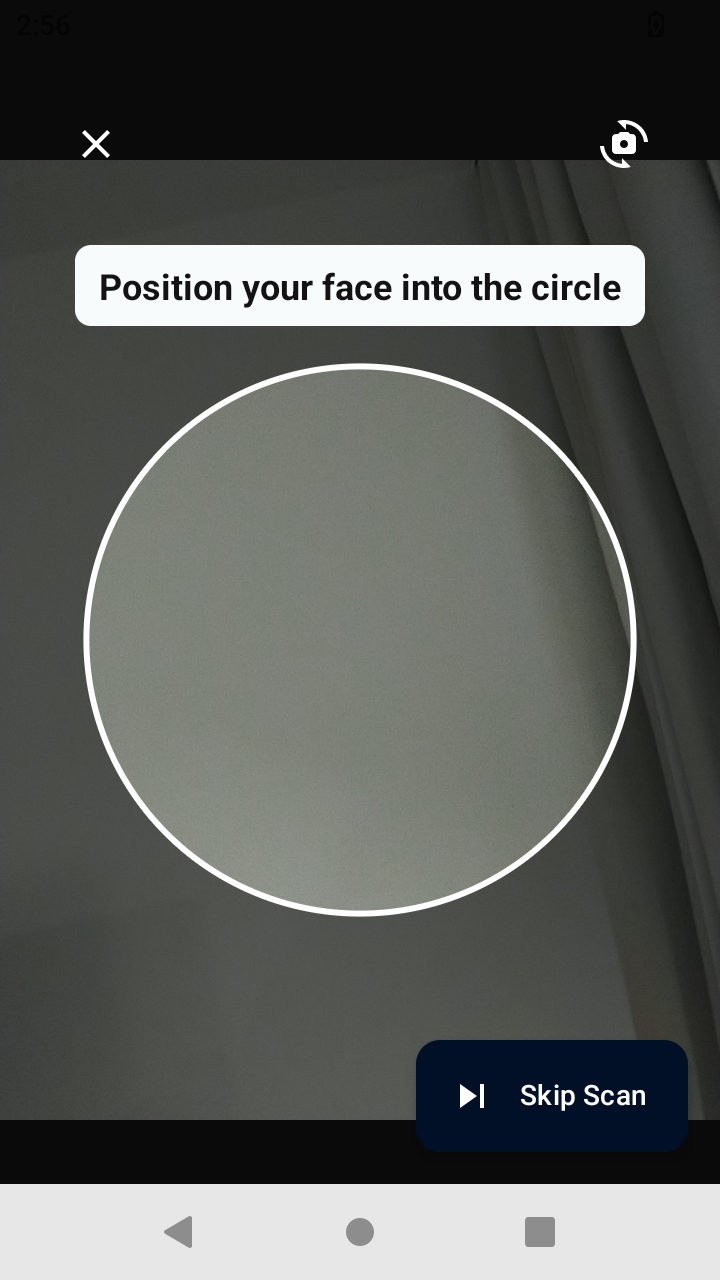
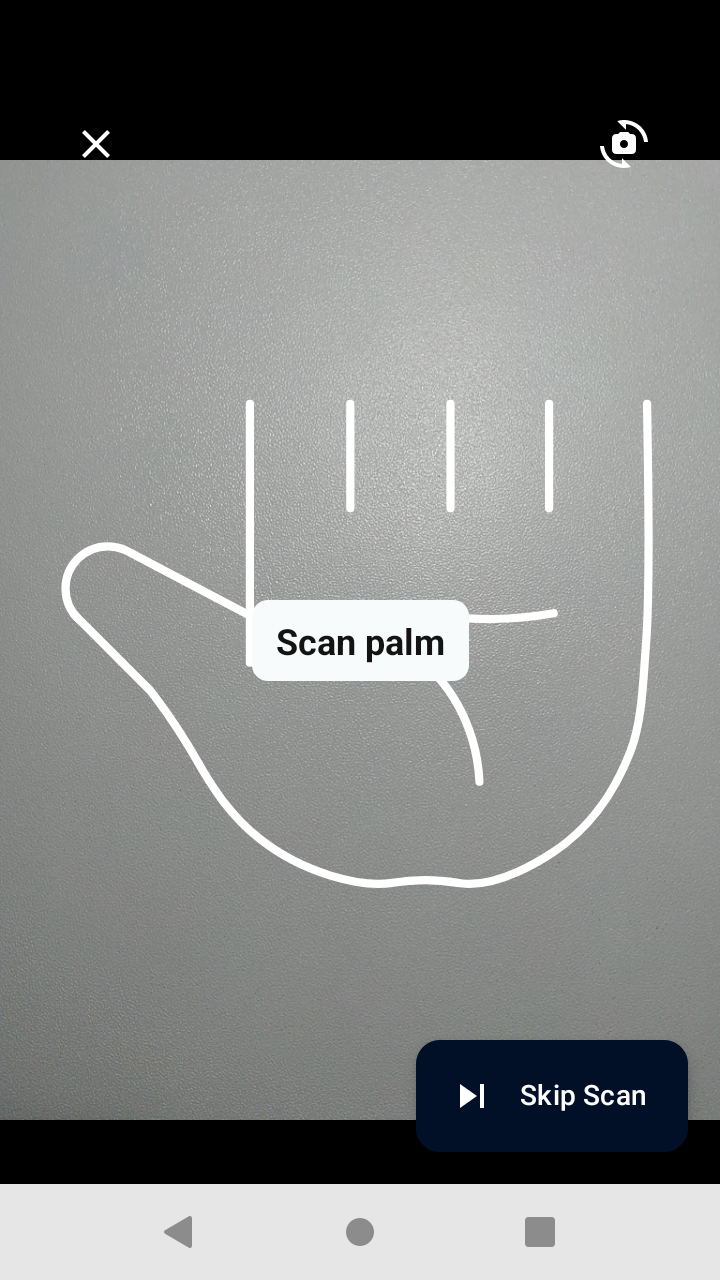
Enrollment capture – face and touchless palm auto-capture with on-screen guides.
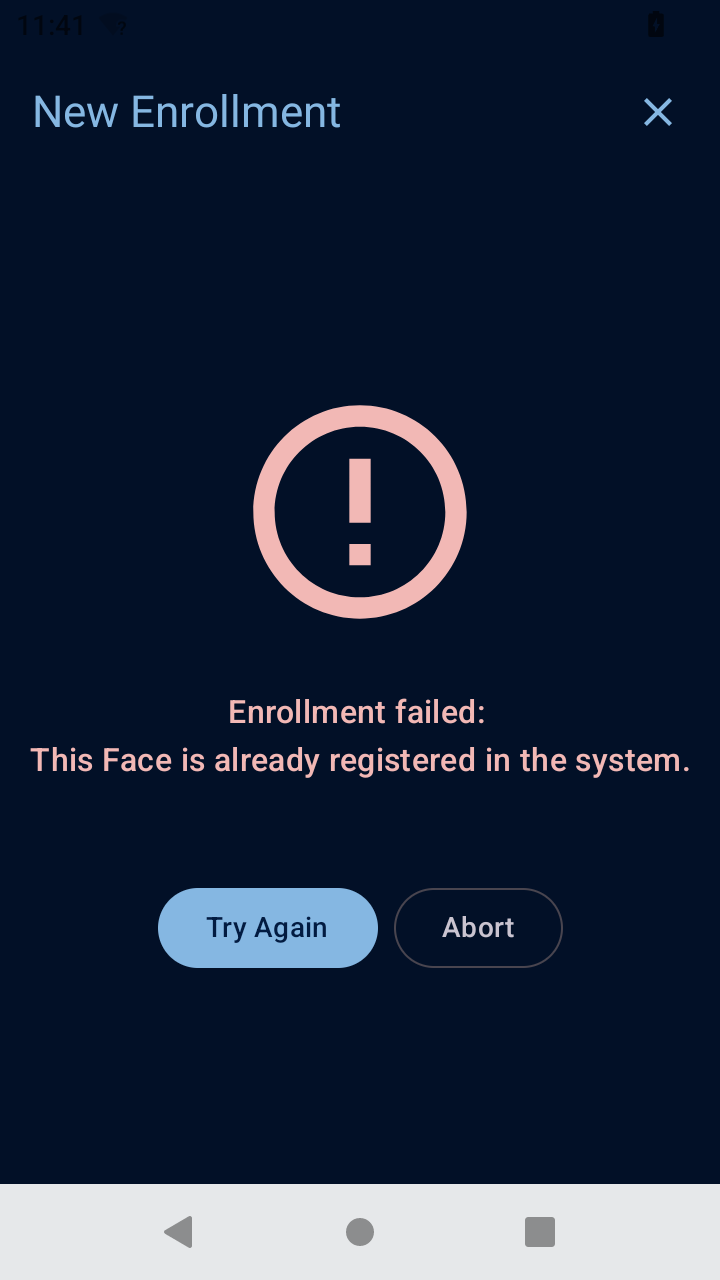
Deduplication – enrollment is blocked when the face is already registered.
1:N identification
- Select Identify on the Home screen.
- Choose the modality (face or palm).
- Point the camera at an enrolled person.
- The app returns the liveness score of the probe, the matching score against the best candidate, and that candidate's name.
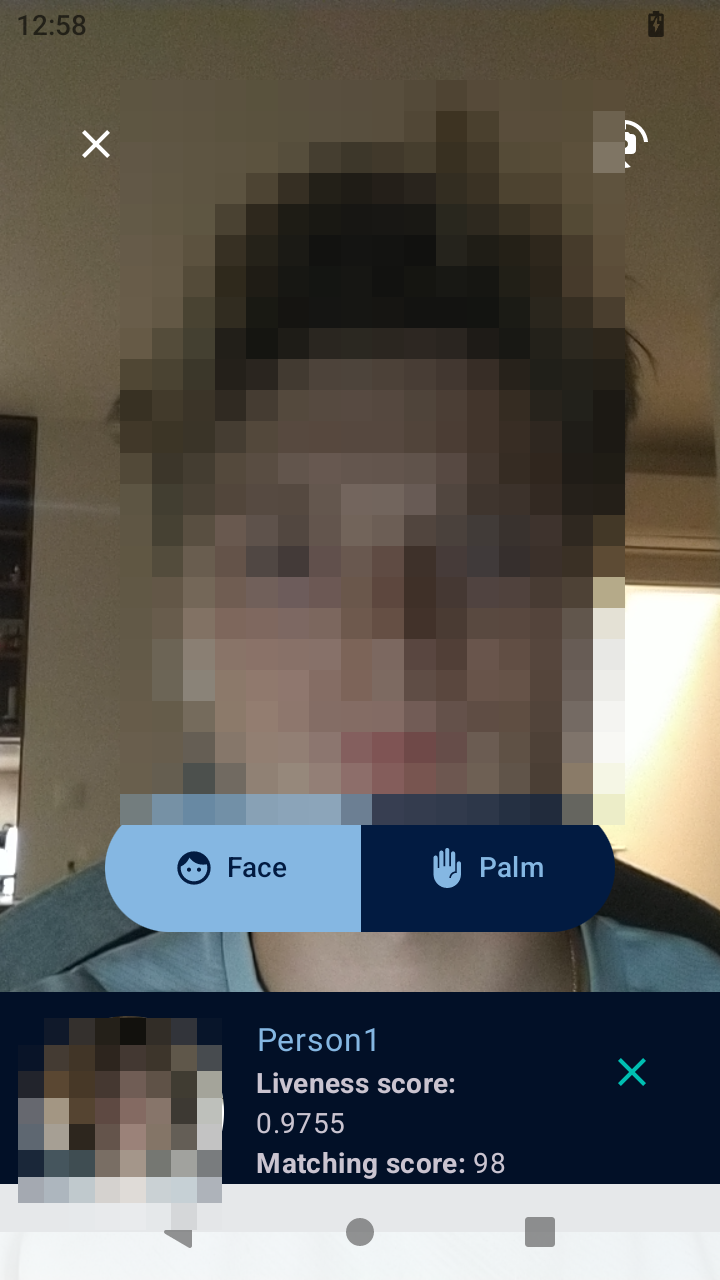
Identification – the matched person with liveness and matching scores.
Capture mode (identification only, set in Settings):
- Single capture (default) – auto-capture stops on the first result (match, unknown, or spoof) and shows a full-screen result; tap Identify again for the next subject.
- Continuous – the camera keeps scanning and flashes each result at the bottom of the screen.
Related pages
- On-device identification and Server-side identification (the use cases this demo covers)
- Auto-capture (the capture component used before enrollment and identification)
- SFE Toolkit (on-device engine) · Biometric Identification Service (server modes)