Contactless Fingerprints Demo
An iOS and Android app that demonstrates contactless fingerprint enrollment and identification using only the phone's rear camera. It captures a slap of up to four fingers (index, middle, ring, little), converts each finger into a fingerprint template, and then enrolls the person or identifies them against a local, on-device gallery. Everything runs on the device – no network is involved.
It is built on two Innovatrics SDKs: the IDV Toolkit (formerly DOT) for camera capture and the Enrollment SDK for template extraction, quality checks, and matching. Use it to evaluate contactless fingerprint capture and matching before integrating those SDKs into your own solution.
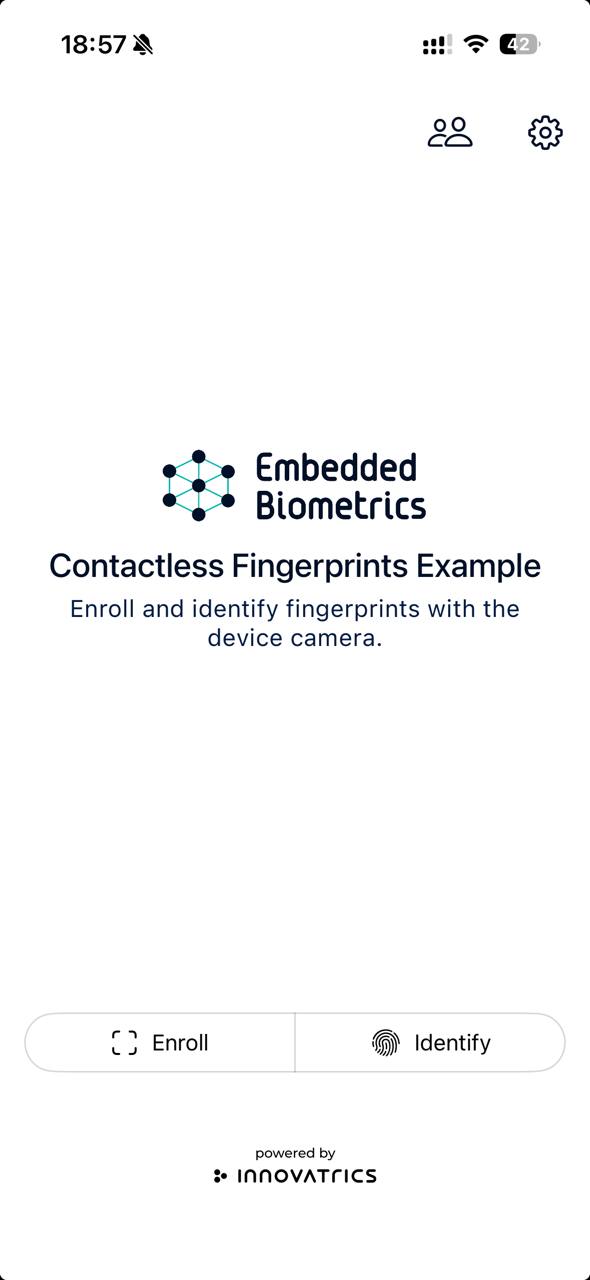
Landing screen – Enroll / Identify, with the enrolled-people list and settings.
Getting access
The demo app is provided on request and is currently in early access (shared with selected prospects, not downloaded directly). Contact your Innovatrics sales representative or sales@innovatrics.com – sales grants access and sends the build via TestFlight (iOS) or Firebase App Distribution (Android), together with an evaluation license from the Customer Portal. The license must cover the DOT fingers modules and the Enrollment SDK.
What it demonstrates
- Enroll – capture a slap, extract a template per finger, and register the person in a local gallery.
- Identify – capture a slap and match it against the gallery, returning the best-matching person and a match score.
- Per-finger quality – placement, template quality, NFIQ 1, NFIQ 2, and image quality, shown on the preview and detail screens; see Fingerprint quality metrics in the Enrollment SDK for what each one means.
- Per-finger match scores – how well each individual finger matched, on the same 0–1000 scale as the overall score.
- Partial slaps – a capture can succeed with as few as one finger; enrollment, identification, and every result screen work with whatever fingers arrived.
- Enrolled-user management – list the people enrolled on the device (with how many fingerprints each has) and delete them.
- Capture export – package a capture, its images, and every score behind them into a zip you can send to Innovatrics when reporting an issue (raw templates are deliberately left out).
Requirements
- iOS 17.0 or newer (iPhone 11 or newer recommended) or Android 12 (API 31) or newer (Samsung Galaxy S20 or newer, Google Pixel, or another high-end device with a strong rear camera). A physical device is required – capture (Enroll and Identify) uses the live camera.
- A valid Innovatrics license covering the DOT fingers modules and the Enrollment SDK, provided with the app. Without a valid license, the app shows an initialization-error screen instead of the landing screen.
Workflow
Enroll
- Tap Enroll and hold the hand shown by the on-screen placeholder in front of the rear camera.
- Auto-capture triggers once enough fingers are detected, each fills enough of the frame, and each clears its confidence and sharpness limits. All detected fingers are processed – low-quality fingers aren't dropped; they're flagged per finger on the preview after capture.
- The preview shows each captured finger beside the fingerprint extracted from it, with its five quality scores.
- Enter a name and tap Enroll to save the person, or Retake to try again.
Capture works best against a plain, single-colour background, with all four fingers in the frame together, held straight and close to each other.
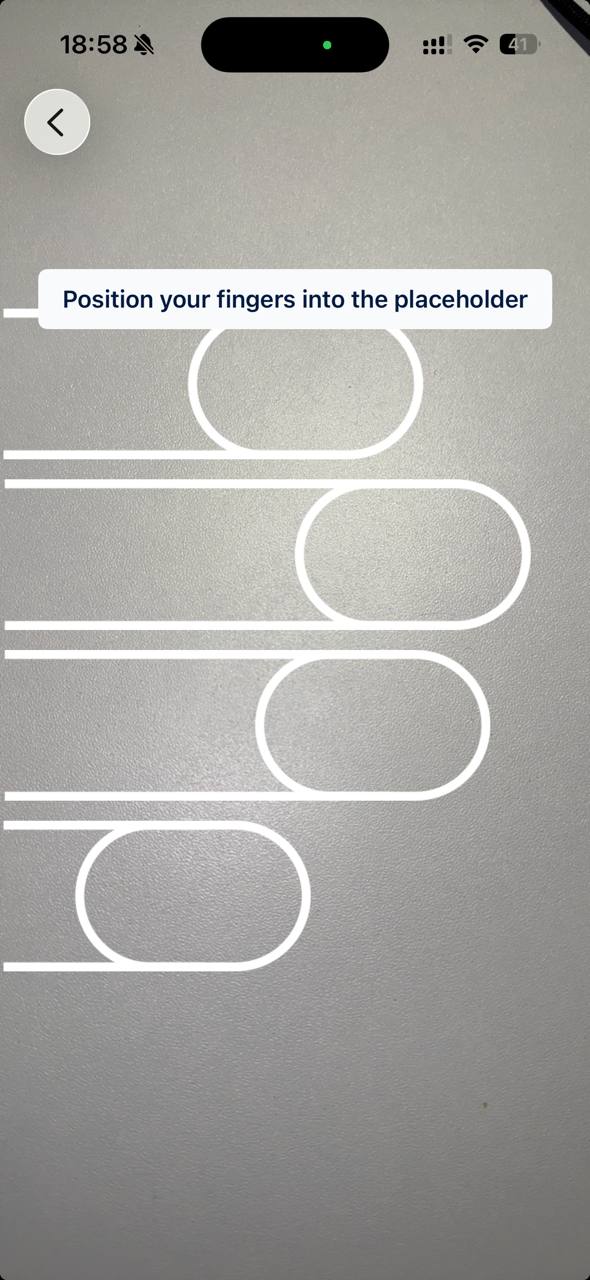
Slap capture – position the fingers into the on-screen placeholder.
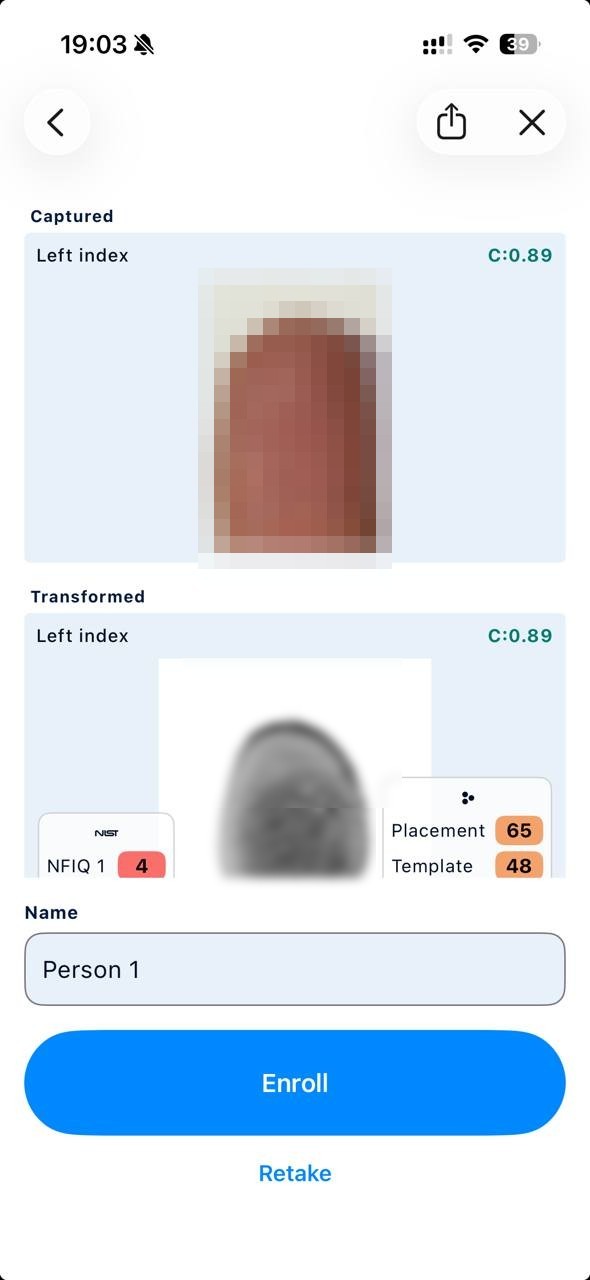
Capture preview – each finger beside its extracted fingerprint, with per-finger quality scores (NFIQ, placement, template).
Identify
- Tap Identify and capture a slap the same way.
- Tap Identify on the preview to run the search.
- On a match, the result screen shows the person and the match score; View Details pairs each captured finger against the stored one it matched, with a per-finger score.
- A genuine no-match and a matching error show the same no-match screen.
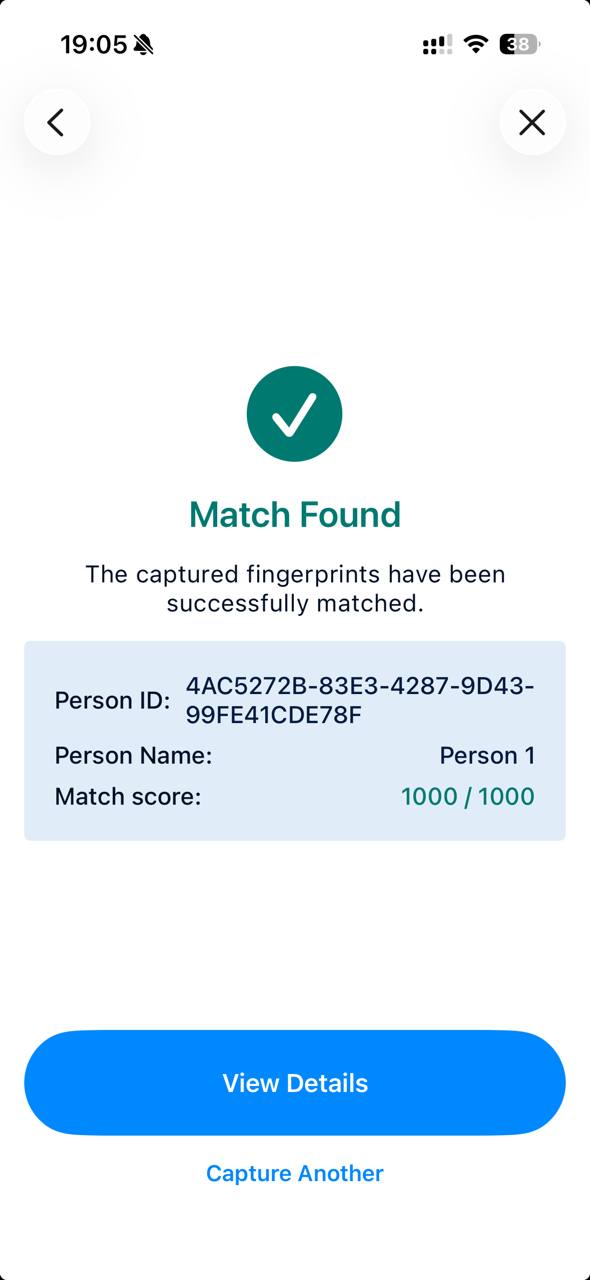
Identification result – matched person and match score; View Details opens the per-finger view.
Configuration
Settings apply to the next capture, survive relaunch, and need no restart. The app ships with sensible defaults (restored by Reset); exact values can change between releases, so they are not listed here.
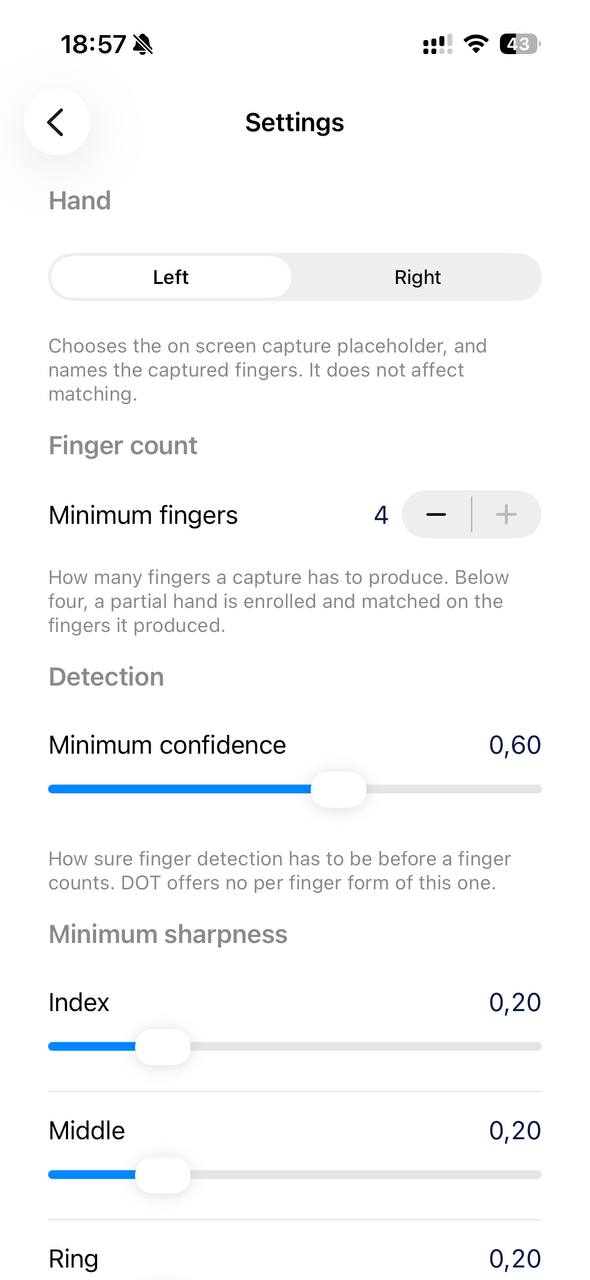
Settings – hand, finger count, and per-finger detection thresholds.
| Setting | What it controls |
|---|---|
| Hand | Which hand the placeholder guides the user to present. Matching does not depend on which hand is selected. |
| Minimum fingers | How many fingers a capture must produce (1–4). Below the maximum, a partial hand is enrolled and matched. |
| Minimum confidence | How sure finger detection must be before a finger counts (0–1). |
| Minimum sharpness | How sharp each finger must be (set per finger; 0–1). |
| Finger size | How much of the frame a finger must fill – how close the hand is held (0–1). |
| Valid samples | How many good frames in a row start a capture. |
| Selection time | How long auto-capture then spends choosing the best frame. |
| Minimum template quality | The template quality (0–100) below which a finger is flagged as low quality on the review screens; the finger is kept either way. |
| Match threshold | The lowest score (0–1000) a candidate must reach to count as a match. |
Related pages
- On-device identification (the use case this demo covers, fully on-device)