Latent Editor
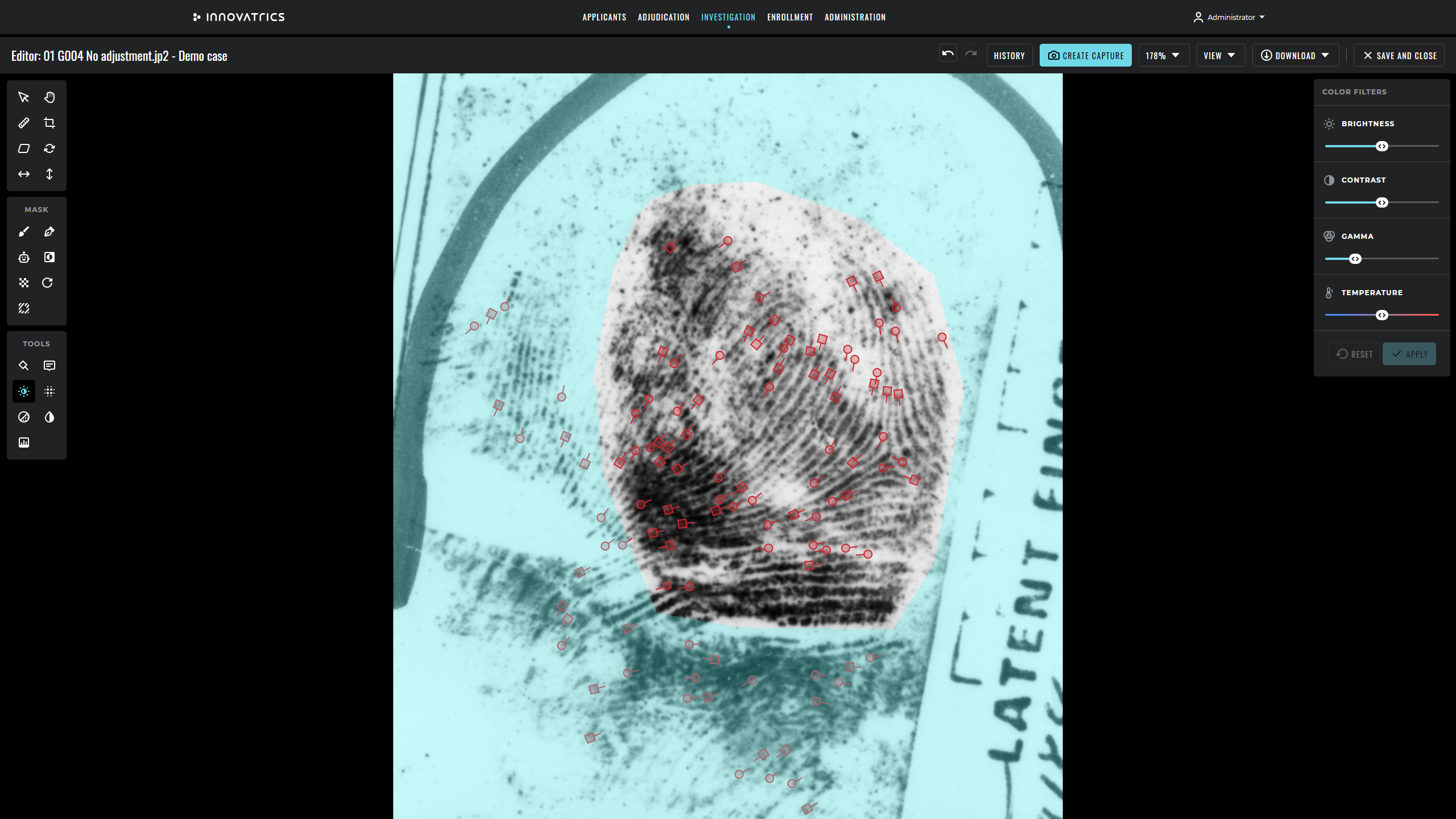
The Latent Editor is a web-based module that provides latent print editing and storage, enabling latent-to-plain, latent-to-rolled and latent-to-latent matching. Facial photos can also be edited to enhance the chance of successful identification of the subject.
Key features
- Smart separation tool – easily separates overlapping fingerprints.
- Automatic detection – automatically detects minutiae and the region of interest, saving examiners considerable time and effort.
- Interoperability – supports most image types including WSQ and JPEG2000.
- Ease of use – a wide range of functions exposed through an intuitive user interface.
View adjustment
The Editor provides the following tools to adjust the view of the evidence:
- zoom in / out,
- fit image of an evidence,
- fit width of the image,
- fit height of the image,
- show / hide visual annotations and minutia points (for prints).
Image adjustment

For image adjustment the following tools are available:
| Name | Description |
|---|---|
| Select | Enables selecting items on the picture such as minutia points or visual annotations. |
| Pan | Enables moving the image around the screen by dragging it with the mouse cursor. |
| DPI | Allows converting the image from various DPI values to 500 DPI, the standard for template extraction. The user can either define the DPI of the source image or calculate it if unknown. For calculation, the image must contain an object with a known size of 1 inch or 1 cm; drawing a line over the object starts the calculation. |
| Crop | Enables cropping the image by defining a rectangle. |
| Perspective | Enables changing the perspective of the image by specifying the corners of a reference measurement tool present in the picture (typically a square scale included in the photo). |
| Rotate | Enables rotating the image by mouse position. When rotated, all minutia points and visual annotations are deleted. |
| Flip horizontal | Flips the image horizontally. |
| Flip vertical | Flips the image vertically. |
Image enhancement
The Latent Editor offers tools that enhance the quality of an image so it is better prepared as a source for biometric identification.
| Name | Description |
|---|---|
| Minutia points | Automatically detect or manually add / edit / delete minutia points on a fingerprint evidence. |
| Visual annotations | Draw visual annotations above the image to highlight the most interesting features. |
| Color filters | Adjust the image to increase the visual appearance of significant features – brightness, contrast, gamma and color temperature. |
| Blur | Adjust blur to reduce noise in the image. |
| Grayscale | Toggle between full color and grayscale. |
| Invert colors | Inverts colors of the image. Does not take the mask into account. |
| Histogram equalization | Distributes the intensity of the signal evenly between darker and brighter areas of the image. |
Minutia points detection and editing
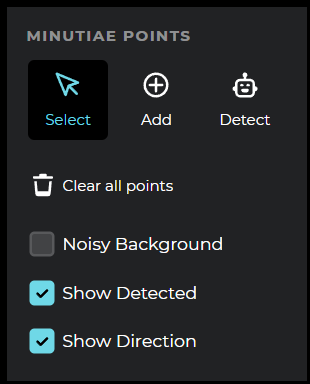
The Latent Editor automatically detects minutiae on a fingerprint evidence. To give the examiner full control, it also supports manual editing:
- add minutia point,
- change the type of a minutia point (ending, bifurcation),
- change the position of a minutia point,
- delete a minutia point.
Endings and bifurcations are visually distinguished:

Ridges separation
The Ridges Separation tool can be used to separate overlapping fingerprints so that only the fingerprint of interest is shown.

Mask

The mask (Region of Interest, ROI) is important in the Editor for adjusting the image. It can be used for:
- limiting color-filter adjustments to a specific zone,
- defining the area in which minutia points of the fingerprint must be detected,
- defining the area where the separation tool has to be applied to recover the right ridges in case of overlapping fingerprints,
- defining the area that participates in the identification process.
History tracking

The Editor tracks the entire editing history of the open image. Based on this history the following tools are available:
- Undo – returns one step back in the editing history.
- Redo – moves one step forward in the editing history if the editing was undone.
- History view – shows the full history of changes applied to the image.
- Snapshots – creates a named, time-stamped snapshot of the current state of the image. Snapshots are visible in the examination sidebar and can be restored at any time.
Export
The current state of an edited evidence can be exported either as a plain image or as a set of:
- the image itself,
- a file containing the position of minutia points,
- a file containing the description of visual annotations drawn over the image.