Criminal Case Management
The Criminal Case Management module is the operational hub of an investigation. It stores evidence, organises it under cases, drives the search and comparison tooling and produces the documents that end up in the court file.
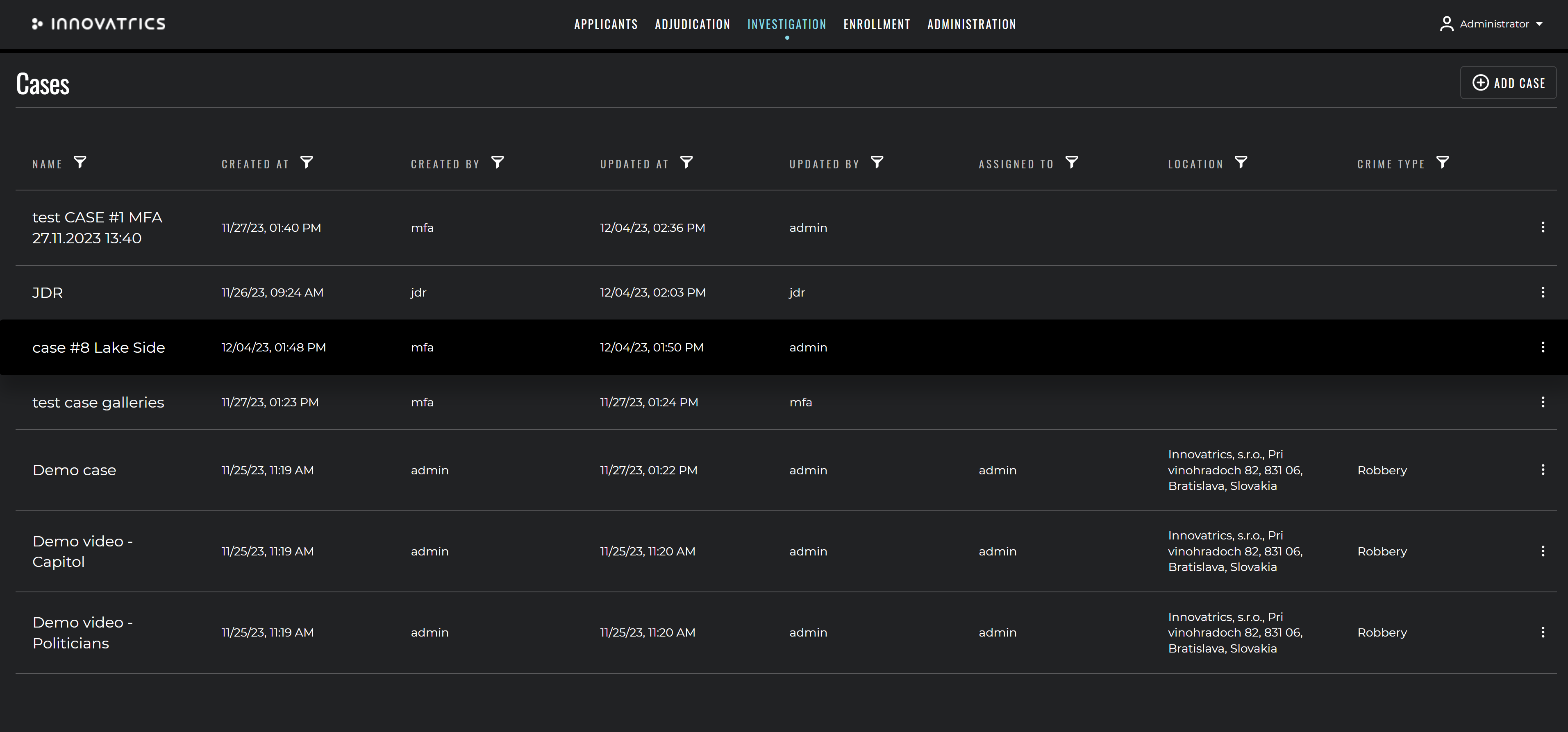
Data storage
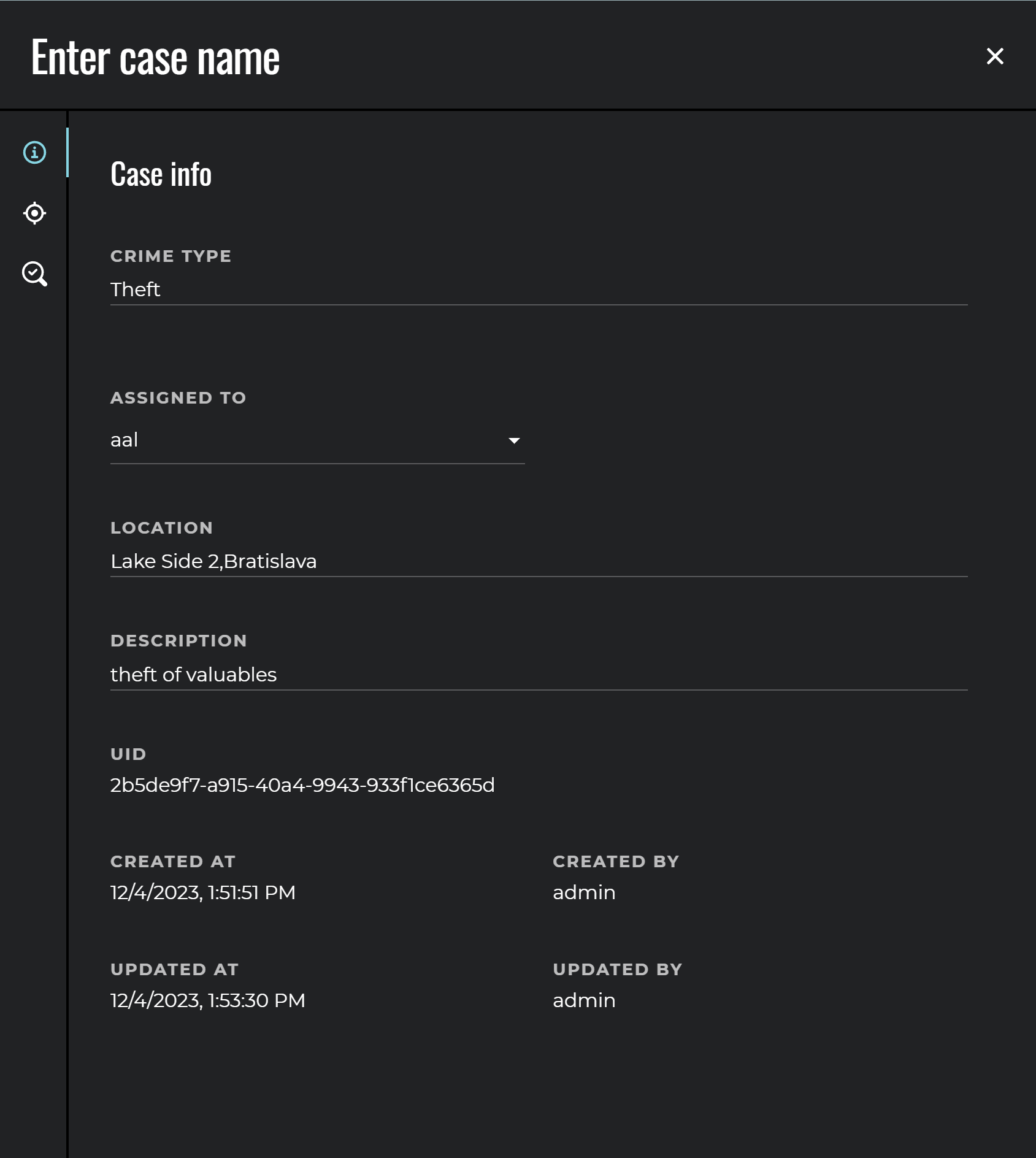
For each case the following attributes can be stored:
| Name | Description |
|---|---|
| Crime Type | Type of crime being investigated. |
| Person who was assigned the case | Specialist or law-enforcement officer assigned to the case. |
| Location of the crime | Location where the crime occurred. |
| Description of the case | Description of the case. |
| Tracking fields | Information about who created or updated the case and when. |
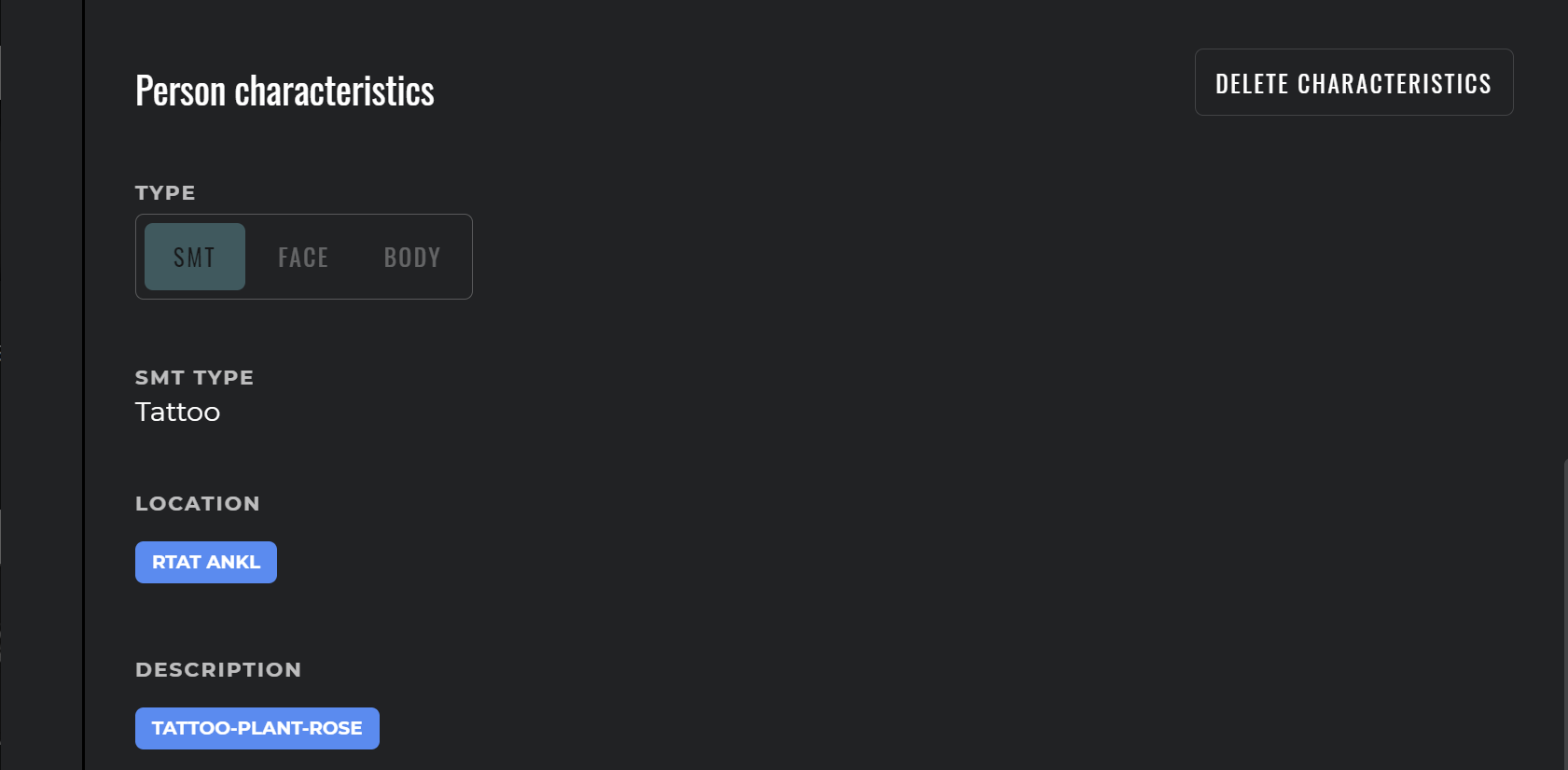
| Person characteristics | For evidence of type Other a list of characteristics describing the evidence. Useful for photos of scars, marks, tattoos, body and face characteristics. |
The list of cases supports standard sorting and filtering based on the available attributes.

Once a case has been created, additional properties can be entered through the Case Info form:
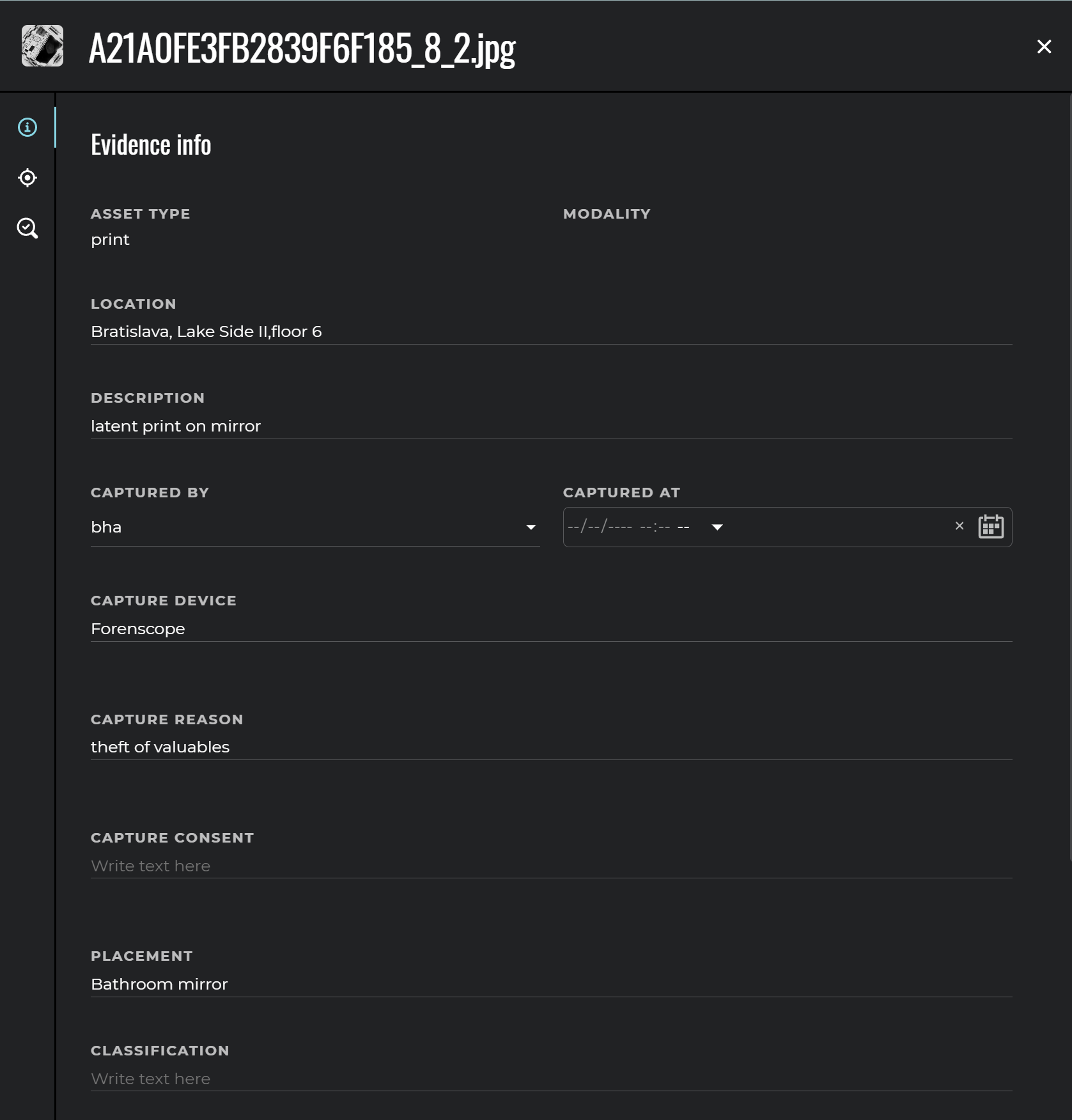
Evidence that can be uploaded to a case can be of several types. The type of evidence determines the kind of identification that can be performed and whether ACE-V examinations are created on top of the evidence.
| Type of evidence | Description | Type of identification | ACE-V examinations |
|---|---|---|---|
| Latent print / Print | Latent impression of finger, palm or other type of friction-ridge skin, or a rolled / plain ten-print. | Biometric fingerprint identification. | Yes – Analysis → Comparison → Verification. |
| Facial photo | A photograph of a face. | Biometric facial identification. | Yes – Analysis → Comparison → Verification. |
| Video | A video file containing identifiable persons. | Faces are detected automatically and identified during background processing. | Specialised auto-generated video examinations (one per tracklet); not part of the manual ACE-V state machine. |
| DNA | DNA profile in the supported format. | DNA matching, including kinship search. | None. |
| Other | SMT photos, body parts, voice recordings, documents, etc. | For SMT, face and body characteristics – identification based on these characteristics. For everything else – none. | None. |
Each evidence carries a configurable set of descriptive parameters: location, description, captured-by, captured-at, capture device, capture reason, capture consent, placement and classification.
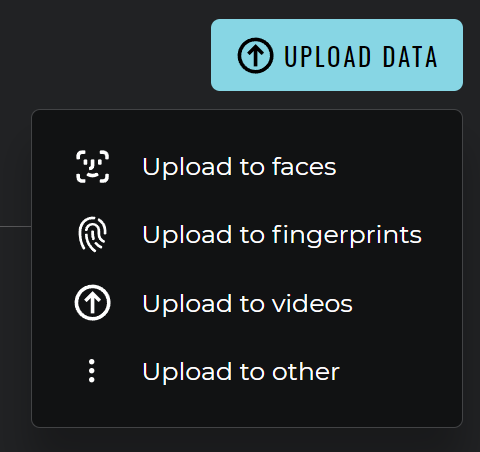
Evidence is uploaded by either clicking the Upload Data button or by dragging the file into the case:
For evidence of type Other, NCIC-coded person characteristics (SMT, body, face) can be assigned and used as search criteria when biometric identification is not possible:
History of edited evidence
Whenever a user makes changes to an evidence using the Latent Editor, the history of changes is tracked as a snapshot with information about who made it and when. The user can return to any saved snapshot and continue editing from that checkpoint.
Visual annotations
When the user draws visual annotations over the evidence, or highlights matching features of probe and reference evidence in the Comparison Tool, this information is stored as a separate layer that does not modify the source image.
Search and Comparison tool
The Search and Comparison tool is part of Case Management and can be started over each evidence that supports biometric identification (latent prints, faces).
The user can define the following search parameters:
| Name | Description |
|---|---|
| Identification threshold | Only candidates with an identification score above this threshold are displayed. |
| Number of candidates | Maximum number of reference subjects or evidences that match the identification parameters. |
| Identification speed | The lower the value the more accurate the identification, however results take longer to obtain. |
| Rotation | Applies only to latent prints – maximum number of degrees of rotation considered during identification. Default 180°. |
| Galleries | Selection of subject or case galleries against which the identification is performed. |
The result is a list of candidates sorted by identification score:

The Comparison Tool then provides a detailed visual comparison between the probe evidence and the selected reference candidate.
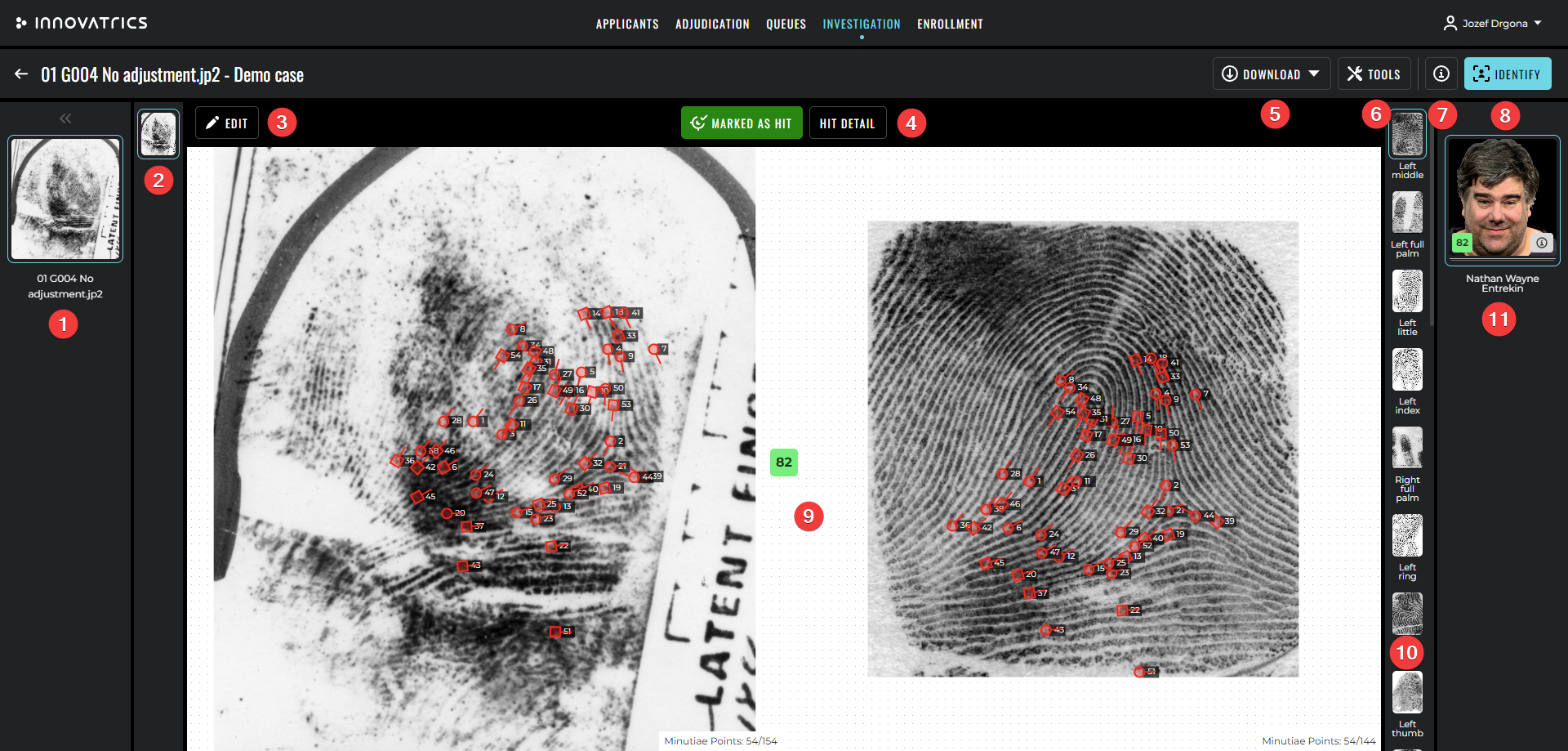
The following tools are available in the Comparison Tool:
- view adjustment,
- color filtering functions, separately for probe and for the selected candidate,
- display of verification score,
- visual annotations – can be drawn on both images and visually linked to highlight matching features,
- display of matching / all minutiae points,
- image normalization (for fingerprint or palm) – automatic adjustment of rotation of both images so that they are parallel,
- eye-position adjustment (for face) – adjustment of zoom and rotation of faces based on eye positions on both images.
Search results
Case Management persists every search performed against the evidence. The persisted record contains all settings used for the identification request and the resulting candidate list.
Hits
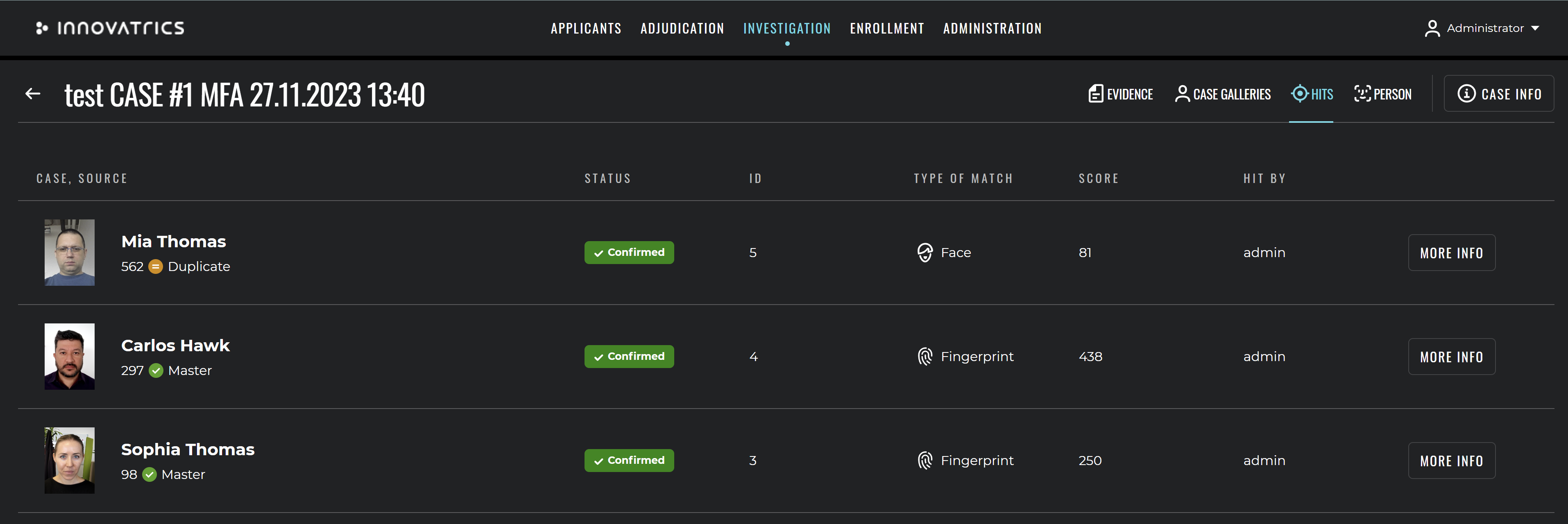
The Hits functionality stores the state in which the criminal specialist marked a result of identification as a confirmed hit. For each hit a Hit detail report is generated. For each case a list of confirmed hits is displayed to make navigation among them easier.
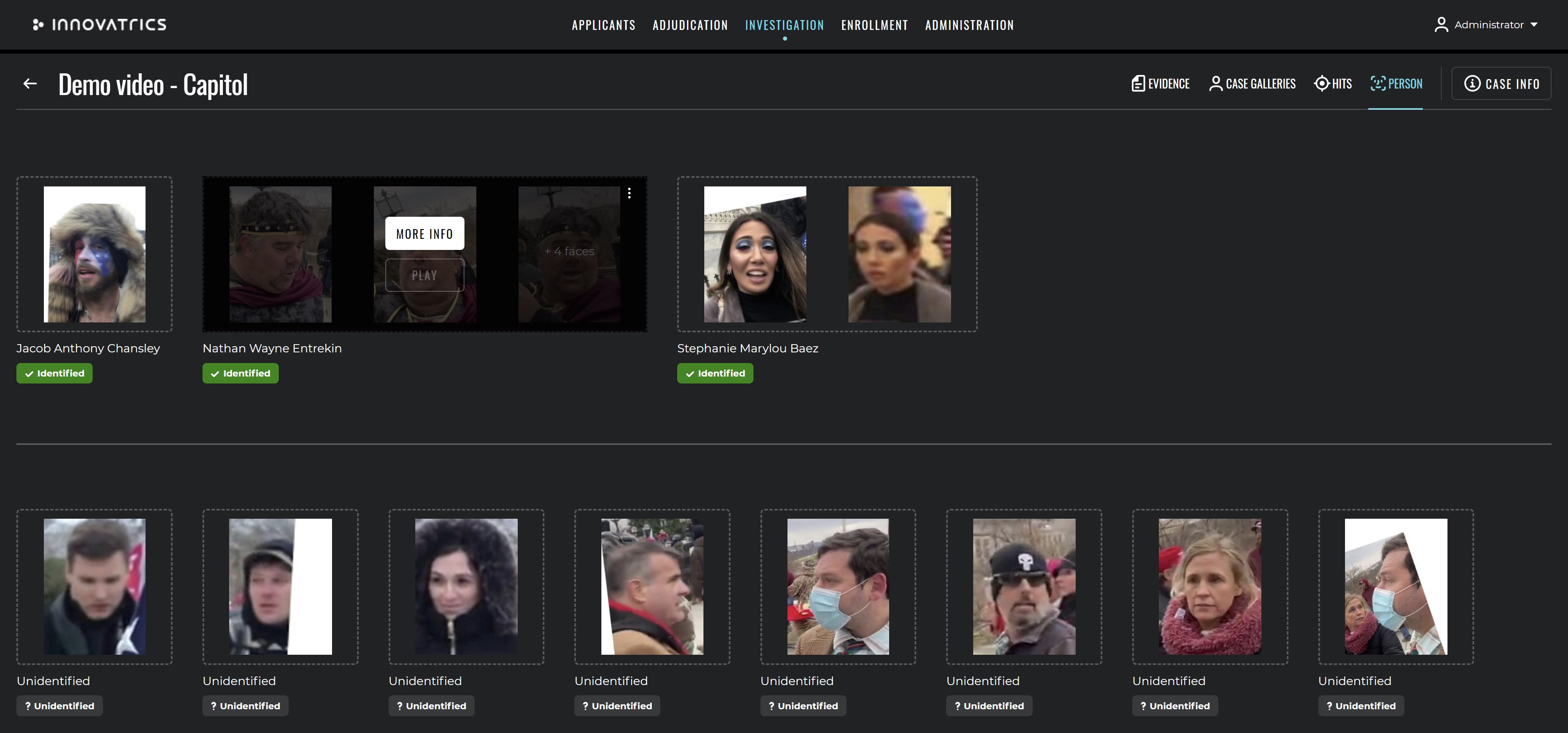
For investigations with video evidence the system additionally exposes a Person view that groups all occurrences of an identified person across every video in the case:
Personal cases
Each user has a private personal case that no one else can read. Personal cases are useful for ad-hoc analyses or training. The same audit logging applies to personal cases as to shared cases.
Data export
Case Management provides tools for exporting data, including:
- current state of an evidence file – as image,
- current state of an evidence file with metadata: image, position of minutia points for latent prints, visual annotations drawn over the evidence,
- Hit detail report – PDF or image,
- full case as an ANSI/NIST-ITL container (see the Migration API).
Image format support
Case Management supports a wide range of image formats, including JPEG/JPG, JPEG2000, WSQ (only for latent prints), PNG, BMP and RAW.