ACE-V Workflow module
This module gives Innovatrics ABIS Criminal Investigation first-class support for the ACE-V (Analysis, Comparison, Evaluation, Verification) methodology. The methodology itself is described in ACE-V methodology; this page describes how the methodology is realised in the product.
Core behaviour
- The ACE-V workflow is built around Analysis, Comparison and (optionally) Verification examinations created under an evidence.
- ACE-V applies only to fingerprint / latent and face evidence. Evidence of type
OtherorDNAdoes not use examinations at all and has no ACE-V timeline. Evidence of typeVideouses a specialised, non-ACE-V video examination created automatically by the Video Manager. - Whether an examination is created at all depends on the evidence-level Technical Assessment (TA) status: if TA fails, no examinations are created. TA is tracked exclusively at the evidence level – the examination state machine does not include it.
- The Editor and the Comparison Tool always operate on
examinationId, never on the underlyingevidenceId. This is what guarantees that two examiners working on the same evidence never see each other's intermediate work. - Roles and rights are enforced via the agency's RBAC / OPA rules; the platform does not require the use of any specific administrator role.
When examinations are created
| Examination kind | Trigger |
|---|---|
| Analysis | Created either by direct user action on the evidence detail page, or automatically on evidence upload if the deployment is configured to do so. Pre-condition: the parent evidence has passed Technical Assessment. |
| Comparison | Created by user action when the examiner picks one or more candidates from the identification result list and starts a comparison. One Comparison examination is created per selected candidate. |
| Verification | Created by user action at the end of a Comparison: the Create Verifications button generates Verification examinations for every Comparison whose resolution is in the configurable resolution set – typically Individualized only. Used only in non-blind ACE-V. |
| Video | Created automatically by the Video Manager pipeline; one Video examination per detected person tracklet. Not part of the manual ACE-V state machine. |
Examination hierarchy
Examinations form a tree rooted in the evidence:
Evidence
└── Analysis examination
    ├── Comparison examination (vs. candidate A)
    │   └── Verification examination          ← non-blind ACE-V only
    └── Comparison examination (vs. candidate B)
        └── Verification examination
- In non-blind ACE-V, the evidence usually has a single Analysis. More Analyses can be created when the work has to be repeated, or when two prints on the same evidence have to be examined separately. Each Analysis has Comparison children, and each Comparison can have one or more Verification children.
- In blind ACE-V, the Primary examiner and the Verification examiner work on their own parallel Analysis and Comparisons. No explicit Verification examination is created – the system compares the Primary and Verification results to confirm or reject the conclusion.
UI / UX
The evidence detail page exposes two tabs:
- Examinations (default) – the list of ACE-V examinations created on this evidence.
- Evidence info – the metadata and state history of the parent evidence.
Each examination list item exposes the following actions:
- Analyze – opens the examination in the Latent Editor.
- Identify – opens the examination in the Comparison Tool.
- More info, Search history, Hits, Download, Delete.
The examination sidebar shows:
- an Info + ACE-V status history panel that lists every status transition with the user, timestamp and free-text note,
- a Technical info panel that shows technical metadata (DPI, dimensions, file format, etc.),
- the Hits panel that shows the hits recorded against this examination.
Decisions and relation types
Identification supports multiple hits per examination using the relationType field. The supported values are:
IndividualizedExcludedInconclusive
Hit deletion is a soft delete – deleted hits remain in the database but are not counted in hit counters or used for any aggregation.
Comparison Tool integration
The Comparison Tool replaces the older "create hit" action with an explicit Mark as action bar (Excluded / Inconclusive / Individualized). Optional UX features include:
- a hit iterator that automatically navigates through every unresolved candidate,
- a completed identification modal that pops up after the last unresolved sample is resolved.
Hit surfaces
Hits are visible in three surfaces:
- Examination sidebar – hits of one specific examination.
- Evidence Hits table – hits aggregated across all examinations of the parent evidence.
- Case Hits table – hits aggregated across all evidences of the parent case.
State machines
The platform tracks ACE-V on two independent levels: one status field on the evidence and one on each examination. They have different value sets and they advance separately.
Examination
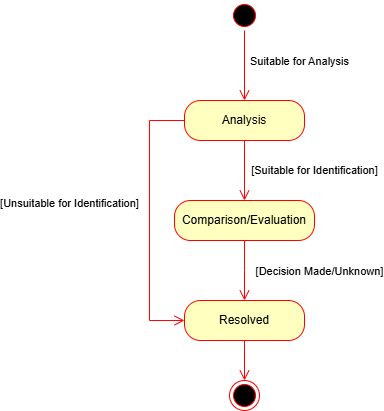
The examination state machine is specific to the kind of the examination. Every kind has an in progress status (work has started) and a done status (the kind is resolved and the result is recorded). The actual ACE-V outcome is captured by the resolution attached to the done status; the set of available resolutions is configurable per deployment.
| Examination kind | In-progress status | Done status |
|---|---|---|
| Analysis | Analysis in progress | Analysis done |
| Comparison | Comparison | Evaluation |
| Verification | Verification in progress | Verification done |
Evidence
The evidence has its own, independent ACE-V status. Unlike the examination state machine, the evidence state machine includes Technical Assessment (TA).
| Status | Abbreviation |
|---|---|
| Technical assessment | TA |
| Analysis | A |
| Comparison / Evaluation | C/E |
| Processed | – |
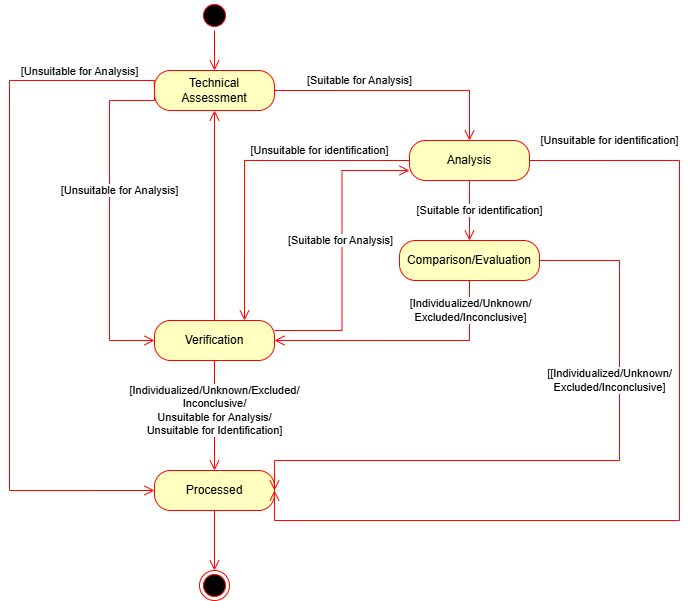
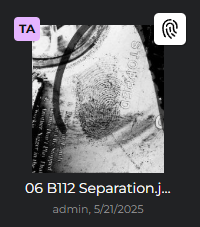
The evidence-level status is moved manually by the investigator as the work on the underlying examinations progresses; it is not auto-derived. The current state is shown both on the evidence thumbnail in the case grid and in the evidence detail header.
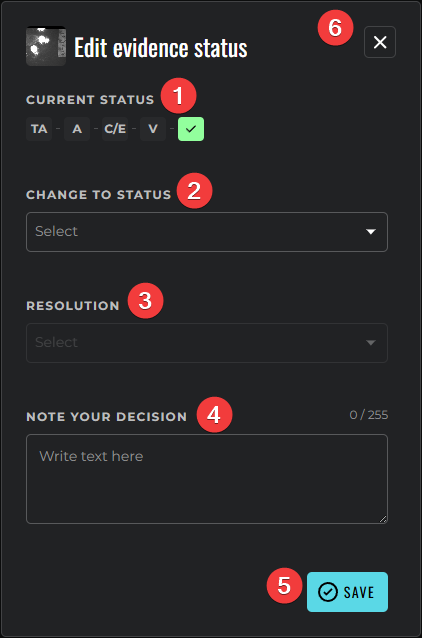
State transitions are performed through the Change Status form:
Blind vs. non-blind verification
The platform supports both ACE-V verification flavours; the choice is configured per deployment / per workflow.
- Blind ACE-V – the Primary examiner and the Verification examiner each work on their own Analysis and their own Comparisons in parallel. The verifier cannot see the primary's conclusion. The system compares the two sets of results automatically – no explicit Verification examination is created. Blindness is enforced by the workflow engine, not by user discipline.
- Non-blind ACE-V – the verifier reviews the primary work directly. The system creates explicit Verification examinations as children of the Comparisons whose resolution falls into the configurable verification set (typically Individualized).
ACE-V configuration
The ACE-V workflow is configurable per deployment. Administrators can adjust the workflow to match the agency's standard operating procedures – including which examination kinds are used, how transitions between ACE-V states behave, which resolutions are available per modality, and which licence rights are enabled – without code changes.
The configuration covers, among others:
- the available resolutions per examination type and per biometric modality, including their name, ordering and visual styling,
- whether ACE-V transitions require explicit user confirmation or are applied silently,
- the default behaviour offered to users at each examination state (edit vs. read-only),
- the licence-controlled availability of Comparison and Verification examinations,
- the visibility of ACE-V status indicators across the UI.
Beyond classic blind and non-blind ACE-V, the platform can also be configured for agencies that do not run ACE-V at all – identification, comparison and decision can be performed in a streamlined unified workflow when the operating procedures of the agency call for it.
Auditability
Every transition – of an examination or of the parent evidence – is recorded with:
- the user who performed the transition,
- the timestamp,
- a free-text note,
- a snapshot of the working image at the moment of the transition.
The full status history is exposed via the Examinations API.