Install on a device
Download the Embedded Stream Processor package for your device family from the Innovatrics Customer Portal (Products → Embedded; your sales representative provides the login). Each package has the platform in its name and a version number; use the version recommended for your Face Matcher release. Smart cameras receive a vendor application package installed through the camera's web interface; AI boxes receive a Linux archive with the sfe_stream_processor binary, solvers, a sample settings.yaml, a local mqtt_broker for testing and a run.sh script.
After installation every device needs a license bound to its hardware ID, and a connection section pointing at your broker. When you use Face Matcher, do both from Station as described in Connect to Face Matcher; the sections below cover the device-side steps.
Hardware ID and license
Every device runs against a license file bound to its hardware ID (HWID):
- Read the hardware ID. On smart cameras the HWID is the MAC address of the camera's network adapter, written without colons; Station also displays it in the edge stream's License section once the device connects. On AI boxes run the License Manager shipped in the package (
./license_manager_cli -p; on x86 Linux installlibusb-0.1-4first). - Generate the license for that HWID in the Customer Portal. If you need a license bound to a different hardware parameter, contact your sales representative.
- Deploy the license in one of these ways:
| Method | How | Use when |
|---|---|---|
| Upload in Station | Edge stream → License section → upload → Save | You use Face Matcher (recommended; no device access needed) |
license.data in settings.yaml | Base64-encoded file content, no line wrapping: base64 -w0 iengine.lic | Standalone deployments, scripted provisioning |
| License file on disk | Copy as iengine.lic to /etc/innovatrics, ~/.innovatrics or the working directory | AI boxes |
| Environment variable | ILICENSE=<path> or ILICENSE_DATA=<base64> | AI boxes started from your own service unit |
A change of license data requires a restart of the stream processor.
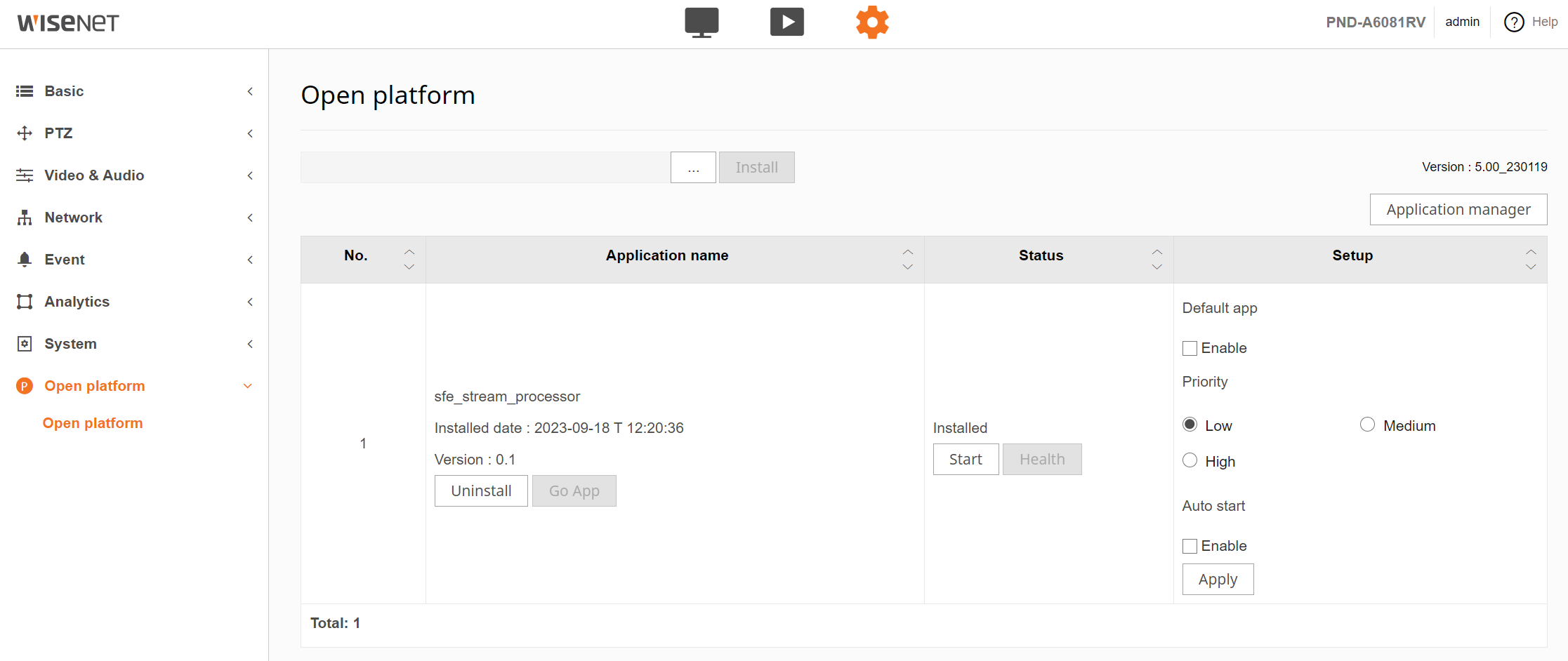
Hanwha cameras
Applies to Hanwha P series cameras with the Ambarella CV2 SoC. The package contains a Hanwha Open Platform application (sfe_stream_processor.cap).
- Log in to the camera's web interface.
- Go to Settings → Open platform → Open platform, click ..., select the
.capfile and click Install. - When the application appears in the list, click Start. The status changes to
Running.... Health shows CPU and memory use; Stop followed by Uninstall removes it. - Click Go App to open the stream processor's configuration page and set the MQTT connection (see Connect to Face Matcher).
AXIS cameras
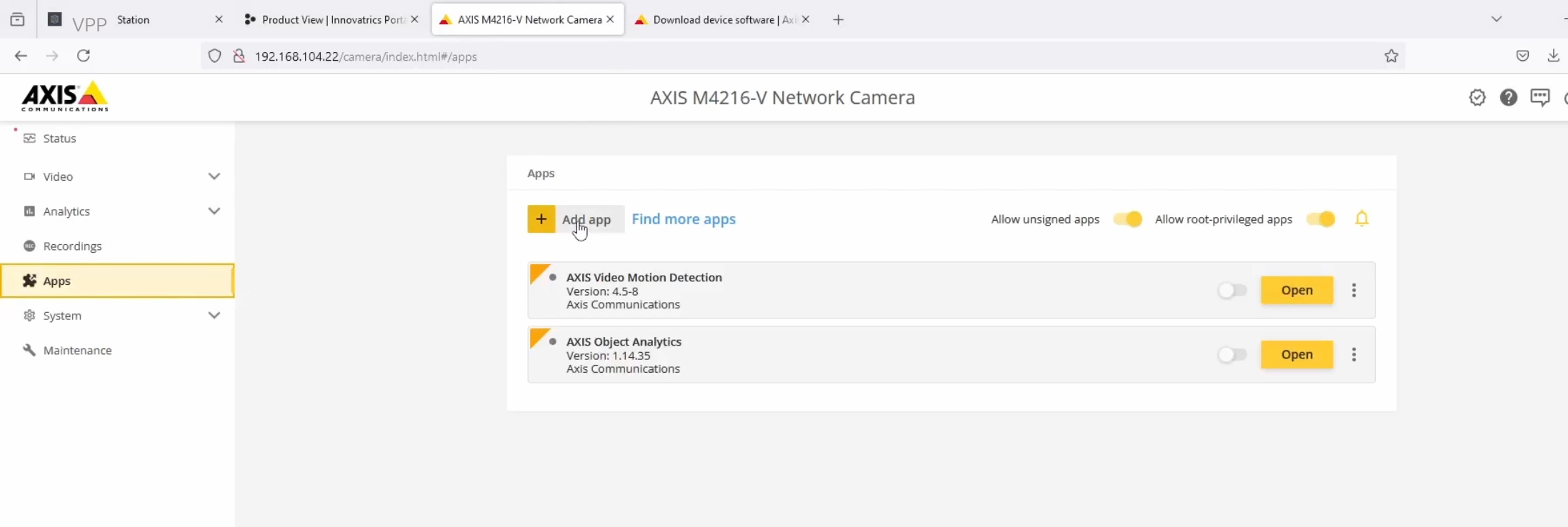
Applies to AXIS cameras with the Ambarella CV25 SoC. The package contains an AXIS application (.eap file). AXIS OS must be 11.11.73 or later within major version 11; version 12 is not supported.
- Log in to the camera and open Maintenance. Check the current firmware under Firmware upgrade. If it is older than 11.11.73, download the latest 11.x firmware for your model from the AXIS support site, click Upgrade → Next, provide the file, choose Standard upgrade and finish. If the upgrade misbehaves, restore factory defaults and repeat.
- Open Apps and click + Add app.
- Select the
.eapfile and click Install. - Toggle the application on, then click Open to reach the stream processor's configuration page.
Lilin cameras
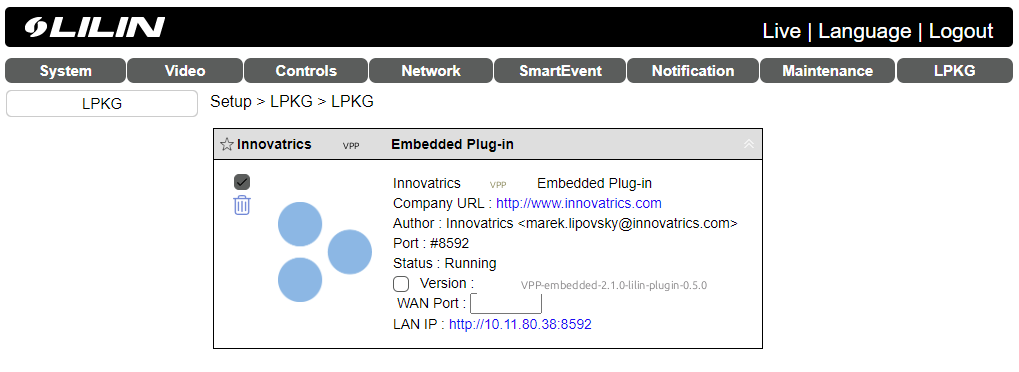
Applies to Lilin AI cameras with the Ambarella CV22 SoC and Ambarella 3.0.x firmware. The package contains a Lilin plugin (plugincv22s66.bin).
- Log in to the camera and go to Settings → Maintenance → Firmware update.
- Click Choose File, select the
.binfile and click Submit. The camera installs the plugin and redirects you to Settings → LPKG. - Tick the checkbox next to the Innovatrics plug-in to start it; the status changes to Running. Untick it to stop.
Axiomtek RSC101 and other Hailo-8 boxes
The Hailo package runs on Ubuntu 22.04 (required by the HailoRT 4.17.0 drivers). Change the box's factory login before you expose it on the network.
-
Install the Linux headers, then the HailoRT PCIe driver and library from the Hailo developer zone and reboot:
$ sudo apt install linux-headers-5.15.0-1026-intel-iotg$ sudo dpkg --install hailort-pcie-driver_4.17.0_all.deb$ sudo dpkg --install hailort_4.17.0_amd64.deb$ hailortcli scan # after reboot: the Hailo-8 device must be listed -
Install the GStreamer H.264 decoder and, for hardware video decoding on the Intel GPU, the VA-API driver and GStreamer elements:
$ sudo apt install gstreamer1.0-plugins-bad$ sudo apt install va-driver-all vainfo gstreamer1.0-vaapi$ sudo vainfo # lists supported profiles$ gst-inspect-1.0 | grep vaapi # lists vaapih264dec and friendsintel-gpu-tools(sudo intel_gpu_top) is optional and shows GPU load while a pipeline runs. -
Deploy the license (see above), then verify the installation with the sample video: start the bundled broker with
bin/mqtt_brokerand the stream processor with./run.sh. The samplesettings.yamlpoints at127.0.0.1; use the client GUI to see detections. -
Replace the
frame_inputpipeline with your camera source — see GStreamer input, which also shows how to run several streams from one box.
NVIDIA Jetson
The Jetson package supports Xavier NX, AGX Xavier and Orin modules with JetPack. Solvers use ONNX Runtime with the cuda or tensorrt execution provider (set through the runtime_provider solver parameter; TensorRT engine caching through ORT_TENSORRT_ENGINE_CACHE_ENABLE=1 and ORT_TENSORRT_CACHE_PATH shortens start-up).
- Unpack the package and deploy the license (see above).
- Start
bin/mqtt_brokerand./run.shto process the sample video, then check the output with the client GUI. - Point
frame_inputat your camera and, for several cameras, run one settings file per stream — see GStreamer input.
NXP i.MX 8M Plus
The NXP package accelerates inference on the i.MX 8M Plus NPU through TensorFlow Lite. It takes frames from a USB camera through the camera_input solver, which you must configure before the first start.
- Unpack the package and deploy the license (see above).
- In
settings.yaml, set thesolvers.frame_inputparameters (camera_index,camera_width,camera_height,camera_fps,camera_format) for your USB camera — see Solvers.gst-device-monitor-1.0lists the available cameras and their formats. - Run
./run.sh.
Test with the client GUI
The client GUI (sfe_client_gui) is a desktop tool for Windows x86_64, Linux x86_64 and Linux arm64, downloadable from the same Customer Portal product. It subscribes to a device's topics, shows the incoming frames and face crops, and can register a detected face into the device's own database, which lets you test on-device identification without a server.
- Start
sfe_client_guiand enter the broker address, port, credentials, root topic and the device's client ID. - Click Connect. Detected faces appear with their crops.
- Click Register under a crop to add that face to the device database; with
face_identification.enable: truethe name is shown the next time the face is recognized.
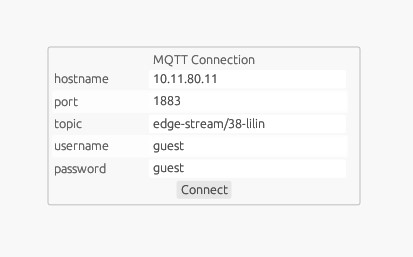
For debugging what a device sends, temporarily set messaging.allow_empty_messages: true and full_frame.enable: true in its settings; turn both off again before production because full frames need a lot of bandwidth.