Connect to Face Matcher
This page takes a device with the Embedded Stream Processor installed and turns it into a Face Matcher edge stream: register it in Station, point its MQTT connection at the Face Matcher broker, license it and verify that events arrive. You need a running Face Matcher (install), network reachability from the device to the Face Matcher host on port 1883 (network ports), and access to the device's configuration page or settings.yaml.
1. Create the edge stream in Station
In Station open Cameras, click ADD EDGE STREAM, enter a name and a Client ID, and save. The client ID is the device's MQTT identity: choose something stable and unique per camera stream (for example lobby-cam-1), because you will type the same value on the device. Enable the stream with the Enabled toggle. Face Matcher can run as many edge streams as you have edge-stream-processor capacity for; see Edge streams in Station for the full settings.
2. Point the device at the broker
Face Matcher's MQTT broker is its RabbitMQ instance with the MQTT plugin, listening on host port 1883. Anonymous MQTT logins are disabled, so the device authenticates with the broker user configured in the Face Matcher .env (keys MQTT__Username and MQTT__Password, section 2.3). The shipped values are development defaults — create a dedicated user in the RabbitMQ management UI (localhost:15672) before production and give the device that user.
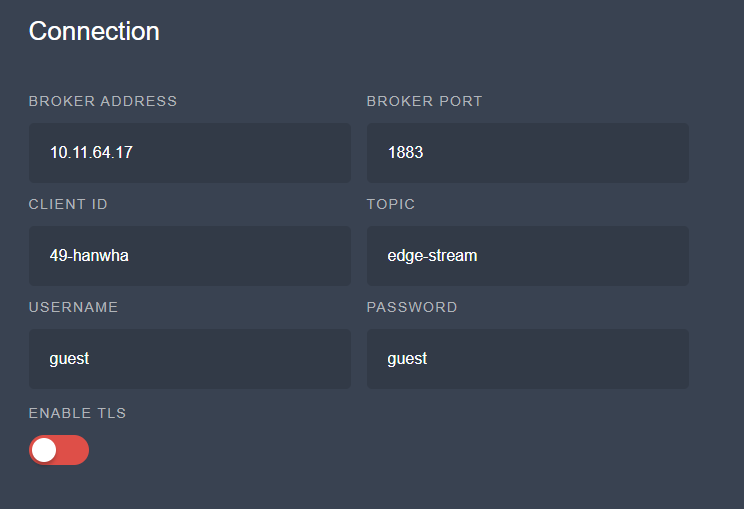
Set the connection section on the device — through the plugin's configuration page on smart cameras, or by editing settings.yaml on AI boxes:
connection:
  broker_address: 192.0.2.10   # IP or hostname of the Face Matcher host
  broker_port: 1883
  client_id: lobby-cam-1       # must equal the Client ID entered in Station
  topic: edge-stream           # fixed: the server subscribes to this root topic
  keep_alive: 60
  timeout: 10
  tls_enable: false
  username: <MQTT__Username from .env>
  password: <MQTT__Password from .env>
topic must stay edge-stream. The device publishes to edge-stream/<client_id>/frame_data; RabbitMQ maps that MQTT topic to the routing key edge-stream.<client_id>.frame_data on the amq.topic exchange, and the edge-stream-processor service consumes exactly the pattern edge-stream.*.frame_data (queue MQTT_EDGE_STREAM_CONSUMER, .env section 3.7). A different root topic or a client ID that does not match the Station entry means the messages arrive at the broker but are never processed. Save the settings and start the stream processor (LAUNCH on the camera configuration page, or ./run.sh on a box); it reloads settings.yaml automatically when the file changes.
3. Upload the device license through Station
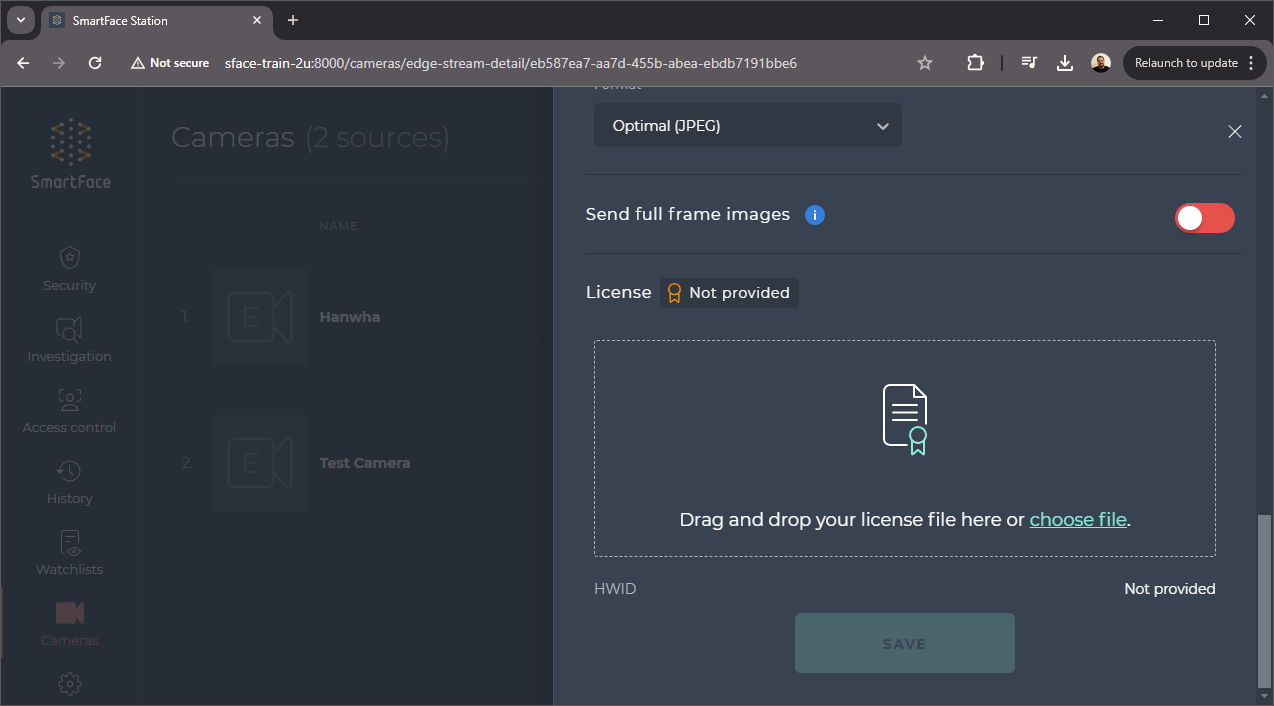
Once the device connects, Station shows it with the status License not provided and displays the hardware ID it reported. Open the edge stream, scroll to the License section, drop in the license file generated for that hardware ID (hardware ID and license) and click Save. After a few seconds the status changes to License Valid and the upload area disappears. You do not need shell access to the device for this step.
4. Verify
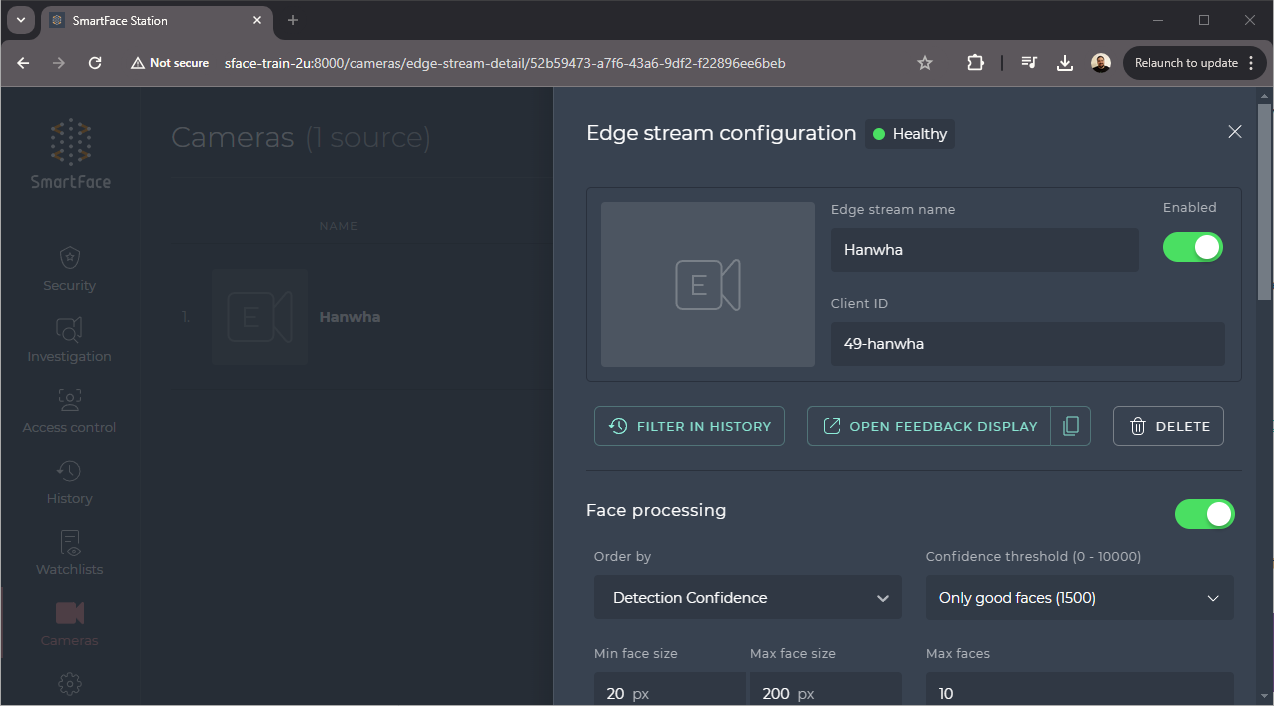
- The edge stream header in Station shows Healthy with a green dot. Health comes from the retained
edge-stream/<client_id>/healthmessage the device publishes (Online,Offline, orOfflineDisconnectedas its last will). - Walk in front of the camera: faces appear in Station's live view and, for enrolled people, as identifications in event history.
- On the server,
docker compose logs -f edge-stream-processorshows the frames being consumed; the RabbitMQ management UI shows a connection for your client ID under Connections (protocol MQTT).
5. Choose where processing happens
In the edge stream's Face processing section, Template generator resource decides whether templates are extracted on the device (On Edge) or by the server's extractor (CPU/GPU/ANY on server). The Spoof detection section does the same for passive liveness, and Watchlists for matching and synchronisation selects which watchlists Face Matcher keeps synchronized to the device so that matching itself can run on the edge — see Edge watchlist synchronization. Station pushes these choices to the device; the corresponding settings.yaml keys are listed in the settings reference.
Troubleshooting: no events from the device
| Check | What to look for |
|---|---|
| Edge stream exists and is enabled | Station → Cameras: the stream is listed and the Enabled toggle is on |
| Client ID matches | connection.client_id on the device equals the Station Client ID exactly (case-sensitive) |
| Broker address | connection.broker_address is the Face Matcher host, broker_port is 1883, topic is edge-stream |
| Credentials | Device username/password match a RabbitMQ user; the RabbitMQ management UI (localhost:15672) lists the user and, once connected, an MQTT connection for the client ID |
| Network | The device can reach the host on TCP 1883 (firewalls, VLANs, NAT); TLS is off on both sides unless you configured it |
| License | The License section shows Valid; an unlicensed device connects but does not process faces |
| Server side | docker compose logs edge-stream-processor shows a consumer on MQTT_EDGE_STREAM_CONSUMER and no deserialization errors; message format on the device must be Protobuf for Face Matcher |
| Device side | The device log (log level Debug) shows the MQTT connection and detections; sfe_client_gui subscribed to the same broker shows whether frames leave the device at all |