Live monitoring
The Security page is the live view of Face Matcher. It shows up to two camera previews with bounding boxes drawn around detected faces, and below them a Recent events feed that fills in real time as the platform detects and identifies people. Every event in the feed can be opened to see the images, the tracked appearances and the metadata behind it, and unknown faces can be enrolled into a watchlist directly from the event.
Camera preview
The preview area holds a left and a right window. Each can show one enabled camera; the previews are MPEG1 streams generated by the camera services, so they only appear for cameras whose Camera preview section is switched on (see Camera settings reference).
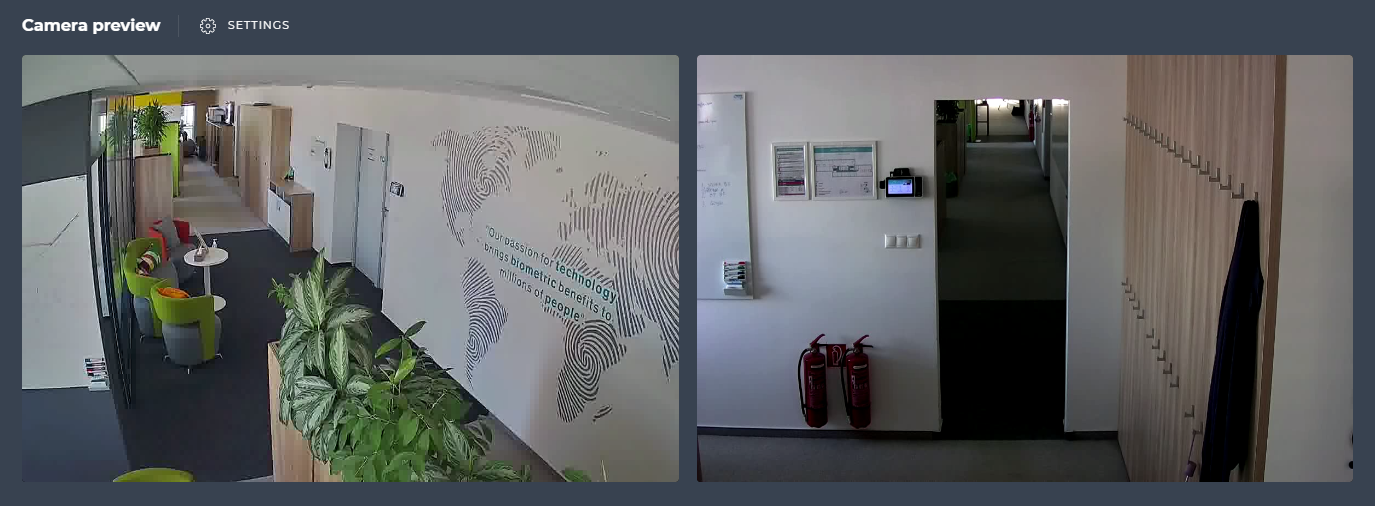
To choose the cameras, click SETTINGS next to the Camera preview title (or the settings link inside an empty preview window). The panel lists every enabled camera with a LEFT and a RIGHT button: press one to attach the camera to that window, press it again or click the X in the preview to detach it, and use the swap icon between the two window labels to exchange them. If the list is empty, register and enable a camera first on the Cameras page.
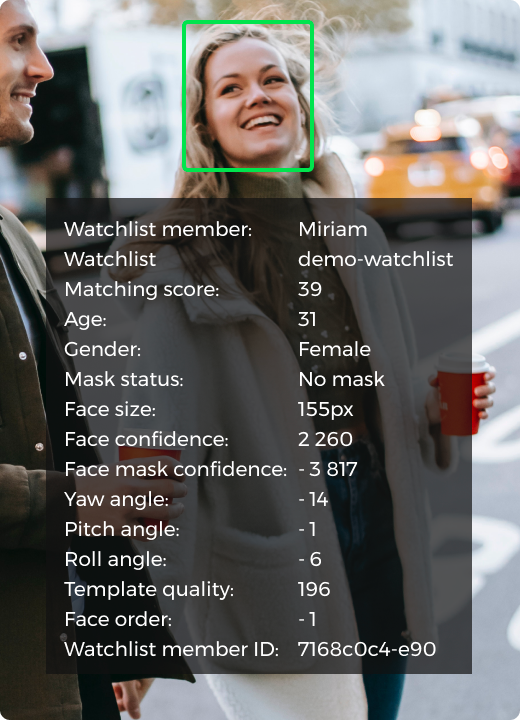
The bounding box drawn on the preview can carry attributes such as the watchlist member name, matching score, age or gender. Which attributes are drawn is a per-camera choice (Preview profiles in the camera configuration); the colours are a platform-wide setting changed through the REST API, described in Enhanced preview.
If a camera is enabled and attached but the window stays black, check the camera itself, the RTSP URL in the camera configuration, and that the preview is enabled for the camera. The preview stream leaves the camera container on port 30000 + camera sequence (30001 to 30005), so those host ports must be reachable from the browser.
Recent events
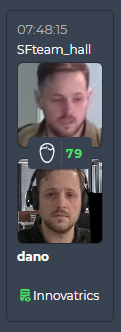
Each card in the feed is one event: a detected face, an identified person, a detected pedestrian or a detected object. The platform shows the best-quality image from the tracklet, so a person walking through the scene produces one card, not one per frame. An identified person is shown with the matching score, the stored watchlist member image, the member name and the watchlist. If liveness is enabled on the camera, an icon on the crop tells you the outcome of the spoof check: orange means the check was not performed, red means a spoof was detected, and no icon means the check passed.
| Face identification | Face identification with spoof icon |
|---|---|
 | 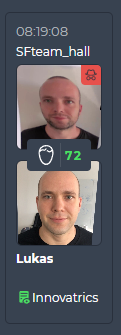 |
Pedestrian and object cards show the time, the camera and the crop, plus the object type for objects. Pedestrians are detected and described by attributes but not identified.
Feed settings
Click SETTINGS next to the Recent events title to open the feed settings:
- VIEW - Full or Compressed card layout.
- PLACEMENT - show the feed at the top or the bottom of the page.
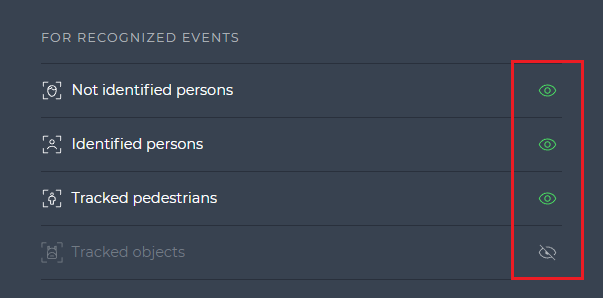
- FOR RECOGNIZED EVENTS - the eye icon includes or excludes identified persons, not identified persons, tracked pedestrians and tracked objects.
- FOR CAMERAS and FOR EDGE STREAMS - include or exclude the events of each source.
Event detail
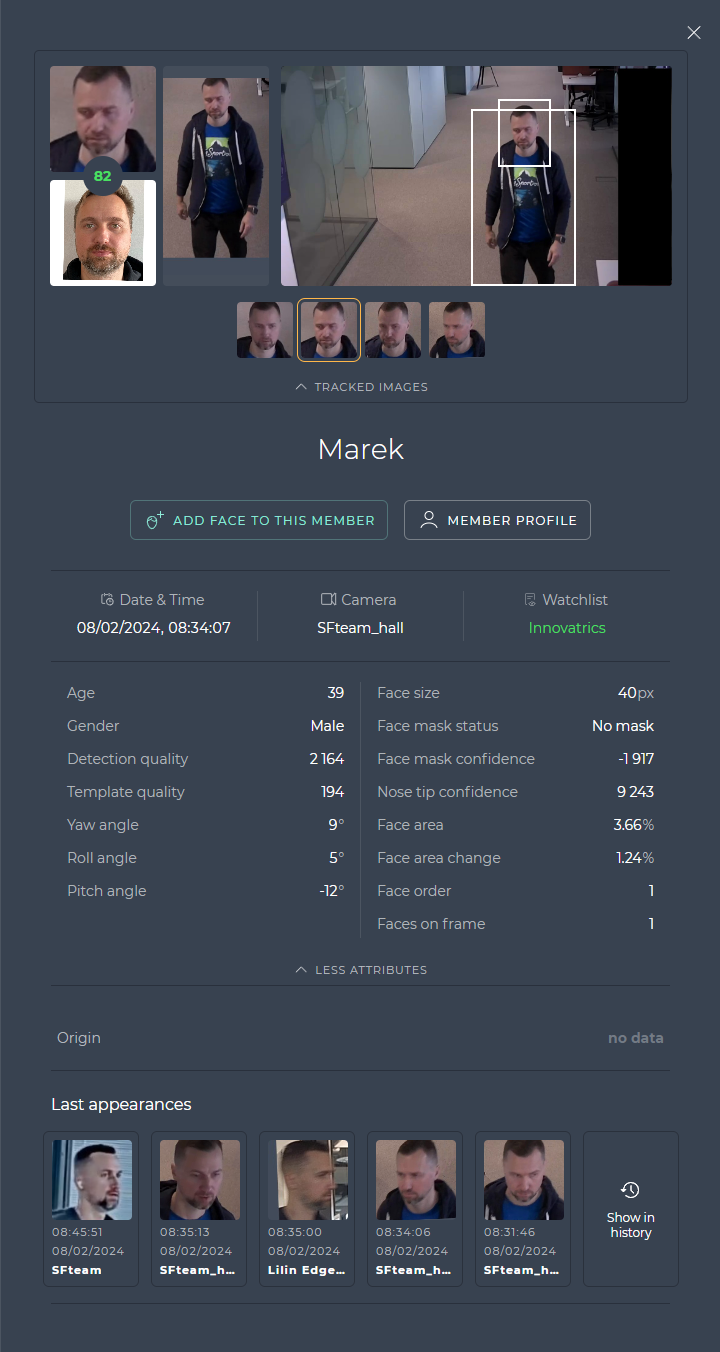
Clicking a card opens a sliding panel with the full event. The top shows the related images: the face crop, the watchlist member image with the matching score for a match, the full frame with the detection highlighted, and the tracked images of the same tracklet. Below are the action buttons, the metadata, and for a match the Spoof attributes (distant and nearby check result and score, when liveness is enabled on the camera) and the member's Last appearances with a Show in history shortcut. The metadata fields and their meaning are documented once in Events and face metadata; pedestrian and object details follow the same layout with their own attribute sets.
| No match | Match |
|---|---|
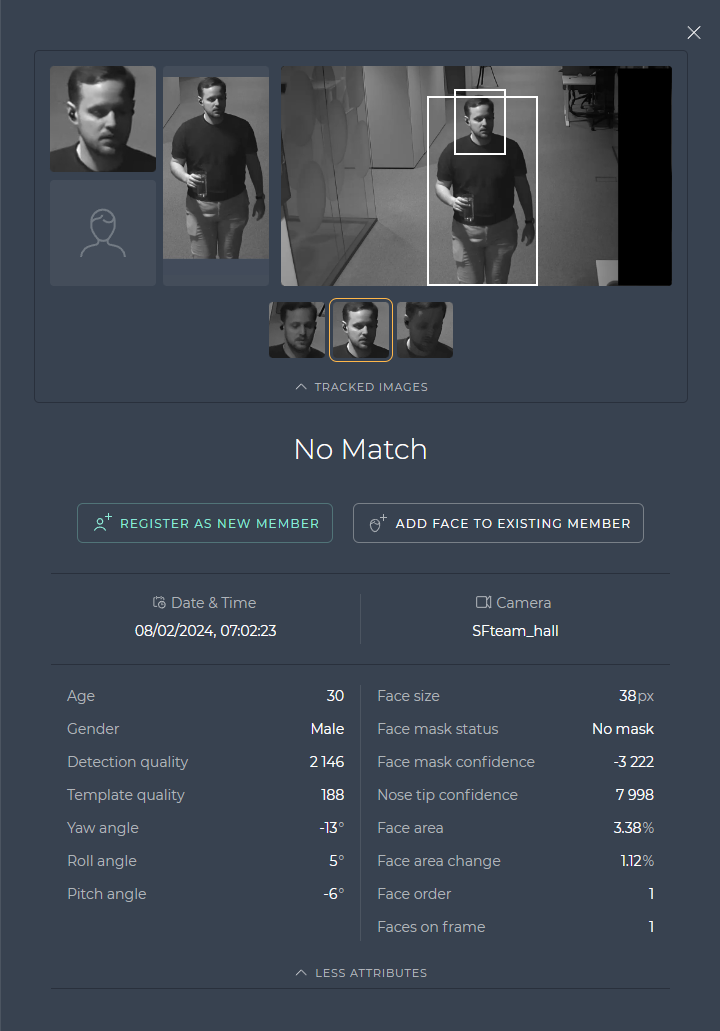 |  |
Enrol from a no-match event
An unknown face can be turned into a watchlist member without leaving the page:
- Open the No match event.
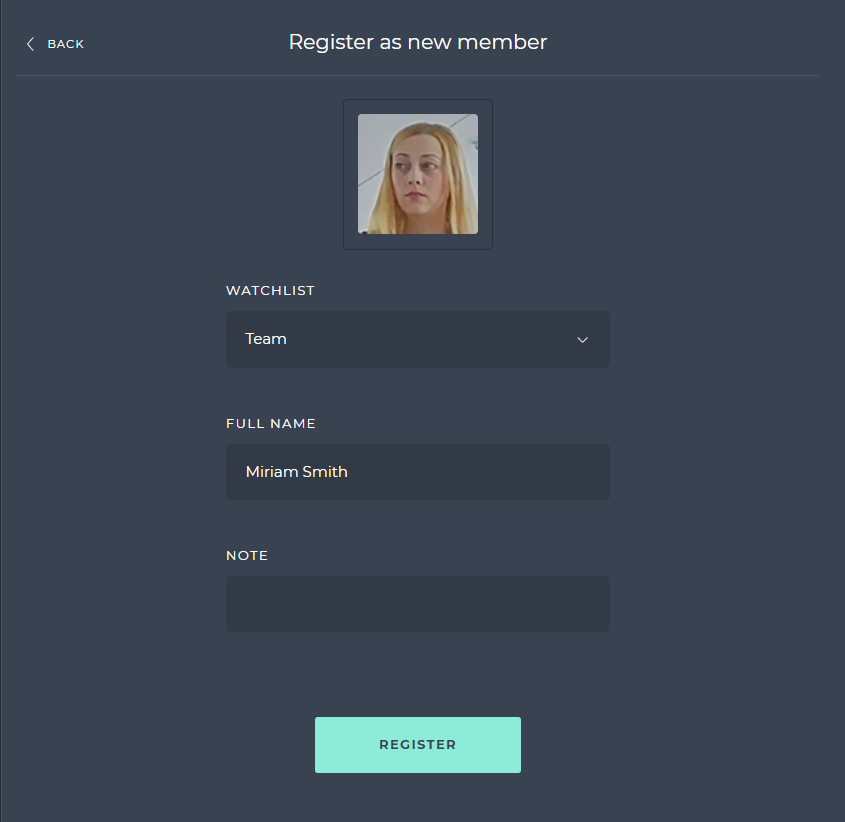
- Click REGISTER AS NEW MEMBER, choose the WATCHLIST, enter the FULL NAME and optionally a NOTE, then click REGISTER.
To add the face to somebody already enrolled instead, click ADD FACE TO EXISTING MEMBER, pick the member from the list or search by name (filter by watchlist if needed) and confirm with ADD TO MEMBER. The same two actions are available from the event history and the identification page.
Actions on a match event
A Match event offers ADD FACE TO THIS MEMBER, which stores the captured face in the member's image gallery, and MEMBER PROFILE, which opens the member in watchlist management. Add only faces that clearly belong to the member; mismatched images degrade matching for that member.
Other event types
Station shows these controls only when its palm screens are switched on; they are off by default (see PALMS_ENABLED).
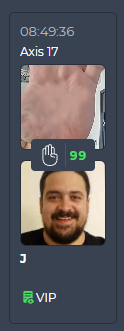
Cameras and edge streams with palm processing switched on add two card types to the feed. A palm detection card shows the time, the camera, the palm crop and the object type: a palm was detected but did not match any watchlist member. A palm identification card adds the matching score, the member image, the member name and the watchlist: at least one palm of the tracklet scored above the watchlist's palm threshold. The FOR MATCH MODALITIES group in the feed settings includes or excludes faces and palms.
The detail of a palm event has the same layout as a face event, with palm metadata: date and time, camera or edge stream, detection quality (0-10 000), palm order (rank by palm size), objects on frame, crop size in pixels and area on frame in percent. The enrol actions read ADD PALM TO EXISTING MEMBER on a no-match and ADD PALM TO THIS MEMBER on a match, and work like their face counterparts.