Identify a face
The Identification page answers one question on demand: is this person in a watchlist? You give it a photo, either uploaded from disk or captured with the camera of the device you are using, and Station sends it to the REST API for 1:N identification against the enrolled watchlist members. The result appears as a match or no-match card in the Recent events strip below the preview. No camera registration is involved; this is the interactive counterpart of the enrol and identify API flow.
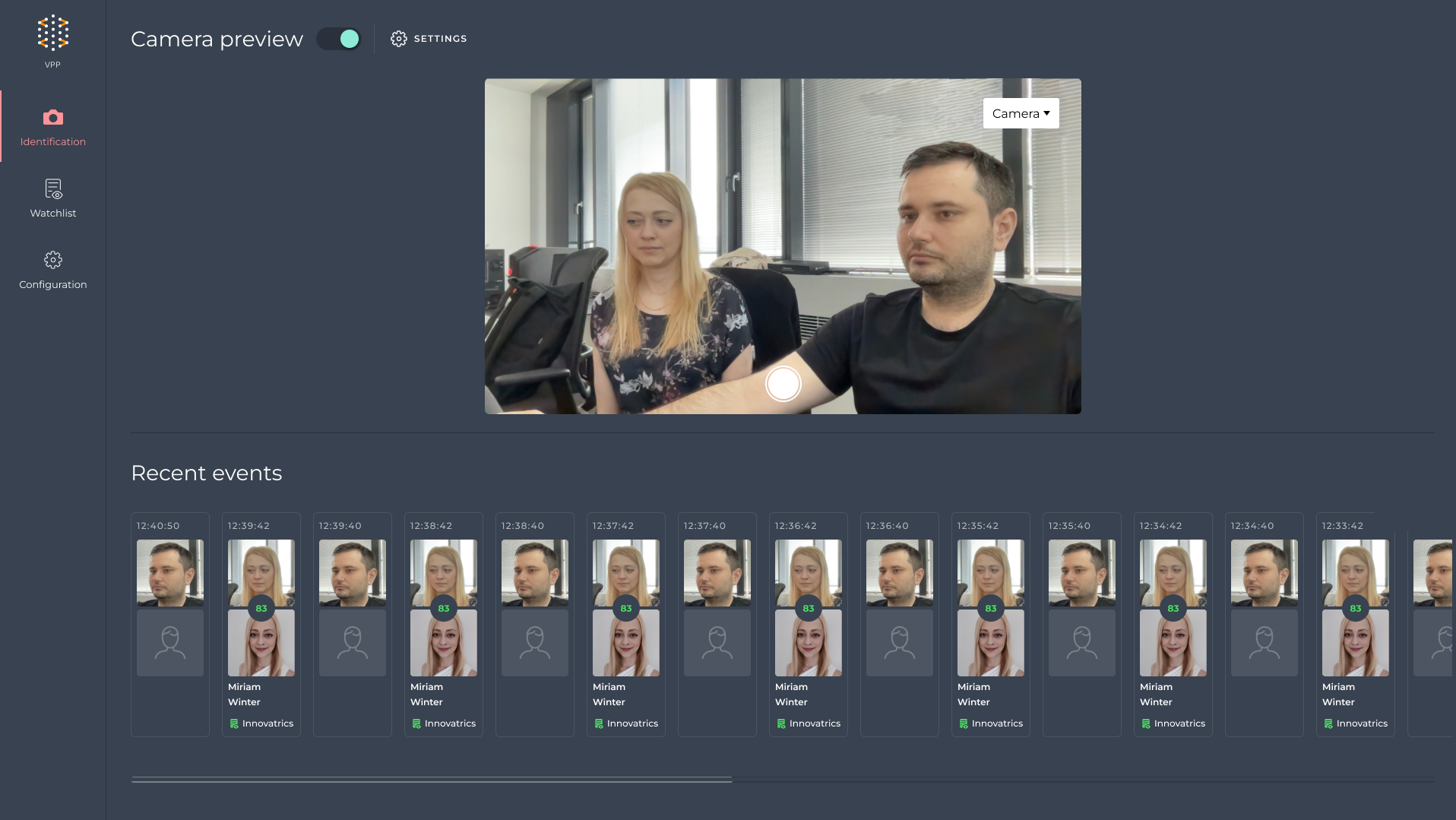
The page is optimised for phones and tablets as well as desktops and can be installed as a progressive web application, so a security officer can carry it on a mobile device. Some display settings differ between the desktop and the mobile layout, as listed below.
Enabling the page
The page is on by default. It is controlled by STATION_IDENTIFICATION in .env of the release package (docker-compose.override.yml passes it to the container as IDENTIFICATION_ENABLED); set STATION_IDENTIFICATION=false and run docker compose up -d station to remove it from the menu. Uploading a photo works over plain HTTP, but the device camera needs a secure context: enable HTTPS on Station (see the HTTPS guide) and set DOT_FACE_CAMERA_ENABLED=true in .env.station. For a local test only, Chrome can be told to treat the http://host:8000 origin as secure; the HTTPS guide describes that as well.
Identify from an uploaded photo
- Switch the Camera preview toggle off.
- Drag a photo onto the marked area or click choose from files.
The image is processed immediately and the result is added to Recent events.
Identify from the device camera
Switch the Camera preview toggle on. If the device has several cameras, pick one in the drop-down inside the preview. Two capture modes are available:
- Manual capture - tap the capture button once; the snapshot is sent for identification and the result appears in Recent events.
- Periodic capture - press and hold the capture button; Station then takes a snapshot at the interval set in the settings (Detection frequency) until you press the button again.
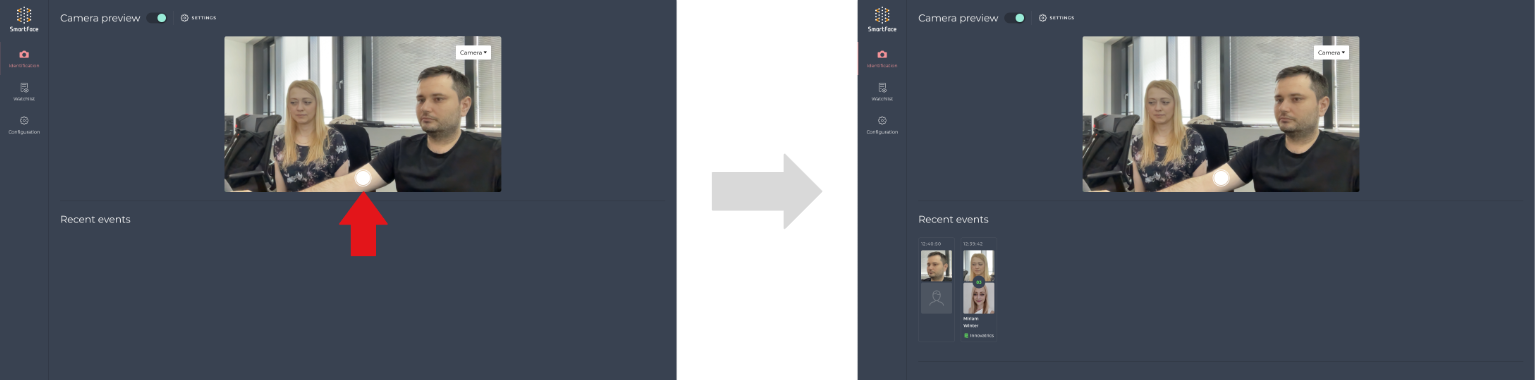
Results
Each card in Recent events shows the event time and the face crop; a match also shows the score, the watchlist member image, the member name and the watchlist. Click a card to open the detail: the crop, the member image with the score, the full frame and the face metadata (documented in Events and face metadata). On a phone, swipe up or tap the arrow above the strip to reach the events. From a no-match detail you can register as new member or add face to existing member exactly as on the live monitoring page.
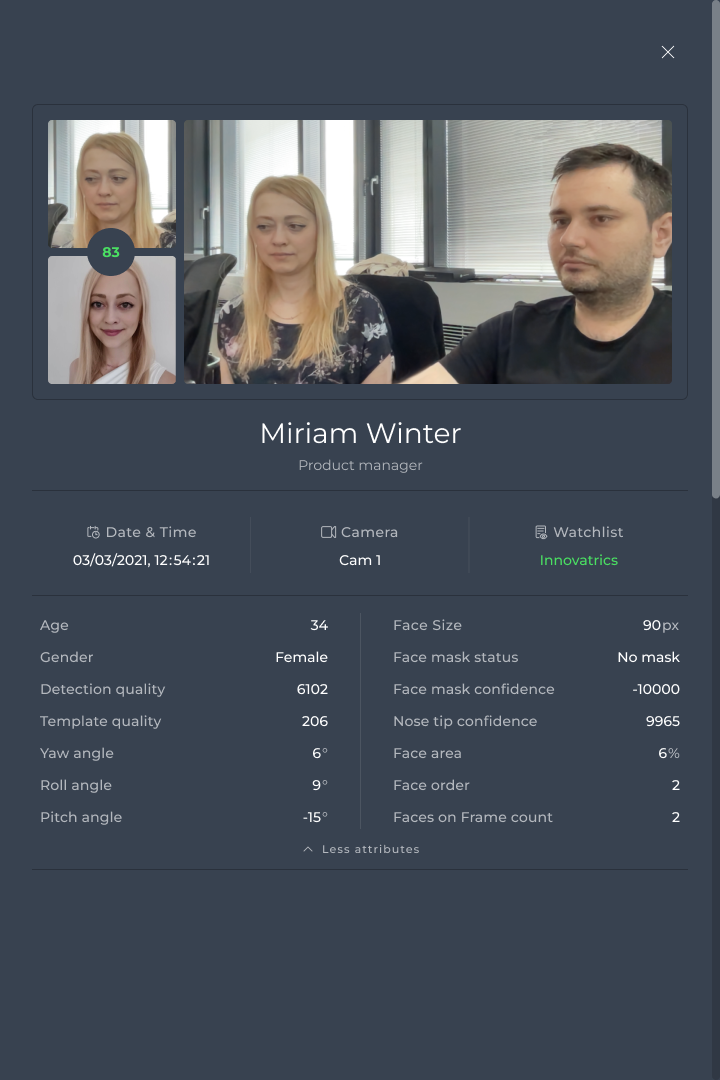
Results on this page are not stored anywhere: reload the page and the strip is empty. Identification events are not written to the event history either.
Settings
Click SETTINGS next to the Camera preview title.
| Setting | Meaning | Default |
|---|---|---|
| Min size / Max size | Face size limits for detection, in pixels. | 35 px / 600 px |
| Confidence threshold (0-10 000) | Minimum face detection confidence. | 450 |
| Detection frequency | Interval between snapshots in periodic capture. | 500 ms |
| Mobile view | Use the mobile layout on a desktop browser. | Off |
| View | Full or Compressed result cards. | Full |
| Placement | Show recent events at the top or bottom. | Bottom |
| Max. recent events | How many results are kept in the strip. | 35 |
| Max notifications | Results overlaid on the camera preview (mobile view only). | 3 |
| Event fadeout | How long an overlaid result stays visible (mobile view only). | 4 000 ms |
| Displayed information | For a match: Name, Watchlist or Watchlist and name. | Watchlist and name |
| Save result history | Keep results from all snapshots in the strip; off shows only the last snapshot. | On |
When Station's palm screens are switched on (see PALMS_ENABLED), the panel also has a Modality setting, Faces (default) or Palms. With Palms the page looks for a palm instead of a face and identifies it against the palm images of watchlist members; the size and confidence settings then apply to the palm.