Event history
The History page is the searchable archive of everything the platform stored from all cameras and edge streams: detected faces, identified persons and their tracks. What ends up here depends on the save strategy of each camera and on the data retention settings; a camera set to MatchedOnly leaves no trace of unknown faces, and a retention job deletes old records. The title shows the number of events matching the current filters, and REFRESH reloads the list.
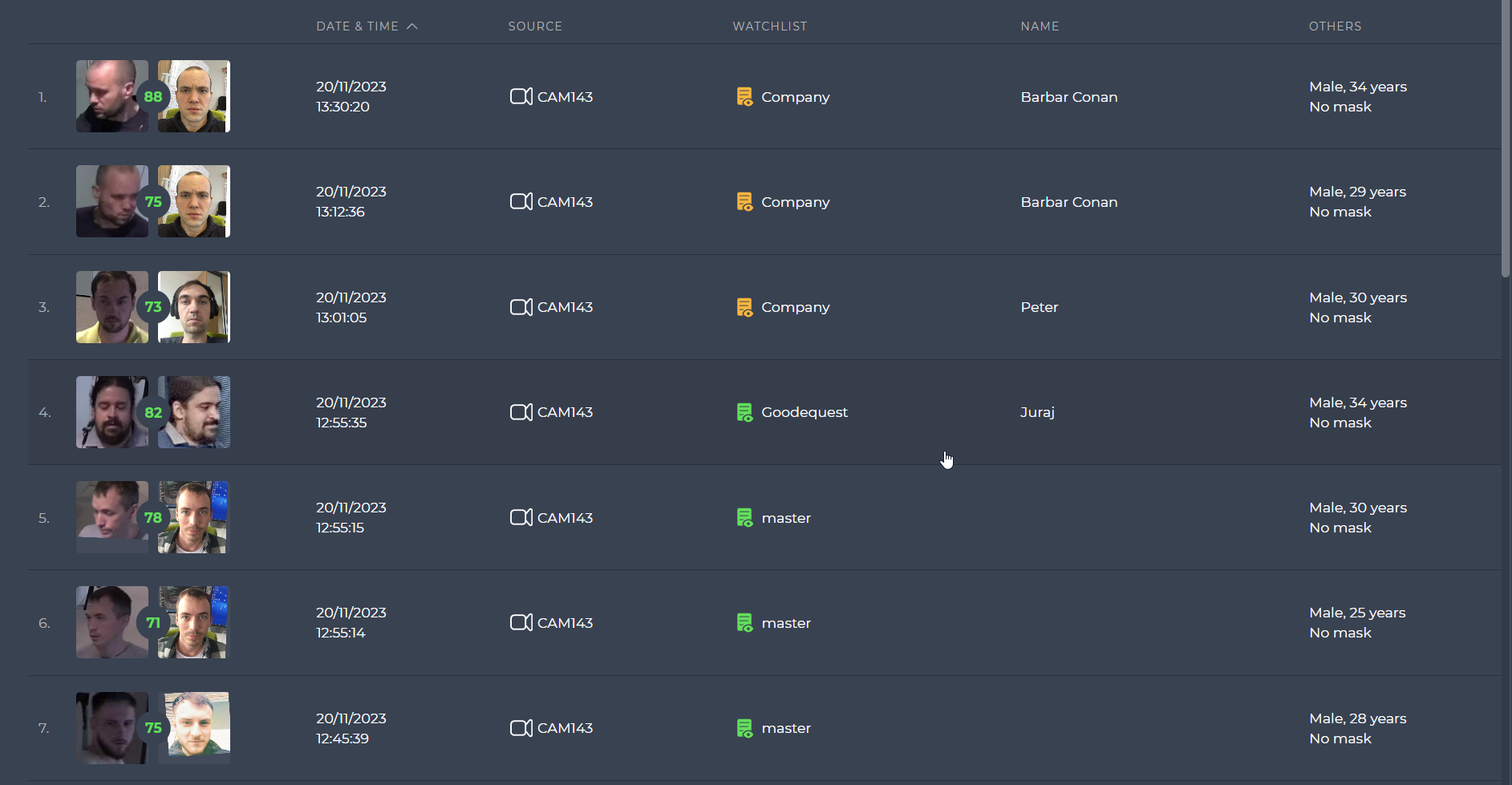
The list has one row per event with the crop (and the member image and score for a match), date and time, source, watchlist, name and a few attributes. Click a row to open the same event detail as on the live monitoring page, including the enrol actions. The FILTER IN HISTORY button on a camera or edge stream opens this page pre-filtered to that source.
Full-text search and quick filters
The right-hand panel holds a search box and the quick filters. Type into Search all content and press Enter to search the stored events by text (names, watchlists, camera names). Every active filter is shown above the list, where a single filter can be removed with its X and all of them with CLEAR ALL FILTERS.
| Quick filter | Narrows the list to |
|---|---|
| Date & time | A time range. |
| Type | Identified persons, not identified persons, tracked pedestrians, tracked objects. |
| Source type | Cameras or edge streams. |
| Face filter | Events whose face resembles a reference image (see below). |
| Face matching score | A range of matching scores. |
| Watchlists | Events involving the selected watchlists. |
Advanced filters
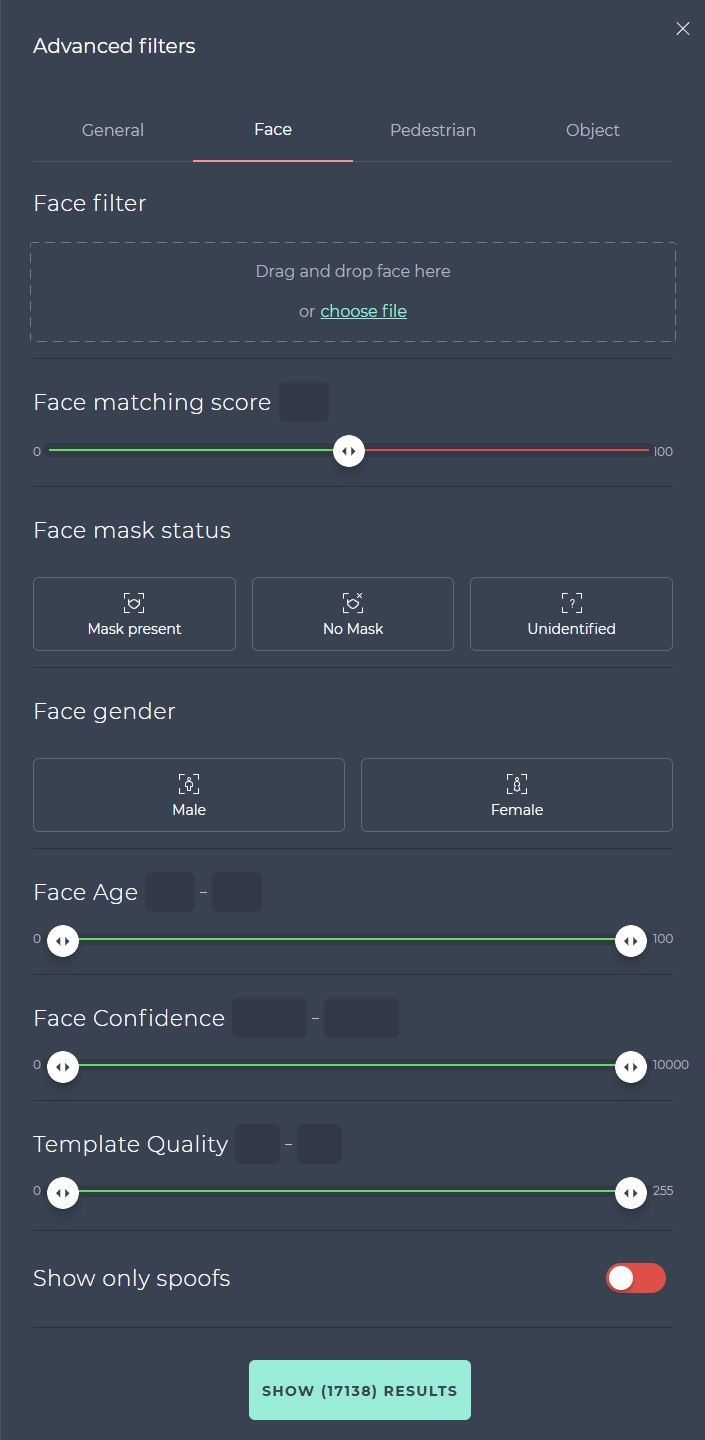
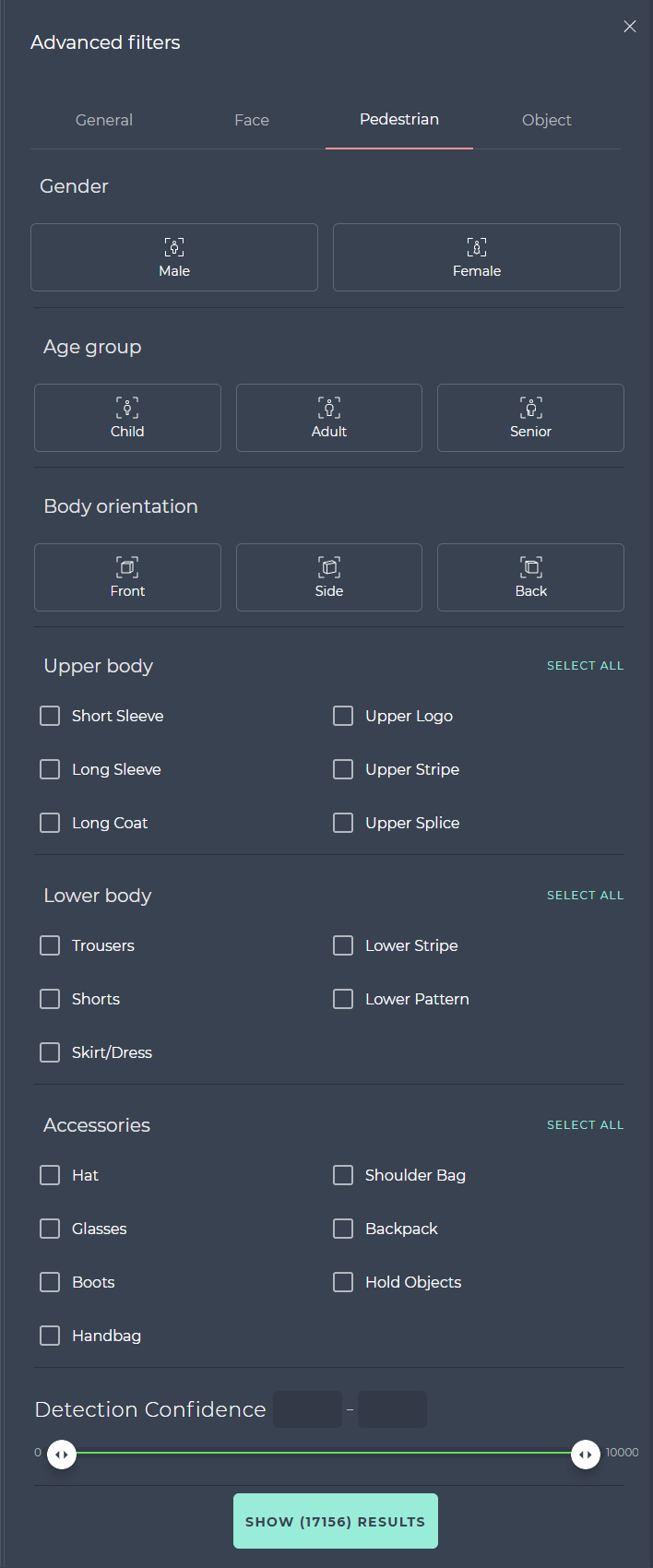
ADVANCED FILTERS opens a panel with four tabs. General repeats the quick filters. Face adds face mask status, gender, age, face detection confidence, template quality and a Show only spoofs switch for faces that failed the liveness check. Pedestrian filters by gender, age group (child, adult, senior), body orientation (front, side, back), upper- and lower-body clothing attributes, accessories and detection confidence. Object filters by object class (animals, vehicles, other objects) and detection confidence. The button at the bottom shows how many events the filter will return before you apply it.
| Face tab | Pedestrian tab |
|---|---|
 |  |
When Station's palm screens are switched on (see PALMS_ENABLED), the Modality filter (in the quick filters and the General tab) narrows the list to faces or palms, and Objects matching score in the Object tab filters palm matches by their matching score.
Search the history by a face
The Face filter finds past events of a particular person from a single reference image. It is powered by the face search service, which compares the reference against the stored face templates (see Face search).
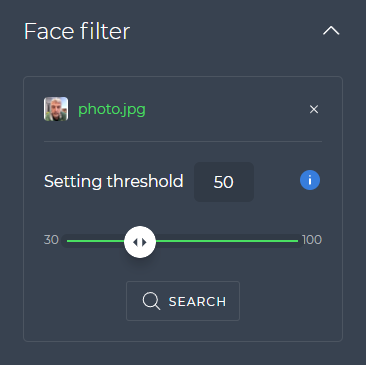
- Provide the reference image: drag a file (or a face crop from the list itself) onto the Face filter area, click choose file, or take a photo with the device camera.
- Station detects the face in the image. If none is found you get a warning; use a better image.
- Set the similarity threshold. With the biometric score display the range is 30 to 100; with the linear display it is 51 to 100 and defaults to 95 (see Settings for the two score types).
- Click SEARCH.
The list then shows only events whose face scored above the threshold against the reference, with an extra FACE FILTER SCORE column. Common raster formats are accepted (JPEG, PNG, BMP, WebP and others). Taking a photo needs DOT_FACE_CAMERA_ENABLED=true in .env.station and HTTPS on Station; without them the camera option is simply absent. If the device has several cameras, switch between them with the icon in the upper right corner of the camera component.