Edge streams
An edge stream is a smart camera or AI box running the Embedded Stream Processor. The device detects faces itself and publishes the results over MQTT to the Face Matcher broker; the server side receives them through the edge stream processor and treats them like events from any other camera. Station is the central place to register those devices, enable them, push their processing configuration, synchronise watchlists to them and upload their licences, so you do not have to log in to each device. Installing the software on the device and connecting it to the broker is described under Edge; the parameters themselves are explained in the edge settings reference.
Add an edge stream
- On the Cameras page click ADD EDGE STREAM.
- Enter the CAMERA NAME and the CLIENT ID. The client ID must be exactly the MQTT client ID configured on the device; it is how the platform pairs incoming messages with this record.
- Click ADD EDGE STREAM.
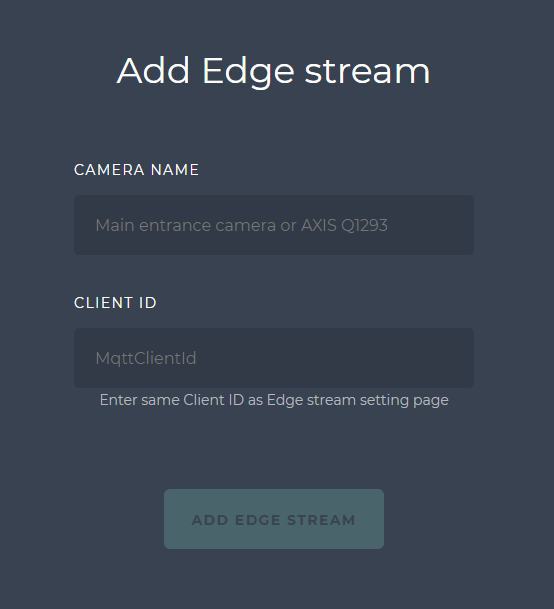
A new edge stream starts with the general, face processing, messaging and crop image sections enabled. The number of edge streams that can be processed at once depends on the licence and deployment.
Enable or disable
Open the edge stream and use the Enabled toggle. Enabling starts server-side processing of the device's messages and pushes the configuration to the device; disabling keeps the record but ignores the device.
Health and licence status
The header of the configuration panel shows the operational state and the licence state of the device:

| Indicator | Meaning |
|---|---|
| Online (green) | The device is connected and sending. |
| Offline (red) | The device is not connected. |
| Disconnected / Unknown (orange) | The device dropped the connection, or its state is not known yet. |
| License valid (green) | A valid licence is installed on the device. |
| License invalid (red) | The installed licence is not valid for the device. |
| License not provided (orange) | No licence has been uploaded. |
When the device is online with a valid licence the header simply reads Healthy. Anything else means the device will not produce events until the cause is fixed.
Upload a licence
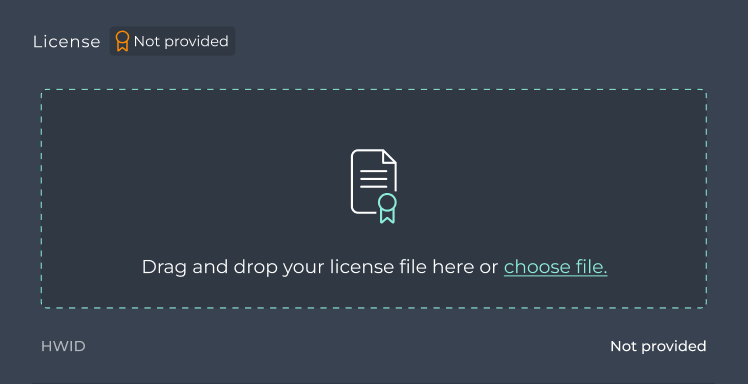
Each device needs its own licence, obtained for the device hardware ID as described in Get a licence. In the License section drag the licence file onto the upload area or click choose file, then click SAVE. After a few seconds the status changes to Valid, the device's HWID is displayed and the upload area is replaced by an UPLOAD LICENSE button for later renewals.
| Before upload | After upload |
|---|---|
 |  |
Configuration sections
Open the edge stream and edit the sections below; saved changes are sent to the device.
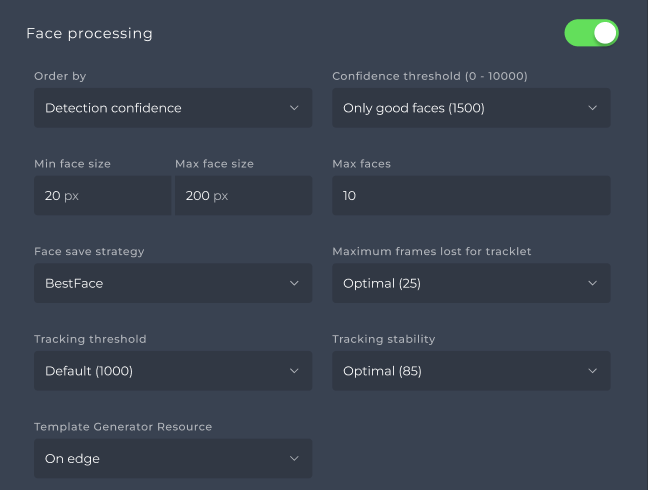
Face processing covers detection, tracking and extraction on the device: order of processing (Detection confidence or Face size), confidence threshold (presets 1200, 1500, 3500), min and max face size (defaults 20 px and 200 px), max faces per frame (10), face save strategy (All, Balanced, MatchedOnly), maximum frames lost for a tracklet (25), tracking threshold (1000, must stay below the confidence threshold), tracking stability (85) and the Template generator resource: On edge extracts templates on the device, CPU, GPU or Any on server sends the crops to the server for extraction.
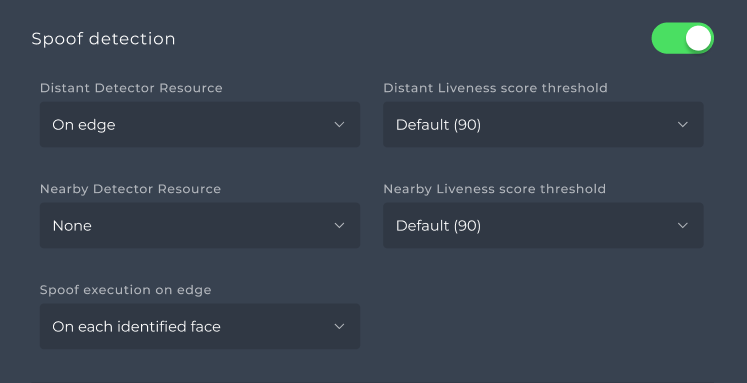
Spoof detection enables passive liveness. The Distant and Nearby detector resources can each be None, On edge or run on the server (CPU, GPU, Any), with a score threshold (default 90) below which a face counts as spoof. Spoof execution on edge chooses whether the device checks each identified face (default) or each extracted face.
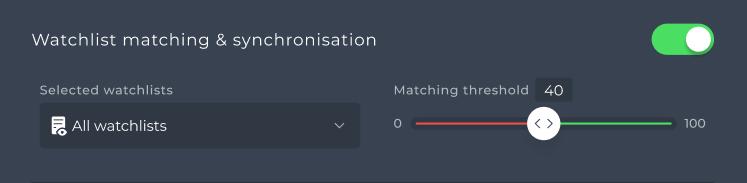
Watchlist matching and synchronisation turns on matching on the device. Select the watchlists to synchronise (All, none or specific ones) and the Matching threshold (default 40). Once enabled, the server keeps the device's copy of the selected watchlists up to date; see Edge watchlist sync for how the synchronisation behaves.
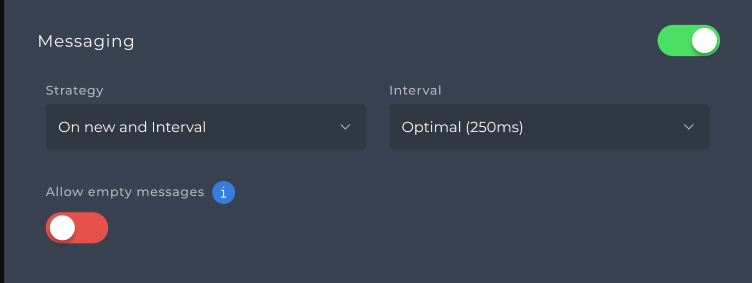
Messaging controls what the device publishes. The Strategy is On new and interval (a message when a tracklet starts and then at every interval) or On new and interval best (only when a better face appears in the tracklet); the Interval defaults to Optimal (250 ms). Allow empty messages publishes heartbeat messages with no faces for debugging and is visible only with Show service information enabled in Settings.
Logging sets the device log level (Off, Error, Warning, Info, Debug, Trace; default Info) and is also only visible with Show service information enabled.
Send crop images sends the face crops with each message: image quality (default 90 %), max size of the face in the crop (default 50 px) and format (JPEG, RAW, PNG). Crops are needed for the images shown in Station and for server-side extraction.
Send full frame images additionally sends the whole frame at a chosen quality, resolution (Source, 1080p, 720p or custom) and format. This costs a lot of bandwidth; enable it for debugging only.
Palm detection
Station shows these controls only when its palm screens are switched on; they are off by default (see PALMS_ENABLED).
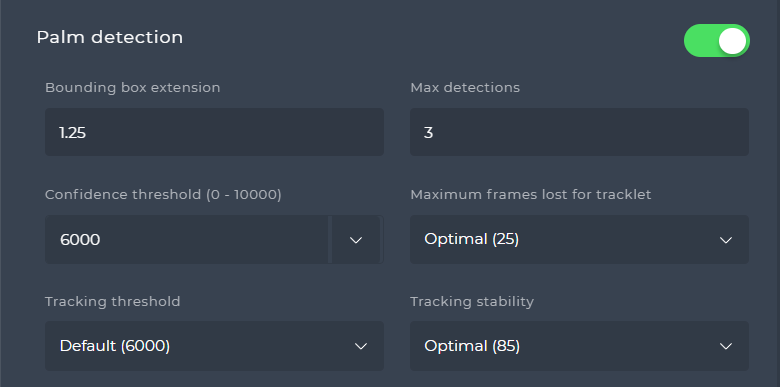
The Palm detection section runs palm detection and tracking on the device (Embedded Stream Processor 3.3.1 or later). It is off on a new edge stream; switching it on fills in the defaults: bounding box extension 1.25 (extra margin around the palm), max detections per frame 3, confidence threshold 6 000 (preset Optimal (5 000) or Custom), maximum frames lost for a tracklet Optimal (25), tracking threshold Default (6 000) and tracking stability Optimal (85).
Delete
Open the edge stream, click DELETE and confirm with OK. The device keeps running with its last configuration; stop or reconfigure it on the device side if it should not publish any more.