Enhanced preview
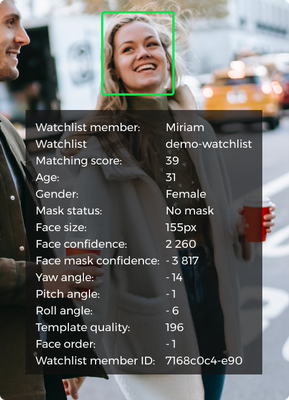
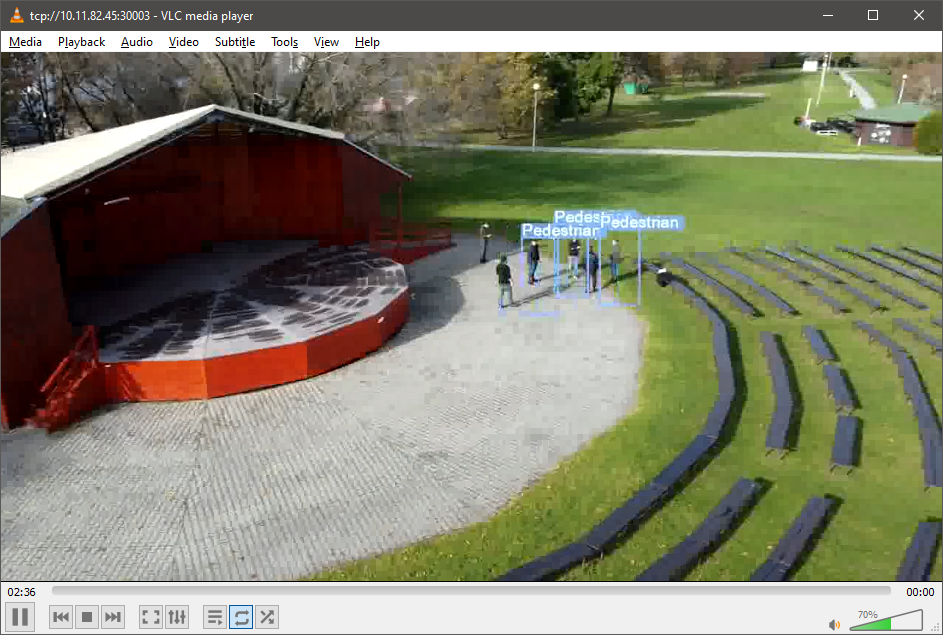
While a camera service processes an RTSP stream it can re-encode the video with the recognition results drawn on top: bounding boxes around detected faces, the name of the matched person, the matching score and optional attributes. This is the enhanced preview. Station shows it on the live view, and because it is a plain MPEG-1 stream over TCP, any player or video management system can show it too, which makes it a cheap way to put recognition results on an operator wall or into a third-party VMS.
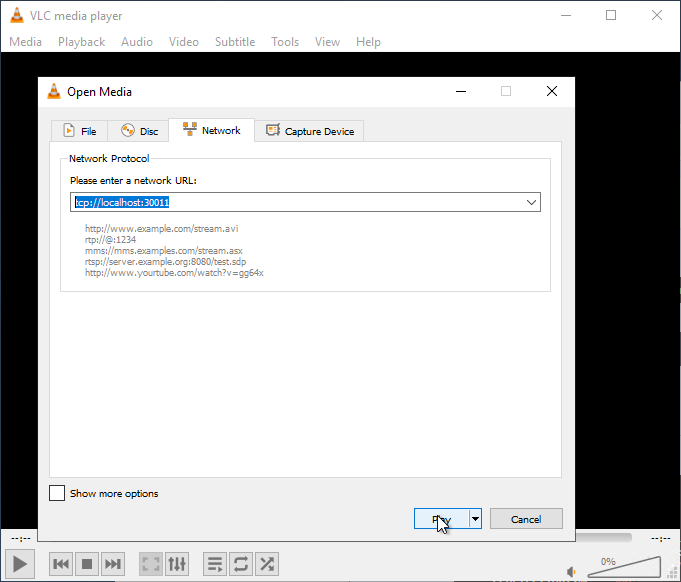
Each camera publishes its own stream on its own TCP port: tcp://<server>:<preview port>. Encoding costs CPU on the camera service, so enable it only on cameras that need it and size the host accordingly, see Hardware requirements.
Enabling the preview on a camera
The preview is part of the camera definition; set it when creating the camera with POST /api/v1/Cameras or change it later with PUT /api/v1/Cameras. Station exposes the same settings as Preview quality presets on the camera page.
{
  "mpeG1PreviewEnabled": true,
  "mpeG1PreviewPort": 30001,
  "mpeG1VideoBitrate": 450000,
  "previewMaxDimension": 640
}
| Field | Meaning | Values |
|---|---|---|
mpeG1PreviewEnabled | Turns the encoded preview on or off | true / false |
mpeG1PreviewPort | TCP port inside the camera container | Generated when omitted, see below |
mpeG1VideoBitrate | Maximum bitrate of the encoded stream | Low 153000, medium 450000 (default), high 1400000 |
previewMaxDimension | Length of the longer side of the encoded video, in pixels | Low 426, medium 640 (default), high 1280 |
Preview ports
When you omit mpeG1PreviewPort, the API assigns 30000 + <camera sequence number>: the first camera gets 30001, the second 30002 and so on. This is the behaviour of the shipped deployment, where CameraDefaults__PreviewPort in section 3.2 of .env is empty and the Compose file publishes 30001:30001 to 30005:30005 for the five camera slots cam-1 to cam-5. The port therefore matches on the host and in the container, and tcp://<server>:30003 is the preview of the third camera.
Set CameraDefaults__PreviewPort to a fixed number only if you want every camera container to listen on the same internal port and map it yourself in Compose (ports: - 30003:${CameraDefaults__PreviewPort}); the default is the simpler choice. Whichever you use, the port must be published by the camera's container and reachable through the firewall from the machine that plays the stream, see Network and ports.
Bounding-box colours
| Box | Default colour |
|---|---|
| Detected face | Yellow #ECEC5E |
| Identified person | Green #4ADF62 |
| Identified person from a restricted watchlist | Red (default value not confirmed) |
| Detected pedestrian | Blue #80B5FF |
| Detected object | Purple #E638D3 |
The face, pedestrian and object colours are global; change them with PUT /api/v1/Setup/Preview:
{
  "faceBoundingBoxColor": "#ecec5e",
  "pedestrianBoundingBoxColor": "#80b5ff",
  "objectBoundingBoxColor": "#e638d3"
}
The colour of an identified person comes from the watchlist the member matched: set previewColor on the watchlist (PUT /api/v1/Watchlists, or the colour picker in Station). Give a restricted watchlist a red colour and an employee watchlist a green one, and operators can read the outcome from the video without reading the label.
Preview attributes
Besides the boxes, the preview can print selected attributes of each face on a semi-transparent label. Which attributes appear, and in what font size, is configured per camera in previewAttributesConfig of the camera definition. The defaults show the matched member's name, the watchlist and the score:
{
  "previewAttributesConfig": {
    "textFontSize": 12,
    "order": false,
    "size": false,
    "quality": false,
    "yawAngle": false,
    "pitchAngle": false,
    "rollAngle": false,
    "watchlistMemberId": false,
    "watchlistMemberName": true,
    "watchlistName": true,
    "matchingScore": true,
    "age": false,
    "gender": false,
    "templateQuality": false,
    "faceMaskStatus": false,
    "faceMaskConfidence": false
  }
}
Watching the preview in VLC
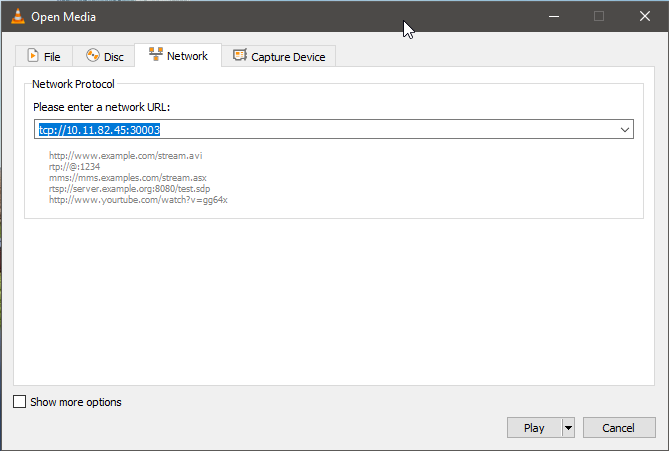
- In VLC choose Media > Open Network Stream.
- Enter the stream address with the
tcp://prefix, for exampletcp://10.11.82.45:30003. - Click Play. The annotated video appears after a short buffering delay.
The same address works in any player or VMS that accepts an MPEG-1 stream over TCP. The preview is one-way and unauthenticated, so publish the ports only on networks where the video may be seen.