

IDV Web Palm Capture
v8.2.0
Introduction
IDV Web Palm Capture is set of Non-ui component and Ui component web components to capture image of an palm.
Non-ui component is a web component that renders the video stream from an available phone or web camera to automatically capture an image of an palm with the required quality.
Ui component is a web component that renders an overlay over video stream. Overlay includes a placeholder, camera control buttons and instructions to guide the user to position the palm correctly.
Supported Browsers
IDV Web Palm Capture was tested with:
Chrome on desktop (Windows, Mac and Linux) and mobile (Android, iPhone)
@Deprecated Firefox on desktop (Windows, Mac and Linux) and mobile (Android)****
Edge on Windows
Safari on Mac, iPad and iPhone
WebView on Android*
SafariVC on iPad and iPhone**
WKWebView on iPad and iPhone***
Known issues:
* Some older Android phones can experience issues with camera stream initialization using WebRTC. Our web components will work on most of them, but camera stream could be slow and laggy. This issue is caused by device and can be experienced in any website using WebRTC in Android WebView.
** Components are tested with SafariVC on devices iPhone 7 and newer with iOS 15 or iPadOS 15 or newer. Older devices or iOS versions are not officially supported and might experience issues.
*** In order to run IDV Web Palm Capture in WKWebView on iPhone or iPad, allowsInlineMediaPlayback and mediaTypesRequiringUserActionForPlayback properties on WKWebViewConfiguration must be set to true.
**** @Deprecated Firefox support for all Innovatrics web components is deprecated and will be discontinued in next major release.
Some older and/or low-end Android phones can experience issues with camera stream initialization using WebRTC when using Firefox browser. Our web components might display The webcam is already in use by another application error. This issue is caused by the Firefox’s implementation of initialization of camera and can be experienced in any website using WebRTC in Firefox on Android. It is recommended to use other supported browsers in those cases.
When using components on MacOS with linked iPhone (using Apple ID) and enabled Continuity Camera setting, the camera stream from the iPhone might not get streamed correctly in the case user has an active Firewall protection from third-party Antivirus software.
When using components on Safari on MacOS with linked iPhone (using Apple ID) and enabled Continuity Camera setting, there may be multiple cameras present, which might not work as expected. Switching camera until correct camera is selected fixes the issue.
Video capture feature is not supported in Firefox for Android and Safari (and WebView) older than 16.4.
Privacy and security
This component can only be used in secure contexts due to MediaDevices API used for handling camera access. A secure context is, in short, a page loaded using HTTPS or the file:/// URL scheme, or a page loaded from localhost. Before accessing any camera, the component must always get the user’s permission. Browsers may offer a once-per-domain permission feature, but they must ask at least the first time, and the user has to specifically grant ongoing permission if they choose to do so. Browsers are required to display an indicator that shows that a camera or microphone is in use. More details can be found on MDN docs.
Non-ui component
Requirements
Minimum required camera resolution for appropriate results is 720x720. Anything less is insufficient.
Initialization
IDV Web Palm Capture can be installed via NPM, yarn or pnpm
npm install @innovatrics/dot-palm-capture
To manually integrate the IDV Web Palm Capture, download latest version from the Github repository. Add following line to dependencies in your package.json:
"dependencies": {
    "@innovatrics/dot-palm-capture": "file:innovatrics-dot-palm-capture-[VERSION].tgz",
}
where [VERSION] is the IDV Web Palm Capture version integrated. This installs dot-palm-capture as an external module that can be use then (just like any other module in the code) For example, one could do import '@innovatrics/dot-palm-capture'; in the app.
Usage
Palm capture component is a web component which uses custom HTML <x-dot-palm-capture/> tag.
Properties configuration needs to be passed into component after <x-dot-palm-capture/> tag was rendered.
To see an example of using the component together with Ui component, see Example of using components together.
import type {
  HTMLPalmCaptureElement,
  PalmConfiguration,
  CallbackImage,
  DetectedPalm
} from "@innovatrics/dot-palm-capture";

import { useEffect } from "react";
import "@innovatrics/dot-palm-capture";

function PalmCamera(configuration: PalmConfiguration) {
  useEffect(() => {
    const palmAutoCaptureHTMLElement = document.getElementById(
      "x-dot-palm-capture"
    ) as HTMLPalmCaptureElement | null;

    if (palmAutoCaptureHTMLElement) {
      palmAutoCaptureHTMLElement.configuration = configuration;
    }
  });

  return <x-dot-palm-capture id="x-dot-palm-capture" />;
}

function Page() {
  function handleOnComplete(imageData: CallbackImage<DetectedPalm>, content: Uint8Array) {
    // ...
  }

  function handleError(error: Error) {
    alert(error);
  }

  return (
    <PalmCamera
      camera={{ facingMode: "environment" }}
      autoCapture={{
        candidateSelectionDurationMillis: 3000,
      }}
      onComplete={handleOnComplete}
      onError={handleError}
      sessionToken="1111-222-333-4444"
      transactionCountingToken="provide-the-token-here"
    />
  );
}
Alternatively, you can use useRef and useLayoutEffect to render a web component with its props.
import type {
  PalmConfiguration,
  HTMLPalmCaptureElement,
} from '@innovatrics/dot-palm-capture';

import { useLayoutEffect, useRef } from 'react';
import '@innovatrics/dot-palm-capture';

function PalmCamera(configuration: PalmConfiguration) {
  const ref = useRef<HTMLPalmCaptureElement | null>(null);

  useLayoutEffect(() => {
    const element = ref.current;

    if (element) {
      element.configuration = configuration;
    }
  }, [configuration]);

  return <x-dot-palm-capture id="x-dot-palm-capture" ref={ref} />;
}
TypeScript
Declaration file is bundled inside package. To use with TypeScript, import types from @innovatrics/dot-palm-capture.
import type { PalmConfiguration, CallbackImage, DetectedPalm } from "@innovatrics/dot-palm-capture";Hosting dot-assets files
During the initialization phase of the component, the component loads the required assets files, such as WASM binary files, javascript chunks, license etc, via HTTP fetch request. Please note that we do not provide any hosting for those files. That’s why it is essential that the customer provides the component with all files from our distribution. To do so, please:
copy
dot-assetsdirectory from our distribution into your distribution every time you update to new version of the component. If you are using package manager, you can finddot-assetsdirectory innode_modules/@innovatrics/dot-palm-capture/dot-assets.copy
iengine.lic(orlicense.lic) file intodot-assetsfolder in your distribution.
Please note that dot-assets files need to be hosted at the same URL as your app - same-origin. Because of that, we do not recommend using any CDN, as it will probably not function properly.
Structure of the directory in our distribution
@innovatrics/
|__ dot-palm-capture/
    |__ dot-assets/ <-- copy this directory
        |__ palm/
            |__ wasm/
                |-- sam.wasm
                |-- sam_simd.wasm
            |-- dot-<CHUNK_HASH>.js
            ...
        |__ wasm/
            |-- acp_core_wasm_bg.wasm
    |-- package.json
    |-- README.md
    ...
Example of the dot-assets dir structure in integrator’s application
public/
  |__ dot-assets/ <-- do not change the name or structure of this directory (only add folders for another components when needed)
      |__ palm/
          |__ wasm/
              |-- sam.wasm
              |-- sam_simd.wasm
          |-- dot-<CHUNK_HASH1>.js
          |-- dot-<CHUNK_HASH2>.js
          ...
      ... <-- if you are using other components (e.g. document), the folders with assets of these components will be here (eg. document/)
      |__ wasm/
          |-- acp_core_wasm_bg.wasm
      |-- iengine.lic
  ...
By default, the component will try to fetch the desired files from <PROJECT_ORIGIN>/dot-assets/. This can be changed using assetsDirectoryPath property. For example, if assetsDirectoryPath=/my-directory property is provided, the component will try to fetch the desired files from <PROJECT_ORIGIN>/my-directory/dot-assets/.
Please note that structure and the name of the directory must be preserved.
For more information, check out our samples on Github where you can find real examples of how to host files in various technologies such as React, Angular, Vue, etc.
Please note, that if you use multiple components (e.g. palm and document) you need to make sure, that all of the needed files are present in appropriate folders:
public/
  |__ dot-assets/ <-- do not change the name or structure of this directory (only add folders for another components when needed)
      |__ face/ <-- copied from @innovatrics/dot-palm-capture
          |__ palm/
              |-- sam.wasm
              |-- sam_simd.wasm
          |-- dot-<CHUNK_HASH1>.js
          |-- dot-<CHUNK_HASH2>.js
      |__ another_component/ <-- copied from another components' node_modules
          |__ wasm/
              |-- sam.wasm
              |-- sam_simd.wasm
          |-- dot-<CHUNK_HASH1>.js
          |-- dot-<CHUNK_HASH2>.js
      ...
  ...
Troubleshooting
If you are having difficulties with hosting wasm files, check your browser console in dev tools. You should see an error message with more details about the problem. It’s also a good idea to look at the network tab in the developer tools and check that the wasm file has been loaded correctly. Please pay close attention to the actual response of the wasm load request, as an HTTP 200 status does not necessarily mean that the wasm file was loaded correctly. If you see application/wasm in response type, then wasm file was loaded correctly. If you see e.g. text/html in response type, then wasm file was not loaded correctly.
Licensing
In order to support wide adoption of the components, a free mode was developed in addition to the premium mode used by licensed customers.
Free mode
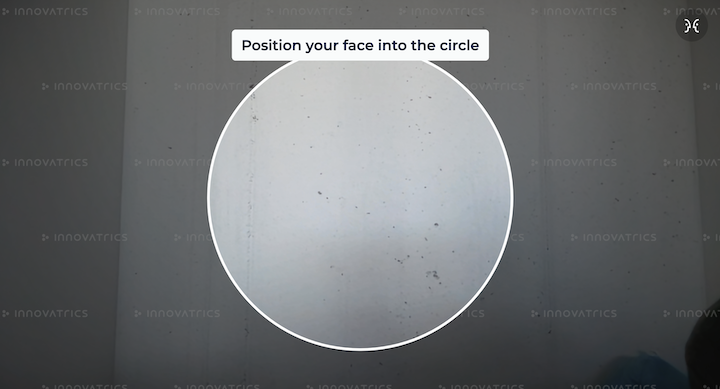
Components run in the free mode by default. This mode does not impose any feature limits, it just displays an watermark overlay over the component, to indicate not-licensed deployment. The overlay looks as on the image below:
Premium
To run components in premium mode, acp_core_wasm_bg.wasm and valid license files are needed. Additionally, if transaction reporting is enabled, a valid transaction token needs to be provided as a property (see transactionCountingToken in Properties).
To initialize WASM binary file please follow a steps in [Hosting WASM files].
To use your license file you need to copy it to project public directory within dot-assets directory as <PROJECT_ORIGIN>/dot-assets/iengine.lic.
By default, the component will try to fetch the desired license file from <PROJECT_ORIGIN>/dot-assets/iengine.lic or <PROJECT_ORIGIN>/dot-assets/license.lic*. This can be changed using assetsDirectoryPath property.
* Please note that fetching license from <PROJECT_ORIGIN>/dot-assets/license.lic by default is deprecated and will be removed in future versions. Please use <PROJECT_ORIGIN>/dot-assets/iengine.lic instead.
If one of the following steps fails, then component will run in [Freemium] mode:
WASM binary file not found
license file not found
license is not valid
transaction token is not valid or provided (if transaction reporting is enabled)
In order to obtain the license (and/or transaction token), please contact your Innovatrics’ representative.
Properties
(Optional)
object camera- Camera configuration(Optional)
[false]boolean isVideoCaptureEnabled– Enables video capture feature. Works only with IDV Digital Identity Service. When enabled, component captures the last 8 seconds of the camera stream before the moment of capture. Check Supported Browsers for details about the limitations regarding browser support. The captured video is bundled into the component’s result binary content and can be retrieved via the Digital Identity Service (DIS) for the purposes of Identity proofing.(Optional)
string facingMode– Defines which camera to acquire from browser’s getUserMedia API. Default camera facing for mobile phones is set toenvironmentand for others platforms is set touser'user'– The video source is facing toward the user; this is the selfie or front-facing camera on a smartphone'environment'– The video source is facing away from the user, thereby viewing their environment; this is the back camera on a smartphone
function onComplete– Callback on successful image capture(image, data) ⇒ void- (see Callback parameters)
function onError– Callback for the case that an error occurred (see Handling errors)(e: Error) ⇒ void
(Optional)
string assetsDirectoryPath- Path to thedot-assetsdirectory(Optional)
string sessionToken– Unique identifier of the session(Optional)
string transactionCountingToken– Unique identifier for the transaction counting feature(Optional)
object autoCapture- Auto capture configuration(Optional)
[2000]number candidateSelectionDurationMillis- Duration of the candidate selection phase in milliseconds
(Optional)
object qualityAttributeThresholds- Detection configuration(Optional)
object confidence- Detection confidence threshold(Optional)
number min- Minimum confidence threshold
(Optional)
object brightness- Brightness configuration(Optional)
number min- Minimum brightness threshold(Optional)
number max- Maximum brightness threshold
(Optional)
object edgeDistanceToImageShorterSideRatio- Edge distance configuration(Optional)
number min- Minimum edge distance threshold
(Optional)
object sharpness- Sharpness configuration(Optional)
number min- Minimum sharpness threshold
(Optional)
object size- Size configuration(Optional)
number min- Minimum size threshold(Optional)
number max- Maximum size threshold
(Optional)
object templateExtractionQuality- Template extraction quality configuration(Optional)
number min- Minimum template extraction quality threshold
(Optional)
HTMLElement styleTarget- Provide an alternate DOM node to inject styles. DOM node has to exist inside DOM before auto-capture component is initialized. This is useful when rendering components in a shadow DOM. By default, the styles are injected into the<head>element of the palm. See [style-target] example for more details.(Optional)
['AUTO_CAPTURE']captureMode- Defines a strategy for how a detection captures the desired image'AUTO_CAPTURE'- It is a standard way of how a detection captures an image. See Auto capture'WAIT_FOR_REQUEST'- Detection waits for request to capture an image. See Wait for request
Callback parameters
object imageDataBlob image– Returned image on successful capture injpegformatobject dataobject detection- Object contains all detection parameters and its values. Present if image was taken using auto capture (not manual capture).object imageResolution- Width and height of the captured image.
Uint8Array content- output for IDV Digital Identity Service. Learn more here
Thresholds presets
IDV Web Palm Capture uses multiple thresholds presets for detection configuration based on different conditions. Currently, there are two presets:
MOBILE - Thresholds for mobile devices
confidence
min:
0.8
brightness
min:
0.25max:
0.9
edgeDistanceToImageShorterSideRatio
min:
0.03
sharpness
min:
0.07
size
min:
0.4max:
0.8
templateExtractionQuality
min:
0.7
DESKTOP - Thresholds for desktop devices
confidence
min:
0.8
brightness
min:
0.25max:
0.9
edgeDistanceToImageShorterSideRatio
min:
0.03
sharpness
min:
0.06
size
min:
0.34max:
0.46
templateExtractionQuality
min:
0.7
If user decides to use custom threshold using qualityAttributeThresholds property, it will override value in all presets. All customizable thresholds can be adjusted in the range from 0 to 1.
Multi capture
Palm capture component allows you to capture an unlimited number of palms without the need to reinitialize the webcam and detector. This allows you to capture two sides of a palm or multiple palms.
Component calls onComplete callback on every captured palm photo. When onComplete is called, detection is paused. Camera stream and palm detector stay initialized.
Component is in waiting state. You should implement a custom UI for waiting state (e.g. overlay over our component). We provide a default UI, but it is not customizable.
To continue detection, dispatch continue-detection event.
Implement dispatch 'continue-detection' event
import { dispatchControlEvent, PalmCustomEvent, ControlEventInstruction } from "@innovatrics/dot-palm-capture/events";

function continueDetection() {
  dispatchControlEvent(PalmCustomEvent.CONTROL, ControlEventInstruction.CONTINUE_DETECTION)
}
Without importing @innovatrics/dot-palm-capture/events.
function continueDetection() {
  document.dispatchEvent(
    new CustomEvent("palm-capture:control", {
      detail: { instruction: "continue-detection" },
    }),
  );
}
Capture mode
Defines a strategy for how a detection captures the desired image.
Auto capture
It is an automated process that attempts to capture multiple valid images and selects the best one from them. If the component captures at least two valid images, it enters a phase called candidate selection. During this phase, which lasts 2000 milliseconds by default, the component continues to collect valid images. Once this phase is complete, the best image is selected and returned by the component using the onComplete callback.
The duration of the candidate selection phase can be customized using the candidateSelectionDurationMillis property.
Wait for request
It is a manual process that allows you to capture an image on request. In this mode, the component is ready and waiting for your command. More details about how to request an image can be found in Control Events. Once the component receives a request, it returns either the first image or the first valid image using the onComplete callback.
Please note that in this mode, the candidate selection phase used in Auto capture is ignored.
Handling errors
When an error occurs we call onError callback with one parameter of type Error. We set name property to AutoCaptureError and also message with more details.
Component renders default UI for error state but is not customizable, and integrator should implement own error handling.
Component uses the MediaDevices API that provides access to connected media input devices like cameras and microphones.
If the user denies permission to access or the webcam is not present, an error is thrown. We provide original error thrown by browser inside cause property of the error object.
List of possible errors can be found on MDN docs.
Error example:
{
  name: "AutoCaptureError",
  message: "The webcam is already in use by another application",
  cause: DOMException: Could not start video source // Original error thrown by browser MediaDevices API
}
Ui component
Requirements
Both components must be wrapped in parent div with position: relative.
<div style={{position: "relative"}}>
  <PalmUi control={{ showCameraButtons: true }} />
  <PalmCamera
    camera={{
      facingMode: "environment",
    }}
    onComplete={handleComplete}
    onError={handleError}
    transactionCountingToken="provide-the-token-here"
  />
</div>
Initialization
UI component can be installed via NPM, yarn or pnpm
npm install @innovatrics/dot-auto-capture-ui
To manually integrate UI component, download latest version from the Github repository. Add following line to dependencies in your package.json:
"dependencies": {
    "@innovatrics/dot-auto-capture-ui": "file:innovatrics-dot-auto-capture-ui-[VERSION].tgz",
}
where [VERSION] is the IDV Web Palm Capture version integrated. This installs dot-auto-capture-ui as an external module that can be used (just like any other module in the code). For example, one could do import '@innovatrics/dot-auto-capture-ui'; in the app.
Usage
Palm capture UI component is an web component which uses custom HTML <x-dot-palm-capture-ui /> tag.
Properties configuration needs to be passed into component after <x-dot-palm-capture-ui /> tag was rendered.
import type { PalmUiConfiguration, HTMLPalmUiElement } from "@innovatrics/dot-auto-capture-ui/palm";

import { useEffect } from "react";
import "@innovatrics/dot-auto-capture-ui/palm";

function PalmUi(configuration: PalmUiConfiguration) {
  useEffect(() => {
    const uiElement = document.getElementById("x-dot-palm-capture-ui") as HTMLPalmUiElement | null;

    if (uiElement) {
      uiElement.configuration = configuration;
    }
  });

  return <x-dot-palm-capture-ui id="x-dot-palm-capture-ui" />;
}
Alternatively, you can use useRef and useLayoutEffect to render a web component with its props.
import type { PalmUiConfiguration, HTMLPalmUiElement } from "@innovatrics/dot-auto-capture-ui/palm";

import { useLayoutEffect, useRef } from "react";
import "@innovatrics/dot-auto-capture-ui/palm";

function PalmUi(configuration: PalmUiConfiguration) {
  const ref = useRef<HTMLPalmUiElement | null>(null);

  useLayoutEffect(() => {
    const element = ref.current;

    if (element) {
      element.configuration = configuration;
    }
  }, [configuration]);

  return <x-dot-palm-capture-ui id="x-dot-palm-capture-ui" ref={ref} />;
}
TypeScript
Declaration files are bundled inside package. Just import types from @innovatrics/dot-auto-capture-ui/palm.
Properties
(Optional) [
'left']string placeholder- One of the predefined placeholders in component that can be selected'left''right'
(Optional)
object instructions- Modification of default messages for localization or customization(Optional)
['Hold still…']string candidate_selection- Shown when all validations are passed, i.e. image is suitable for capture(Optional)
['Center your palm']string palm_centering- Shown when the palm is not centered inside the placeholder(Optional)
['Position your palm']string palm_not_present- Shown when no palm is detected(Optional)
['Move closer']string palm_too_far- Shown when the palm is too far from the camera(Optional)
['Move back']string palm_too_close- Shown when the palm is too close to the camera(Optional)
['More light needed']string sharpness_too_low- Shown when the palm found in the image is not sharp enough(Optional)
['More light needed']string brightness_too_low- Shown when the image is too dark(Optional)
['Less light needed']string brightness_too_high- Shown when the image is too bright(Optional)
['More light needed']string quality_too_low- Shown when the palm quality is too low
(optional)
object styling- Modification of styling properties(Optional)
object theme- Modification of theme properties.(Optional)
colors- To customize colors of following properties(Optional)
['white']color placeholderColor- Color of the placeholder lines(Optional)
['#00BFB2']color placeholderColorSuccess- Color of the placeholder lines when all validations are passed(Optional)
['white']color instructionColor- Instruction background color(Optional)
['#00BFB2']color instructionColorSuccess- Instruction background color when all validations are passed(Optional)
['black']color instructionTextColor- Instruction text color
(Optional)
font- To customize font with following properties(Optional)
['Montserrat']string family- Font family. Please note that the chosen font must be installed and available in the styles of the web components for it to display correctly.(Optional)
[14]number minimumSize- Minimum font size, from which the actual font size is calculated relative to the component width/height(Optional)
['normal']string style- Font style(Optional)
[600]string|number weight- Font weight
(Optional)
appStateInstructions- Modification of default messages for component state(Optional)
loading- Component loading state(Optional)
['Loading. Please wait.']string text- Text shown while component is loading(Optional)
[true]boolean visible- Show/hide loading instruction while component is loading
(Optional)
waiting- Component waiting state(Optional)
['Waiting for input']string text- Text shown while component is waiting(Optional)
[true]boolean visible- Show/hide waiting instruction while component is waiting
(Optional)
object control- Modification of control properties(Optional)
[false]booleanshowDetectionLayer- Show/hide detection layer on top of component(Optional)
[false]booleanshowCameraButtons- Show/hide camera buttons (switch camera and toggle mirror) on top of component
(Optional)
HTMLElement styleTarget- Provide an alternate DOM node to inject styles. DOM node has to exist inside DOM before auto-capture component is initialized. This is useful when rendering components in a shadow DOM. By default, the styles are injected into the<head>element of the palm. See [style-target] example for more details.(Optional)
['AUTO_CAPTURE']captureMode- Defines a strategy for how a detection captures the desired image'AUTO_CAPTURE'- It is a standard way of how a detection captures an image. See Auto capture'WAIT_FOR_REQUEST'- Detection waits for request to capture an image. See Wait for request
(Optional)
boolean isVideoCaptureEnabled– Enables video capture feature. Works only with IDV Digital Identity Service. When enabled, component captures the last 8 seconds of the camera stream before the moment of capture. Check Supported Browsers for details about the limitations regarding browser support. The captured video is bundled into the component’s result binary content and can be retrieved via the Digital Identity Service (DIS) for the purposes of Identity proofing.
Example how to use UI properties:
<PalmUi
  styling={theme={{ colors: { placeholderColor: "green" }, font: { style: 'italic' } }}}
  control={{
    showDetectionLayer: true,
    showCameraButtons: true,
  }}
  placeholder="left"
  instructions={{ candidate_selection: "Candidate selection" }}
  appStateInstructions={{ loading: { text: "Component is loading", visible: true } }}
/>
Example how to import fonts (using head in main html file):
<!DOCTYPE html>
<html lang="en">
  <head>
    <meta charset="UTF-8" />
    <link rel="icon" type="" href="" />
    <meta name="viewport" content="width=device-width, initial-scale=1.0" />
    <title>Title</title>
    <!-- import font in the head -->
    <link rel="preconnect" href="https://fonts.googleapis.com">
    <link rel="preconnect" href="https://fonts.gstatic.com" crossorigin>
    <link href="https://fonts.googleapis.com/css2?family=Montserrat&display=swap" rel="stylesheet">
    <!------->
  </head>
</html>
Example how to use styleTarget prop with Ui component when using Shadow DOM:
This approach also works for Non-ui component.
import type { PalmUiConfiguration, HTMLPalmUiElement } from "@innovatrics/dot-auto-capture-ui/palm";
import { useEffect } from "react";

import "@innovatrics/dot-auto-capture-ui/palm";

function PalmUi(configuration: PalmUiConfiguration) {
  useEffect(() => {
    const uiElement = document.getElementById(
      "x-dot-palm-capture-ui"
    ) as HTMLPalmUiElement | null;

    const styleNode = document.createElement('div');

    uiElement?.shadowRoot?.append(styleNode);

    if (uiElement) {
       uiElement.configuration = {
        ...configuration,
        styleTarget: styleNode,
      };
    }
  });

  return <x-dot-palm-capture-ui id="x-dot-palm-capture-ui" />;
}
HTML of example above will look like this:
<x-dot-palm-capture-ui id="x-dot-palm-capture-ui">
  #shadow-root (open)
    <div>
      <style data-styled="active" data-styled-version="6.1.0">
        /* CSS styles will be injected here*/
      </style>
    </div>
</x-dot-palm-capture-ui>
Custom Events - Optional
Communication between components is based on custom events. Ui component is mostly listening to events dispatched by Non-ui component. In case of CONTROL event, Ui component dispatches control events to control Non-ui component.
When using default Ui component, only dispatch continue-detection event has to be implemented to use Multi capture.
Type of Events
Currently all events being used are described in this section. These are sufficient to build custom UI layer.
enum PalmCustomEvent- Event names dispatched by componentsCONTROL = 'palm-capture:control'- Events dispatched from Ui component to control Non-ui component. Described in Control Events sectionCAMERA_PROPS_CHANGED = 'palm-capture:camera-props-changed'- Notifies UI when camera properties has changedINSTRUCTION_CHANGED = 'palm-capture:instruction-changed'- Notifies the UI when the instruction has changed and whether it has been escalatedSTATE_CHANGED = 'palm-capture:state-changed'- Notifies UI when state of Non-ui component has changedDETECTION_CHANGED = 'palm-capture:detection-changed'- Notifies UI when palm corners are detected. Used in Detection Layer, has no effect ifshowDetectionLayer = falseVIDEO_ELEMENT_SIZE = 'palm-capture:video-element-size'- Notifies UI when HTML video element size has changed
enum ComponentCustomEvent- Event names dispatched by componentsREQUEST_CAPTURE - dot-custom-event:request-capture- Event dispatched from outside of Non-ui component to request capture when component is running inWAIT_FOR_REQUESTcapture mode. Described in Control Events section
Usage
Import @innovatrics/dot-palm-capture/events to use event types and and dispatch control events.
Listening to the Events
All event listeners are already implemented in default Ui component. Skip this section if you are using default Ui component.
All PalmCustomEvent events, except CONTROL, are dispatched by Palm Auto Capture Non-ui component. Ui component listens to these events to make appropriate changes. See the example below how to register event listeners.
import type {
  PalmInstructionChangeEvent,
  CameraPropsChangeEvent,
  CameraStateChangeEvent,
  DetectedPalmChangeEvent,
  VideoElementSizeChangeEvent
} from "@innovatrics/dot-palm-capture/events";
import { PalmCustomEvent } from "@innovatrics/dot-palm-capture/events";
import type {
  AppState,
  DetectedPalmCorners,
  PalmInstructionCode,
  Resolution,
  AutoCaptureError
} from "@innovatrics/dot-palm-capture";
import { useEffect, useState } from "react";


export function Events() {
  const [instructionCode, setInstructionCode] = useState<{ code?: PalmInstructionCode; isEscalated: boolean }>();
  const [cameraResolution, setCameraResolution] = useState<Resolution | undefined>();
  const [isMirroring, setIsMirroring] = useState<boolean | undefined>();
  const [appState, setAppState] = useState<AppState | undefined>();
  const [error, setError] = useState<AutoCaptureError | undefined>();
  const [detectedPalmCorners, setDetectedPalmCorners] = useState<DetectedPalmCorners | undefined>();
  const [videoElementSize, setVideoElementSize] = useState<DOMRect | undefined>();


  useEffect(() => {
    function handleInstruction(event: PalmInstructionChangeEvent) {
       setInstructionCode({
        code: event?.detail?.instructionCode,
        isEscalated: event?.detail?.isEscalated ?? false,
      });
    }

    function handleCameraProps(event: CameraPropsChangeEvent) {
      setCameraResolution(event?.detail?.cameraResolution);
      setIsMirroring(event?.detail?.isMirroring);
    }

    function handleAppState(event: CameraStateChangeEvent) {
      setAppState(event?.detail?.appState);

      const error = event?.detail?.error;

      if (error) {
        setError(error);
      }
    }

    function handleDetectedPalm(event: DetectedPalmChangeEvent) {
      setDetectedPalmCorners(event?.detail?.detectedCorners);
    }

    function handleVideoElementSize(event: VideoElementSizeChangeEvent) {
      setVideoElementSize(event.detail?.size)
    }

    document.addEventListener(PalmCustomEvent.INSTRUCTION_CHANGED, handleInstruction);
    document.addEventListener(PalmCustomEvent.CAMERA_PROPS_CHANGED, handleCameraProps);
    document.addEventListener(PalmCustomEvent.STATE_CHANGED, handleAppState);
    document.addEventListener(PalmCustomEvent.DETECTION_CHANGED, handleDetectedPalm);
    document.addEventListener(PalmCustomEvent.VIDEO_ELEMENT_SIZE, handleVideoElementSize)

    return () => {
      document.removeEventListener(PalmCustomEvent.INSTRUCTION_CHANGED, handleInstruction);
      document.removeEventListener(PalmCustomEvent.CAMERA_PROPS_CHANGED, handleCameraProps);
      document.removeEventListener(PalmCustomEvent.STATE_CHANGED, handleAppState);
      document.removeEventListener(PalmCustomEvent.DETECTION_CHANGED, handleDetectedPalm);
      document.removeEventListener(PalmCustomEvent.VIDEO_ELEMENT_SIZE, handleVideoElementSize);
    };
  }, [])
}
Without importing @innovatrics/dot-palm-capture/events you can use values of PalmCustomEvent directly.
const instructionChangeEvent = "palm-capture:instruction-changed";

function handleInstructionChange(event) {
  console.log(event.detail.instructionCode)
  console.log(event.detail.isEscalated)
}

document.addEventListener(instructionChangeEvent, handleInstructionChange);

/**
 * remove event listener when you're done
 */
document.removeEventListener(instructionChangeEvent, handleInstructionChange);
Control Events
Control events are dispatched from outside of Non-ui component to control it.
PalmCustomEvent.CONTROL
Events are dispatched from Ui component to control Non-ui component.
enum ControlEventInstructionCONTINUE_DETECTION = 'continue-detection'- Controls Multi captureSWITCH_CAMERA = 'switch-camera'- Notifies Palm Auto Capture to use different cameraTOGGLE_MIRROR = 'toggle-mirror'- Notifies Palm Auto Capture to mirror video stream
import { dispatchControlEvent, PalmCustomEvent, ControlEventInstruction } from "@innovatrics/dot-palm-capture/events";

export function Dispatch() {

  function continueDetection() {
    dispatchControlEvent(PalmCustomEvent.CONTROL, ControlEventInstruction.CONTINUE_DETECTION)
  }

  function switchCamera() {
    dispatchControlEvent(PalmCustomEvent.CONTROL, ControlEventInstruction.SWITCH_CAMERA)
  }

  function toggleMirror() {
    dispatchControlEvent(PalmCustomEvent.CONTROL, ControlEventInstruction.TOGGLE_MIRROR)
  }

  return (
    <div>
      <button onClick={continueDetection}>Continue detection</button>
      <button onClick={switchCamera}>Switch camera</button>
      <button onClick={toggleMirror}>Mirror camera</button>
    </div>
  )
}
Without importing @innovatrics/dot-palm-capture/events you can use values of PalmCustomEvent and ControlEventInstruction directly.
function continueDetection() {
  document.dispatchEvent(
    new CustomEvent("palm-capture:control", {
      detail: { instruction: "continue-detection" },
    }),
  );
}
ComponentCustomEvent.REQUEST_CAPTURE
enum RequestCaptureInstructionFIRST_FRAME = 'first-frame'- Notifies Palm Auto Capture to capture the very first image right after capturing this event. Validation and detection results are not evaluated in the processFIRST_VALID_FRAME = 'first-valid-frame'- Notifies Palm Auto Capture to capture the very first valid image right after capturing this event. Validation and detection results are evaluated in the process
import { dispatchCaptureEvent, ComponentCustomEvent, RequestCaptureInstruction } from "@innovatrics/dot-palm-auto-capture/events";

export function Dispatch() {

  function captureAnyImage() {
    dispatchCaptureEvent(ComponentCustomEvent.REQUEST_CAPTURE, RequestCaptureInstruction.FIRST_FRAME)
  }

  function captureValidImage() {
    dispatchCaptureEvent(ComponentCustomEvent.REQUEST_CAPTURE, RequestCaptureInstruction.FIRST_VALID_FRAME)
  }

  return (
    <div>
      <button onClick={captureAnyImage}>Capture any image</button>
      <button onClick={captureValidImage}>Capture valid image</button>
    </div>
  )
}
Without importing @innovatrics/dot-palm-auto-capture/events you can use values of ComponentCustomEvent and RequestCaptureInstruction directly.
function captureAnyImage() {
  document.dispatchEvent(
    new CustomEvent("dot-custom-event:request-capture", {
      detail: { instruction: "first-frame" },
    }),
  );
}

function captureValidImage() {
  document.dispatchEvent(
    new CustomEvent("dot-custom-event:request-capture", {
      detail: { instruction: "first-valid-frame" },
    }),
  );
}
Example of using components together
import type { CallbackImage, DetectedPalm } from "@innovatrics/dot-palm-capture";
import {
  dispatchControlEvent,
  PalmCustomEvent,
  ControlEventInstruction
} from "@innovatrics/dot-palm-capture/events";

import PalmCamera from "./camera";
import PalmUi from "./PalmUi";

function PalmAutoCapture() {
  function handleOnComplete({ image, data }: CallbackImage<DetectedPalm>, content: Uint8Array) {
    console.log(image, data);
  }

  function handleError(error: Error) {
    alert(error);
  }

  function handleContinueDetection() {
    dispatchControlEvent(PalmCustomEvent.CONTROL, ControlEventInstruction.CONTINUE_DETECTION)
  }

  return (
    <div>
      <button onClick={handleContinueDetection}>Continue detection</button>
      <div style={{ position: "relative" }}>
        <PalmUi />
        <PalmCamera
          camera={{ facingMode: "environment" }}
          onComplete={handleOnComplete}
          onError={handleError}
          transactionCountingToken="provide-the-token-here"
        />
      </div>
    </div>
  );
}
Code Samples
See also IDV Web Samples showing the usage of IDV Web Auto Capture components in different front-end technologies like React, Angular…
Appendix
Changelog
8.2.0 - 2026-09-09
Incremental version upgrade
8.1.5 - 2026-08-25
Fixed
Fixed the recorded video (
isVideoCaptureEnabled) containing only black frames when the camera was switched during the capture. The recording now restarts with the newly selected cameraFixed an intermittent
AutoCaptureErrorand frozen camera preview when the capture restarted while a frame was still being processed — most likely in Android webviews, where the page repeatedly loses and regains focusFixed the error overlay not appearing when an unexpected error occurred inside the UI component, and an internal error masking the original one. The overlay is now rendered and the original error is reported
8.1.4 - 2026-08-07
Fixed
Fixed the component not starting automatically in some native webview integrations until the user tapped the page
8.1.3 - 2026-08-03
Fixed
Fixed HTTP 500 on Digital Identity Service upload when video capture (
isVideoCaptureEnabled) is enabled on a device without H.264 encoder support (Android 9 and older). Such devices now upload the record without video. Devices with encoder support are not affected
8.1.2 - 2026-06-23
Incremental version upgrade
8.1.1 - 2026-06-10
Fixed
Fixed capture freezing on Android WebView 147+ — after a successful capture, image processing could stall (until the screen was tapped) because the WebView stopped rendering frames while the screen was static
8.1.0 - 2026-05-28
Incremental version upgrade
8.0.7 - 2026-05-05
Fixed
Accidental Freemium overlay shown for some licenses
8.0.6 - 2026-04-23
Incremental version upgrade
8.0.5 - 2026-04-15
Changed
Changed file name in
/dot-assetsfolder fromdot_embedded_bg.wasmtoacp_core_wasm_bg.wasm
8.0.4 - 2026-02-23
Incremental version upgrade
8.0.3 - 2026-02-12
Changed
Improved security measures and analytics
8.0.2 - 2026-01-14
Changed
Improved security measures and enhanced protection against vulnerabilities
8.0.1 - 2025-12-29
Incremental version upgrade
8.0.0 - 2025-12-15
Changed
default threshold for
sizeIntervalThreshold.maxonDESKTOPpreset from0.46to0.38default threshold for
sizeIntervalThreshold.minonDESKTOPpreset from0.34to0.3default threshold for
sizeIntervalThreshold.maxonMOBILEpreset from0.8to0.48BREAKING CHANGE Component configuration refactoring:
Non-UI component: property
cameraOptionsrenamed toconfigurationNon-UI component:
HTMLPalmCaptureElement.cameraOptionsrenamed toHTMLPalmCaptureElement.configurationNon-UI component:
PalmCameraPropstype renamed toPalmConfigurationNon-UI component:
thresholdsproperty renamed toqualityAttributeThresholdsNon-UI component: callback
onPhotoTakenrenamed toonCompleteNon-UI component: callback parameter
datarenamed toimageDataUI component: property
propsrenamed toconfigurationUI component:
HTMLPalmUiElement.propsrenamed toHTMLPalmUiElement.configurationUI component:
PalmUiPropstype renamed toPalmUiConfigurationUI component:
showCameraButtonsmoved to nestedcontrolobject (control.showCameraButtons)UI component:
showDetectionLayermoved to nestedcontrolobject (control.showDetectionLayer)UI component:
backdropColormoved to nestedstylingobject (styling.backdropColor)UI component:
thememoved to nestedstylingobject (styling.theme)BREAKING CHANGE Complete restructure of threshold public API (breaking change):
Property names changed:
confidenceThreshold→confidencesharpnessThreshold→sharpnessbrightnessHighThresholdandbrightnessLowThreshold→brightnesssizeIntervalThreshold→sizeoutOfBoundsThreshold→edgeDistanceToImageShorterSideRatiominTemplateExtractionQualityThreshold→templateExtractionQualityChanged default analytics provider from Countly to Innovatrics Metrics Middleware
BREAKING CHANGE Transaction reporting is now enabled by default (
transactionCountingTokenrequired in initialization phase when transaction reporting is included in license)
Deprecated
Firefox browser support is deprecated due to incompatibility with required web platform features and will be discontinued in the next major release. A warning message will be displayed on localhost when using Firefox.
7.7.0 - 2025-11-20
# Added
Video capture (only with Digital Identity Service)
isVideoCaptureEnabledto enable Video Capture
Changed
update
SAMto version 1.50.5
7.6.1 - 2025-10-17
Incremental version upgrade
7.6.0 - 2025-10-16
Incremental version upgrade
7.5.1 - 2025-10-06
Fixed
Increasing memory usage after each init
7.5.0 - 2025-08-21
# Added
transactionCountingTokenproperty to provide token for transaction reportingTransaction reporting (for licenses with enabled transaction reporting)
placeholder property to
PalmUicomponent to allow for customizing the placeholder icon
Fixed
Improved data integrity and stability fixes
7.4.0 - 2025-07-09
Added
candidateSelectionDurationMillisproperty toCameraOptionsminTemplateExtractionQualityThresholdproperty for customizing the palm quality threshold
Changed
default candidate selection duration changed to 2000ms
update
SAMto version 1.49.1default threshold for
sizeIntervalThreshold.maxonMOBILEpreset from1.0to0.8
7.3.3 - 2025-06-16
Added
note in documentation about Apple Continuity Camera
Fixed
loading animation not visible after request for camera permission has been accepted
7.3.2 - 2025-04-25
Fixed
documentation typo
7.3.1 - 2025-04-24
Fixed
documentation typo
7.3.0 - 2025-04-24
Fixed
unintentional component reset on focus
Added
added thresholds presets
MOBILEandDESKTOP
7.2.1 - 2025-03-24
Fixed
typescript events types import
7.2.0 - 2025-03-24
First released version